






Not on the Chrome Web Store yet
ProRealCode Studio is on its way. As soon as it is published, this button will take you straight to its Chrome Web Store page.
When something does not work.
Each problem below starts from what you see on screen, says why in the words Studio uses, and ends with what to do. Start with the bottom-left corner of the editor: most answers are written there.

The link with the chart
| You see | Why | What to do |
|---|---|---|
| “chart: detecting…” and it stays | Studio has not found a chart to work with yet. | Open an instrument chart on the platform, then ⋯ → “⟳ Re-detect chart”. |
| A red light and “no chart” | No instrument chart is open. The tooltip says “open an instrument chart”. | Open one. The light turns green on its own. |
| An amber light and “linking chart…” | The chart is found but not ready. Hover the words: the tooltip says what is missing, such as “waiting for the price scale…”. | Wait a few seconds. If the tooltip ends with “reload the page”, press F5. |
| Odd behaviour right after Studio was installed or updated | The ProRealTime page still runs the previous copy. | Reload the ProRealTime page with F5. |
A flat line, a gap, or no curve at all.
| You see | Why | What to do |
|---|---|---|
| “View” or “Run” and nothing appears | The code is not on the chart: “View” then says “not applied on the chart — ▶ Run to add …”. Or the code was hidden: “hiding this code on the chart”. | Click “Run”. If the code is hidden, click “View” again. |
| A flat line at 0 | A variable is read before anything is written to it: it reads 0. The editor says “'x' is never assigned — reads as 0”. | Look in the Problems panel and fix the name or the order of the lines (chapter 09). |
| No curve on the first bars, then a curve | An indicator needs some bars before it has a value: a 50-bar average has none on the first 49. | Nothing to fix. Load more history if the gap matters. |
A ZigZag flat, or empty | Its source is a variable. It needs the expression itself. | Write the calculation inside the parentheses. The editor points at the line. |
| No curve, and the status line waits for a timeframe | The candles of a TIMEFRAME are on their way. | Wait. It draws as soon as they arrive. |
No curve, and MarketData: cannot resolve '…' | Studio cannot reach that instrument by its name. | Use a forex pair or a future the platform lists, or open that instrument's chart and use "" (chapter 23). |
| A spread code shows nothing, and a message in Problems | The instrument has no order book: BID and ASK have no value. | Try another instrument, or guard the code with ISSET. |
| The chart stops moving, the curves freeze | The page stopped processing prices. If you opened the browser's console, it may only say Script error. | Reload the page with F5. If it happens again with the same code, tell us on the forums (last sheet). |
Codes that seem gone, and a sync that waits.
| You see | Why | What to do |
|---|---|---|
| After a reload, other codes on the chart, or none | Codes on the chart and open tabs belong to the account connected in this browser. | Open “Account” and check which account is connected. Connect the first one again and its codes come back. |
| My codes are gone on another computer, or after cleaning the browser | Without an account, codes live only in this browser, and leave with its data. | Connect a prorealcode.com account: saved codes are kept on it too (chapter 05). Or export your library from the Codes window. |
| “Offline — saved locally” | Studio cannot reach your account right now. Your changes are saved in this browser and sync later. | Keep working. Click “Sync now” in “Account” once you are back online. |
| “Sync failed” | The last attempt did not go through. | Click “Sync now”, then “Refresh”. |
| “Your computer clock is off by about N min.” | With a wrong clock, edits from another browser may overwrite yours. | Set your computer's clock to the right time. |
| An empty panel under the chart, after a reload | The platform kept a panel Studio had opened, without its content. | Wait a few seconds: Studio removes it by itself when none of your codes draws in a panel. Otherwise close it the way you close any panel on the platform. |
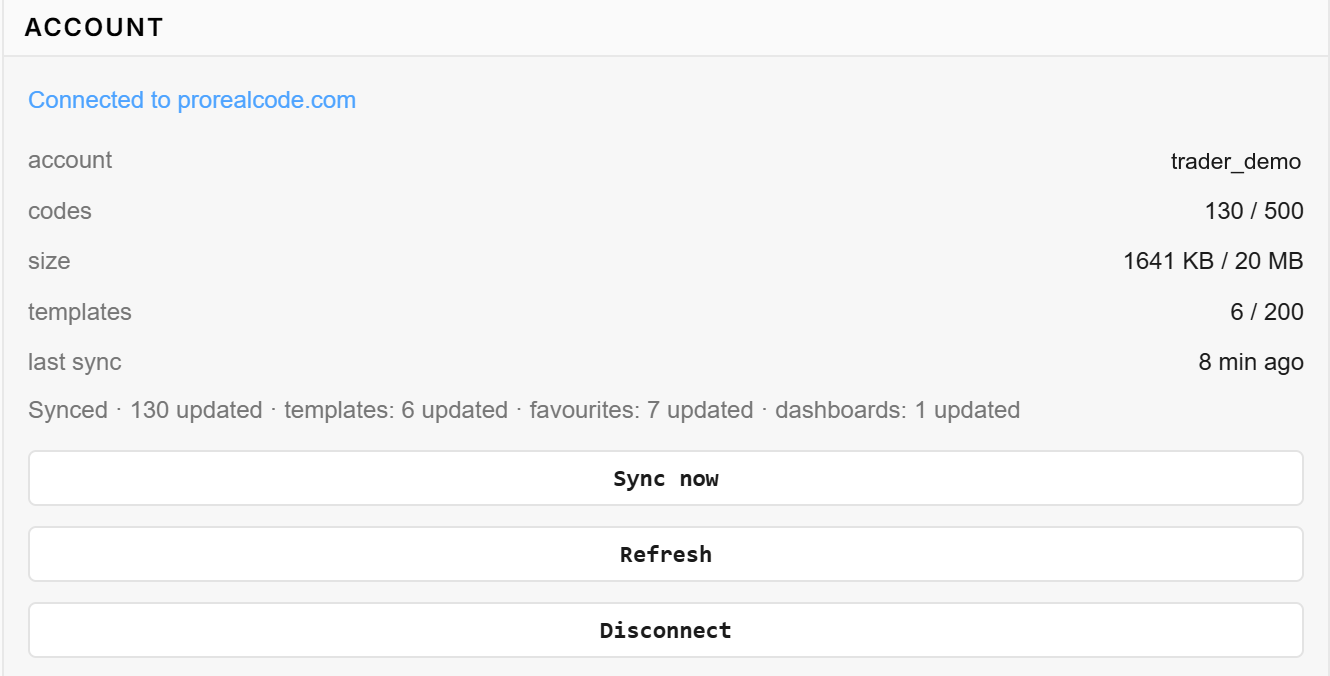
“Account” answers most of these questions: which account is connected, how many codes it holds, when it last synced, and what the last sync did.
An alert that did not come, or came late.
| You see | Why | What to do |
|---|---|---|
| An alert never fired | Alerts fire on live price updates, while a ProRealTime tab is open. Never on past bars. | Keep a ProRealTime tab open. Test on a live market. |
| An alert came late, or skipped a bar | In a hidden tab the browser slows the page down: up to about a minute late. | Keep the tab visible when the bar matters. |
| No alert from a code that is on the chart | The code is hidden. “Not drawn means not evaluated”: its alerts cannot fire. | Show it again with “View” or in “Codes on the chart”. |
| No popup, no beep, no desktop notification | The code is muted or snoozed in the Alerts window. Desktop notifications are off by default. | Unmute it, or “cancel snooze”. Switch on “Desktop notifications” (chapter 16). |
| “⚠ webhook failed (…) — is the receiver running?” | The address did not answer. A receiver on your own machine cannot be reached from Chrome. | Check the address in Preferences, Alert. Use a public receiver or a tunnel. |
The code runs here. Why not there?
The ProRealTime editor refuses a code that runs in Studio.
The code uses an instruction that only ProRealCode Studio understands: the Studio Only badge beside its name says so, and its tooltip names the instruction. Remove those instructions, or keep the code in Studio (chapter 23).
“'rsi' is a reserved word and cannot be used as a variable name”.
The name of an instruction cannot name a variable. Rename it, myrsi for instance, everywhere in the code.
Studio offers to close a tab when I open a code.
You reached “Maximum open codes”, 6 by default. Accept, or raise the limit in Preferences, Limits (chapter 24).
Studio offers to take a code off the chart.
You reached “Maximum codes on the chart”, 8 by default. Every code on the chart is recalculated on each bar: take off one you no longer read, or raise the limit.
My TIMEFRAME(5 minutes) is refused on a 1-hour chart.
A timeframe finer than the chart's is refused. Put the chart on 5 minutes or less.
My backtest differs from ProRealTime's.
Studio simulates the fills itself. When a stop and a target fall in the same bar, it takes the stop; ProRealTime decides on a lower timeframe (chapter 18).
I change a value in ⚙ Settings and nothing moves.
The code also assigns that name on another line, and that line wins over ⚙ Settings. The editor warns about it: remove the assignment.
My copied code starts with //@ProRealCodeScript@…@.
Studio adds that comment line to everything you copy, to say which version wrote it. Any editor reads it as a comment. Leave it or delete it.
Still stuck
Open the About panel and click “Help forums”: prorealcode.com/forums/. Say what the status bar shows, which instrument and timeframe, and paste the code if you can.
Chapter 27 · Privacy, legal notices and going further