






Not on the Chrome Web Store yet
ProRealCode Studio is on its way. As soon as it is published, this button will take you straight to its Chrome Web Store page.
Your chart's codes, all in one window.
The “Codes on the chart” window lists every code your chart runs, copies included. Hide one, retune it, place it, take it off, without opening the editor.
- 01Open the window
- 02Act on one code
- 03Choose where it draws
- 04Know the limit
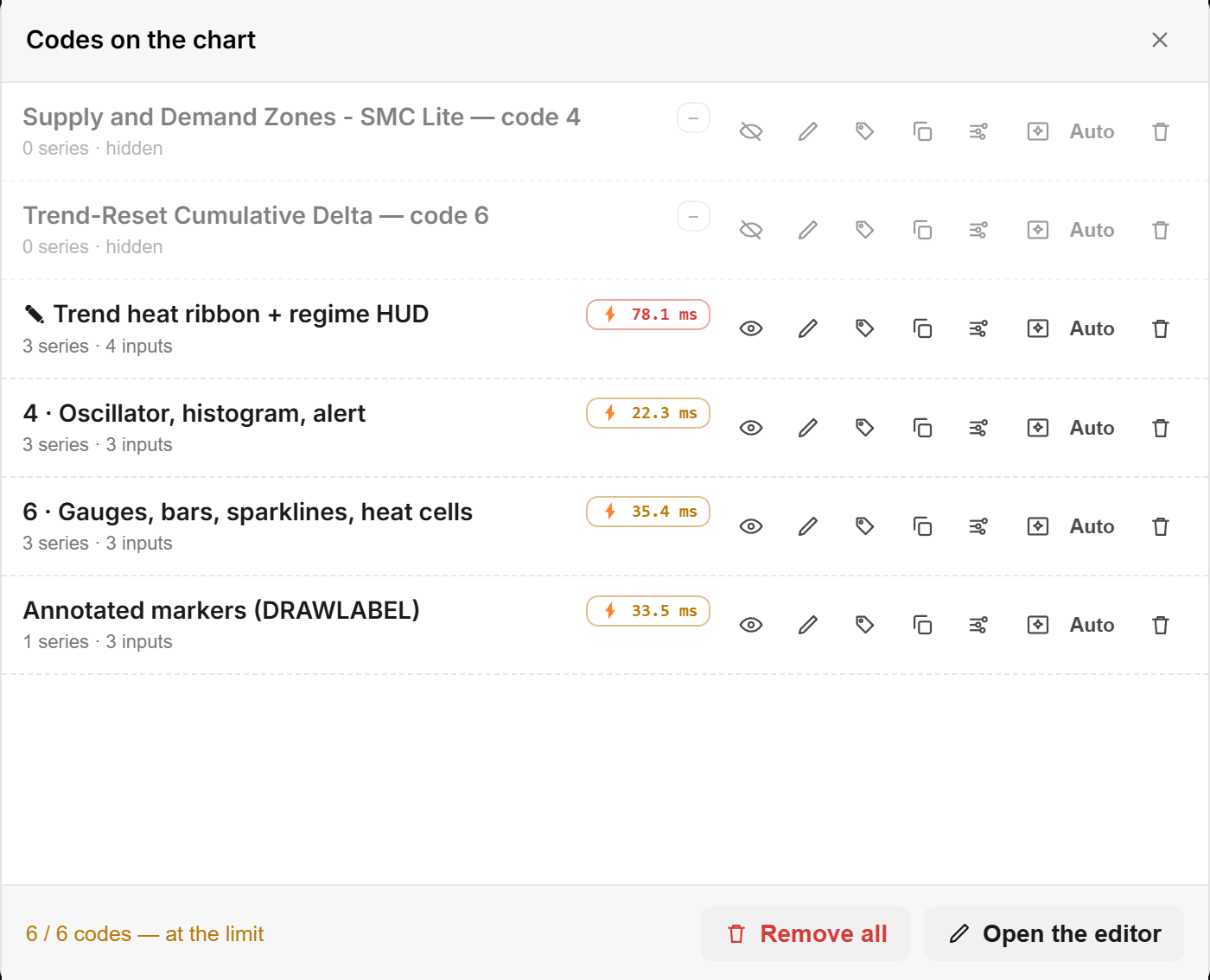
One row per code your chart is running.
 1
2
3
4
5
6
7
8
- A hidden code. Greyed, marked “hidden”. It costs nothing while hidden.
- The name. “✎” in front: the code open in the editor now. Two copies of one code read “#1” and “#2”.
- The details: curves drawn (“series”) and settings (“inputs”). Settings you changed come first.
- The row buttons, in the column above the pin. Task 2. The chip before them is the computing time (chapter 11).
- Placement, in the column above: where the code draws. Task 3.
- The count, out of the limit. The limit was set to 6 here.
- “Remove all” empties this chart, and the codes kept from a closed chart, after a question.
- “Open the editor”, to change a code.
- Click the broken-line icon, second from the top of the rail on the left edge of the editor.The window opens at the top right of the screen. Drag it by its title: it reopens where you left it.
- With the editor closed, click the “Active” row of the ƒ launcher instead, or press Alt + I.The same window opens, and the editor stays closed. The shortcut does nothing while you are typing in a text field.
- Press Esc, the × at its top right, or Alt + I again.The window closes. Nothing on the chart changes.
On the candles or in its own panel. Auto picks, you can overrule it.

| Button reads | Where the code draws | Next click |
|---|---|---|
| Auto | Studio decides. If every curve of the code stays inside the price range of the chart's bars, it draws on the candles. If one curve leaves that range, an RSI between 0 and 100 on EUR/USD for instance, the whole code gets its own panel under the chart. This is where every code starts. | Candles |
| Candles | On the candles, on the price scale, because you chose it. | Panel |
| Panel | In its own panel under the chart, with its own scale, because you chose it. | Auto |
- Click the placement button on the code's row.It moves to the next state and the chart redraws the code in its new place.
- Click until it reads “Auto” again to hand the choice back to Studio.Your choice is kept with the code, and holds for every copy of it on the chart.
When the code decides for itself
DEFPARAM overlay = false   // its own panel
DEFPARAM overlay = true    // on the candles
The button shows the code's choice, greyed, and the row adds “placement fixed by DEFPARAM overlay in the code”. Its tooltip says what to do: “remove that line to choose it here”. The ProRealTime editor does not know this line; Studio marks such a code “Studio Only” (chapter 23).
Eight codes by default. You can move that number.
Every code on the chart is computed again on each new bar. To keep the chart smooth, Studio runs at most 8 at once. Change the number in “⚙ Preferences” → “Limits” → “Maximum codes on the chart”, anywhere from 1 to 40 (chapter 24).
At the limit, the window's count reads “— at the limit”. Putting one more code on the chart then asks “Take … off to apply …?” and names the code it offers to remove: a hidden one if there is one, otherwise the oldest one whose code survives its removal. Cancel, and nothing changes.
| Keys | Does |
|---|---|
| Alt + I | Open or close “Codes on the chart” |
| Esc | Close it, with the cursor inside |
The window lists what draws on your chart, one row per copy. Seven buttons per row show or hide a code, open it, rename it, duplicate it, set it up, place it and remove it. Saved codes survive every one of those clicks.
My oscillator draws over the candles. Why?
Its placement reads “Candles”, or its code says DEFPARAM overlay = true. Set the button to “Auto” or “Panel”.
A row shows “⚠” and a sentence instead of its details.
The code hit an error on the chart. The sentence is the error. Open the code with the pencil and see chapter 09.
I hid a code. Will its alert still ring?
No. A hidden code is not computed, so its alerts cannot fire. Show it again and they work again from the next price update.
The list is empty but I see curves on my chart.
Those are the platform's own indicators. This window lists only the codes ProRealCode Studio runs.
Chapter 13 · Chart templates