






Not on the Chrome Web Store yet
ProRealCode Studio is on its way. As soon as it is published, this button will take you straight to its Chrome Web Store page.
Set up your chart once. Bring it back in one click.
A template remembers which of your codes are on the chart, with their settings. Apply it later, on another day or another instrument, and the same set comes back exactly as you tuned it.
- 01Save a template
- 02Find your templates
- 03Apply, update, tidy up
Name what is on your chart, and keep it.
- Click the icon of three stacked layers on the rail, under the broken-line icon. With the editor closed, use the “Templates” row of the ƒ launcher.The “▤ Templates” window opens over the chart.
- Click “Save the applied codes as a template”, at the bottom of the window.If every code on the chart is saved, the name dialog of step 4 opens straight away.
- If Studio asks whether to save some codes to your Codes first, answer it.“OK” saves those codes to “My codes” and puts them in the template. “Cancel” leaves them out and keeps the others.
- Type a name, and a description if you want one, then click “OK”.The template appears at the top of the list. Without a name, it is called “Template”.
| The dialog reads | When |
|---|---|
| “1 applied indicator is not in your Codes yet, and a template can only point at saved codes. Save it to your Codes now and include it in the template?” | A code on the chart was never saved: run from a new tab, or an example you did not save. With other codes saved, the dialog adds “Cancel saves the template with the other 2 only.” |
| “Save 3 applied codes as a template” | The name dialog, with two fields: “Name” and “Description (optional)”. The number is how many codes the template will hold. |
What goes into it
- Each code on the chart, by its name in “My codes”.
- The settings each copy runs with, as set in “⚙ Settings”.
- Whether each code is shown or hidden.
What does not
The code itself, the instrument, the timeframe and the platform's own indicators. A template puts your codes back; it does not change what the chart shows.
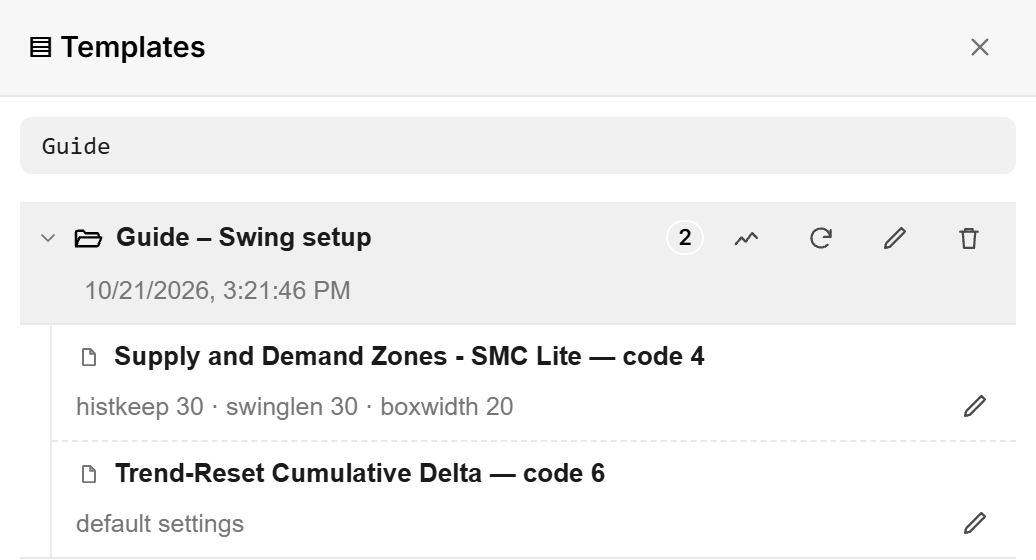
Each template, the codes it holds and their settings.
 1
2
3
4
5
6
7
8
9
- The filter. Type part of a template's name. It searches names only.
- The template, its description if it has one, and the date of its last change. Click the row to fold or unfold its codes. The newest is at the top.
- How many codes it holds.
- Apply. Puts these codes on the chart, in place of the ones there now. Task 3.
- Update. Replaces what the template holds with what is on the chart now. Task 3.
- Edit the name and the description.
- Delete the template. Your codes are not touched.
- A code and its settings, as they will come back. “default settings” when you changed none.
- The pencil opens that code in the editor. The chart is not touched.
Applying replaces the chart. Studio asks first.
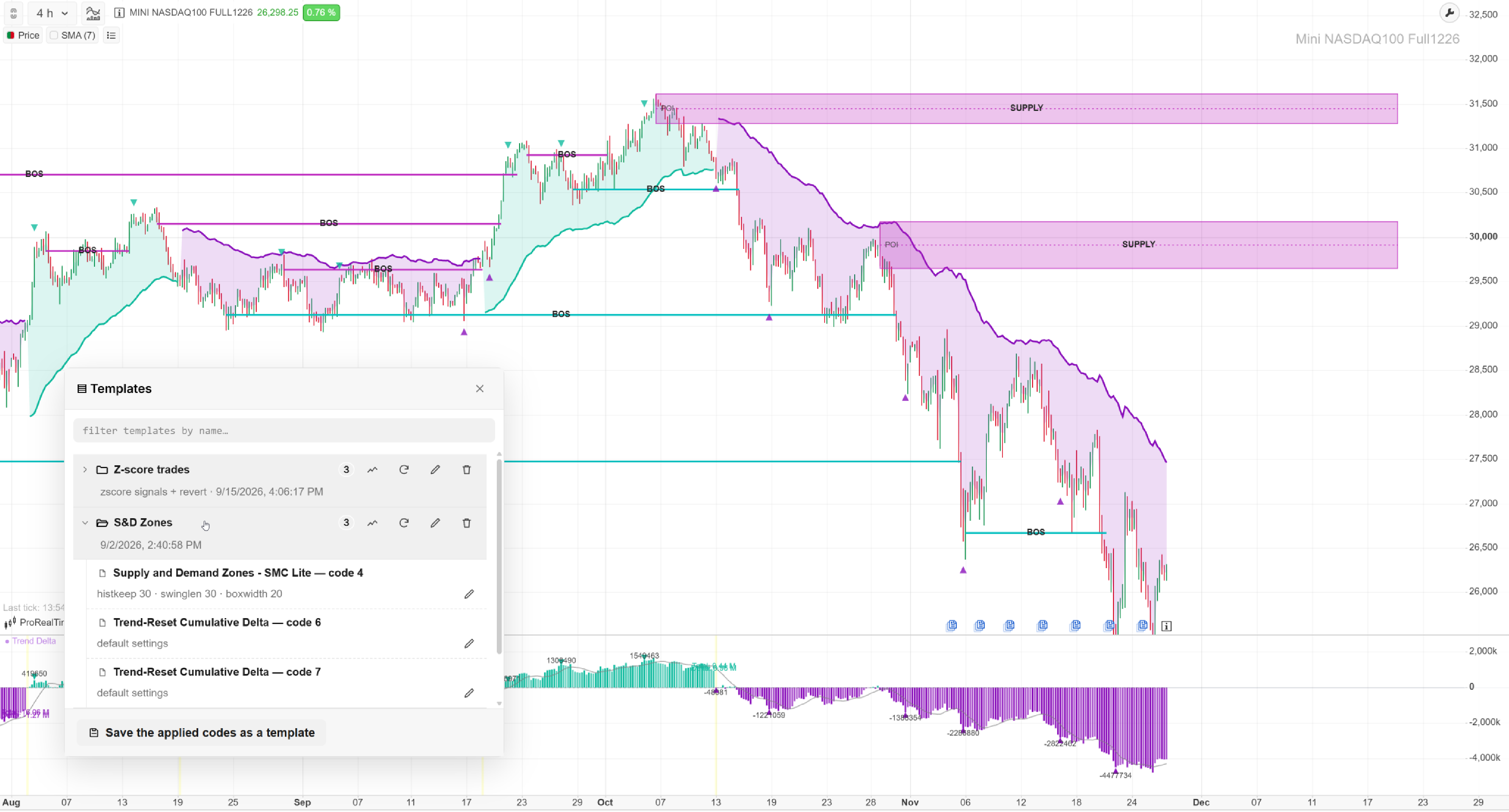
- Click the chart icon on the template's row.Studio asks: “Apply "Guide – Swing setup"?”
- Read the question, then click “OK”.The codes on the chart are removed, the template's codes take their place with their settings, and the window closes.
| The question can add | Which means |
|---|---|
| “Every code currently applied on the chart is removed first.” | Always there. The removed codes stay in “My codes” if they were saved (chapter 12). |
| “1 of 3 codes no longer exists and will be skipped.” | A code with the “missing” chip. The others are applied. |
| “The chart holds at most 8 indicators, so the last 2 will not be applied.” | The template holds more codes than “Maximum codes on the chart” allows. Raise it in “⚙ Preferences” → “Limits”. |
Update
Set the chart up as the template should now be, then click the circular arrow. Studio asks “Update … with the 3 codes currently applied on the chart? The codes and settings it holds now are replaced.”
Edit
The pencil on the template's row opens “Edit template”, with its “Name” and “Description (optional)”. The codes inside do not change.
Delete
The bin asks “Delete template "…"?”. Only the template goes: the codes it pointed at stay in “My codes”.
A template is a list of your codes, with their settings.
You saved the codes on your chart as one template, found it in the “Templates” window and applied it, which empties the chart first. The template points at your saved codes and keeps their settings: improve a code and save it, and the template brings back the improved version.
With a prorealcode.com account connected, templates sync like your codes, and you find them on another computer (chapter 05). Without one, they stay in this browser.
Can I add a template to the codes already on my chart?
No. Applying always empties the chart first, so that no code ends up there twice. Save the combination you want as its own template.
I changed a code after saving the template. Which version comes back?
The one in “My codes”: save your changes before you apply the template.
I applied a template and one code is missing.
It was deleted from “My codes”, or it was over the limit of codes on the chart. The question before applying says which.
Does a template change the instrument or the timeframe?
No. It brings back your codes and their settings, on whatever chart is in front of you.
Can an example go into a template?
Only once saved. An example on the chart is not one of your codes; Studio offers to save it when you create the template.
Is a template the same as a Dashboard model?
No. “Essentials”, “Intraday” and the other models build Dashboard windows (chapter 21). A template only puts codes on your chart.
Chapter 14 · Appearance