






Not on the Chrome Web Store yet
ProRealCode Studio is on its way. As soon as it is published, this button will take you straight to its Chrome Web Store page.
Write it, read it, keep it tidy.
Every code you open lands in the editor, in a tab of its own. This chapter covers what the editor shows and the tools that keep a code readable: folding, indentation, formatting, comments, and the chips next to its name.
- 01Tabs
- 02Reading a code
- 03Folding and indentation
- 04Format and comments
- 05The chips in the header
- 06In short
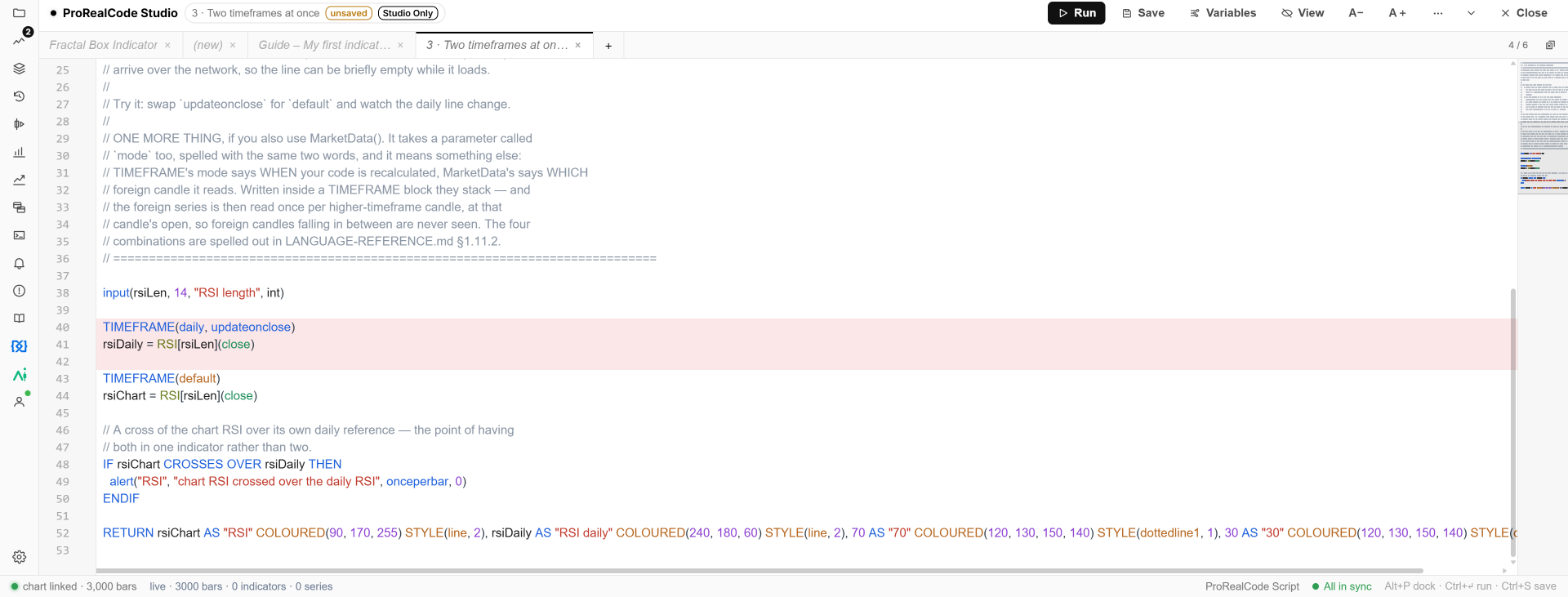
One tab per code, six at a time unless you change it.

- Open a code from the Codes window (chapter 07), or click “+” at the end of the strip.A new tab opens. A “+” tab is called “(new)” until its first Run, then takes the text of its first comment line.
- Click another tab to switch to it.Edits you had not run stay in the tab you left. Nothing is lost by switching.
- Click the × of a tab to close it.Only the tab closes. A code that is on the chart stays there. A code never saved and not on the chart would be lost, so Studio asks first.
What a tab can show
| On the tab | It means |
|---|---|
| An amber dot | The tab holds edits the chart has not seen yet. “Run” applies them. |
| A hollow ring | The editor now holds a different code, and this tab's curves have stopped updating (see “⏸ Paused”, section 05). |
| ×2, ×3… | That many copies of the code are on the chart. |
How many tabs
The counter at the right end of the strip, “4 / 6” here, reads open tabs against the limit. The button after it closes every tab at once, and asks only when a code would be lost.

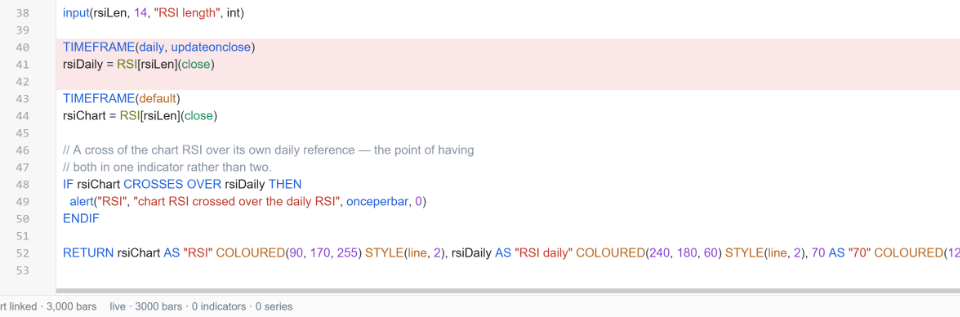
Colours, line numbers and bands show where you are.
 1
2
3
4
5
- Line numbers. Error messages and the Problems panel refer to them (chapter 09).
- Comments, in grey. Studio does not run them.
- Colours. Instructions, numbers and text in quotes each have their own colour; the names you invent stay black.
- A timeframe band. Every line under
TIMEFRAME(daily)runs on daily bars, down to the nextTIMEFRAME. The tint shows it without scrolling back up;TIMEFRAME(default)ends it. Each timeframe has its own colour. - Long lines are not wrapped. Line 52 goes on past the right edge: scroll sideways to read it.
At the edges
The minimap, at the right edge, is the whole code in miniature: drag its box to scroll. It is off at first: ⚙ Preferences → Editor → “Minimap”.
The status bar names the language, read from the code itself.

Bigger or smaller text
“A−” and “A+”, in the header of the editor, change the size of the code by one pixel per click, from 9 to 24 pixels. Studio starts at 13 and remembers your choice in this browser.
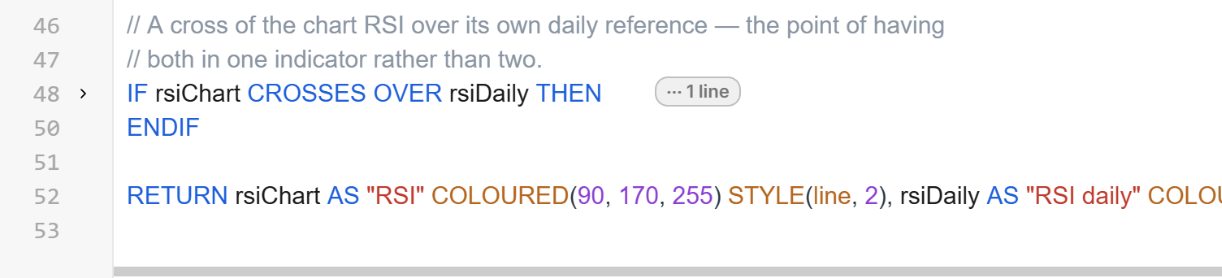
Fold a block away. The editor keeps the indentation.
 1
2
- The chevron. It sits next to every IF, FOR, WHILE and FUNCTION. Click it to fold the block down to its first line, again to open it.
- The pill counts the hidden lines. Click it to open the block.
- Open ⚙ Preferences → Editor and switch on “Code folding”.Chevrons appear in the gutter. Folding is off when Studio is new.
- Type
IF close > open THENand press Enter.The new line starts one level further in; typingENDIFpulls it back out. Same for FOR and NEXT, WHILE and WEND, FUNCTION and ENDFUNCTION, ELSE and ELSIF.
⚙ Preferences → Editor
| Setting | At first | What it does |
|---|---|---|
| Minimap | Off | The map of the code at the right edge. |
| Auto-indent | On | Step 2 above. Off: Enter is a plain new line. |
| Indent guides | On | A faint vertical rule per level of indentation. |
| Timeframe bands | On | The tint behind each TIMEFRAME section. |
| Format on save | On | Re-indents the code each time you save it (section 04). |
One shortcut re-indents the code. Another turns lines into comments.
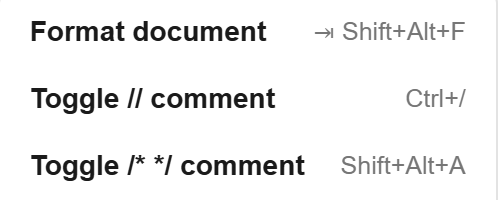
- Click “⋯”, then “Format document”, or press Shift + Alt + F.Each line moves to the depth of its block, four spaces per level. The status bar reads “formatted”, or “already formatted” if nothing moved.
- Read the status bar if it says “⚠ unbalanced blocks”.An IF lacks its ENDIF, or a NEXT closes nothing. Fix the block, then format again.
IF close > open THEN
count = count + 1
  IF count > 3 THEN
      signal = 1
ENDIF
    ENDIF
IF close > open THEN
    count = count + 1
    IF count > 3 THEN
        signal = 1
    ENDIF
ENDIF
Only the spaces at the start of each line change. Words, capitals and the inside of /* … */ comments stay as you wrote them, and folded blocks stay folded. With “Format on save” on, “Save” formats the code first; a code with unbalanced blocks is saved exactly as written instead.
Comment out a few lines
- Select the lines and press Ctrl + /.Each line starts with
//, in one column. Press again to remove the marks. Ctrl + Z undoes a toggle, or a format, in one step. - For a long passage, press Ctrl + Shift + / or Shift + Alt + A instead.One
/*before the selection, one*/after it.
Three kinds of chip say what state the code is in.
| Chip | It means | What to do |
|---|---|---|
| unsaved | Where the code is kept. “unsaved”: the editor holds changes not saved yet. The other three are described in chapter 02. | Ctrl + S to save. |
| Studio Only | The code uses at least one instruction that the ProRealTime platform's own editor cannot compile. It runs in Studio; pasted into ProRealTime, it would be refused. | Hover the chip: it names the instructions. |
| ⏸ Paused | This code is on the chart, but the editor now holds a different code: emptied, rewritten, or in another language. Its curves have stopped updating. | Click the chip: it runs what is in the editor. Or undo back to the old code, and the curves resume on their own. |

input and alert.No chip is the good news. Code using only the instructions shared with the ProBuilder syntax is in ProBuilder Compatibility Mode. Nothing declares it: the editor marks the opposite case with a “Studio Only” badge.
“Studio Only” is not an error. It is a warning for the day you paste the code into the ProRealTime platform. What the language adds, instruction by instruction, is in chapter 23 · ProRealCode Script: what the language adds.
input() carries it: settings are one of the additions. Chapter 08 · Variables and settings explains them.Tabs to switch, tools to tidy, chips to read.
What a copy carries
Whatever you copy or cut out of the editor reaches the clipboard with one extra comment on its first line. It says the text comes from ProRealCode Studio, and from which version.
The ProRealTime platform and Studio both skip it, since it is a comment. Copying text that already starts with one does not add a second.
//@ProRealCodeScript@version=x.y.z@
ma = Average[20](close)
| Shortcut, in the editor | Does |
|---|---|
| Ctrl + Enter · Ctrl + S | Run · Save |
| Shift + Alt + F | Format document |
| Ctrl + / | // at the start of each selected line, or off again |
| Shift + Alt + A | /* … */ around the selection (also Ctrl + Shift + /) |
| Tab · Shift + Tab | Move the selected lines one level in, or out |
I closed a tab. Is my code gone?
No, if it was saved: reopen it from “My codes” (chapter 07). A code on the chart stays there too. Studio asks before closing a code that was never saved and is not on the chart.
Where is the minimap?
Off at first. Switch it on in ⚙ Preferences → Editor → “Minimap”. Code folding sits in the same list.
“Save” moved my lines. Why?
“Format on save” is on: the code was re-indented before being saved. Only the spaces at the start of lines changed. Switch it off in ⚙ Preferences → Editor.
My curves stopped moving.
Look for “⏸ Paused” next to the code's name. The editor holds a different code from the one on the chart: click the chip to run it, or undo your change.
Chapter 07 · Managing your codes