






Not on the Chrome Web Store yet
ProRealCode Studio is on its way. As soon as it is published, this button will take you straight to its Chrome Web Store page.
Every code you have, in one window.
The window “Codes, indicators and strategies” holds your own codes, the examples that ship with Studio and the prorealcode.com library. This chapter shows how to find a code there, sort your codes into folders, star the ones you use, and move codes in and out as files.
- 01The window
- 02My codes
- 03Folders and favourites
- 04Import and export
- 05The prorealcode.com library
- 06In short
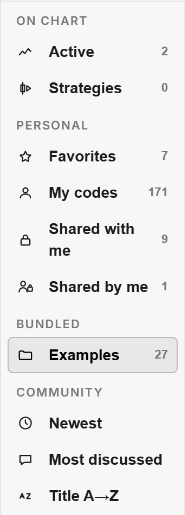
Four groups, from what runs now to what others share.
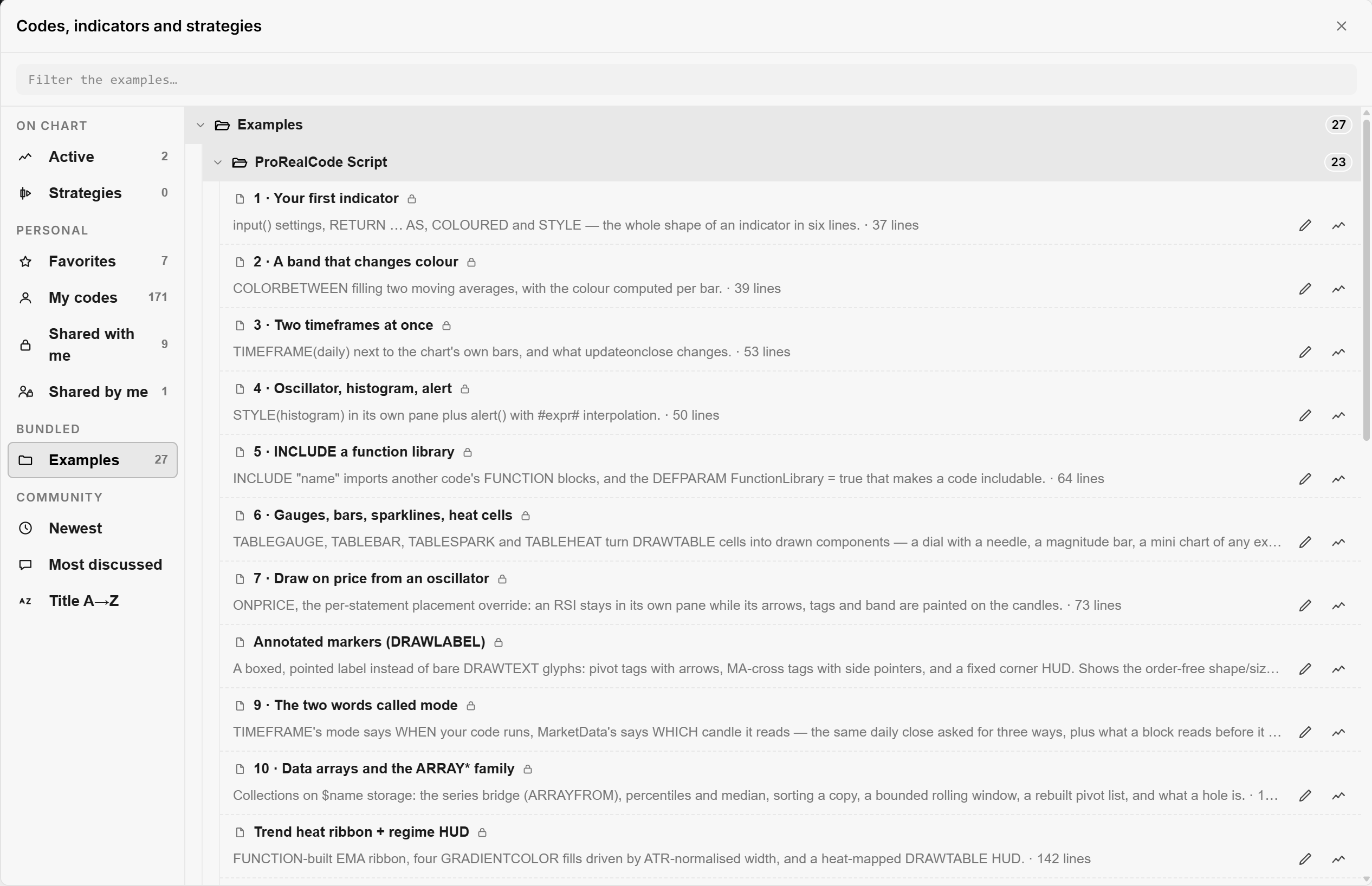 1
2
3
4
5
6
- The search field. It filters the section you are in, and says so: “Filter the examples…” here, “Search prorealcode.com…” in the library.
- ON CHART: the codes running on the chart now (“Active”, chapter 12) and the strategies (“Strategies”, chapter 18).
- PERSONAL: your starred codes, your saved codes, and the codes shared privately with you or by you (chapter 22).
- BUNDLED: the examples, filed in a “ProRealCode Script” folder.
- COMMUNITY: the prorealcode.com library, by date, by number of comments or by title (section 05).
- The padlock. An example is read-only. “Save” copies it into your own codes. The pencil at the end of the row opens it, the chart icon puts it on the chart.
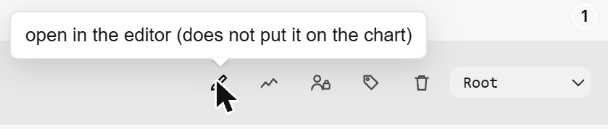
Each row opens, applies, renames or deletes one code.

| On the row | What it does |
|---|---|
| Star | Adds the code to “Favorites”, or takes it out (section 03). |
| Green dot · details | The dot: the code is on the chart, “applied ×1” says how many copies. Then the last save, the length, and where the code is kept (“synced”, chapter 02). |
| Pencil | Opens the code in the editor. The chart does not change. |
| Chart icon | Puts the code on the chart. Each click adds one more copy. |
| Share icon | Shares the code privately, when your account allows it (chapter 22). |
| Tag · bin | Rename: the tab and the copies on the chart follow. Delete: below. |
| “Root” | The folder the code sits in. Pick another to move it. |
- Click the bin, then confirm “Delete "…"?”.The code leaves your list, here and on your other computers. A copy on the chart stays there; if the code is open, the next “Save” asks for a name.
Folders sort your codes. A star keeps one at hand.

Folders
- In “My codes”, click “New folder” and type a name.Up to 40 characters. The folder appears above your loose codes.
- On a code's row, open the menu that reads “Root” and pick the folder.The code moves into it.
- On a folder's header, use the tag or the bin.The tag renames the folder. The bin removes it, and its codes go back to the root: “nothing is deleted”.
Favourites
- Click the star at the start of a row, in “My codes” or in the library.It fills in.
- Open “Favorites”, under PERSONAL.Your starred codes come first, then the starred library posts.
- Click a filled star to take it off.The code itself stays where it was.
| Folders | Favourites | |
|---|---|---|
| Kept | With your prorealcode.com account, when you are connected (chapter 05). | With your prorealcode.com account, when you are connected (chapter 05). |
| On another computer | The same folders, the same codes in them. | The same stars. |
| Deleting a code | Removes it from its folder. | Removes its star. |
One file in, or every code out.

What “Import” accepts
| File | What it holds | Name in My codes |
|---|---|---|
.prcs | One ProRealCode Script code. | The file name, without its extension. |
.txt · .prt | One code, the way codes copied off prorealcode.com are usually saved. | The file name, without its extension. |
.json | Many codes at once: a file made by “Export”. | The names stored in the file. |
- In “My codes”, click “Import” and pick the file.The status bar reads “imported: 2 added, 0 updated”, for instance. Imported codes land at the root, outside any folder.
- Click “Export”.Your browser downloads one file,
prorealcode-studio-codes-followed by the date,.json. It holds every code in “My codes”. - On another computer, or after reinstalling, click “Import” and pick that file.The codes come back under their own names.
The prorealcode.com library, one click from your chart.
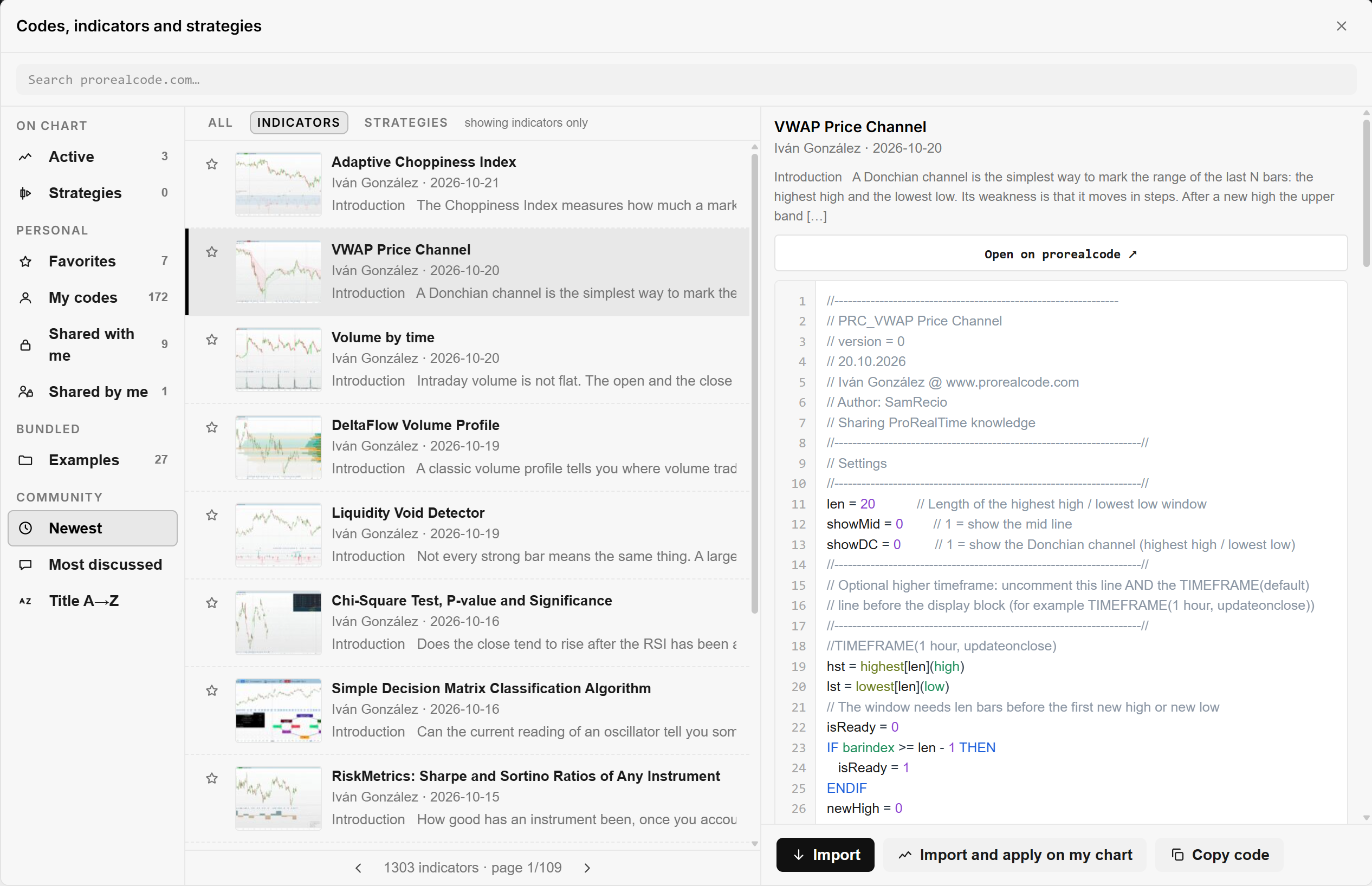 1
2
3
4
5
6
7
- The sort. “Newest”, “Most discussed” or “Title A→Z”: three orders for the same library.
- Search. Type a word; Enter searches at once.
- All · Indicators · Strategies. Narrow the list to one kind.
- A post: its picture, title, author, date and the start of its introduction. Click it to preview. Its star adds it to “Favorites”.
- The pages. 1,303 indicators on the day of this capture, twelve to a page.
- “Open on prorealcode ↗” opens the full article and its comments in a new tab.
- Three buttons. “Import” saves the code into “My codes”. “Import and apply on my chart” saves it and puts it on the chart. “Copy code” copies it to the clipboard.
Yours, the examples, the library: one window for all three.
Your codes live in “My codes”, sorted into folders if you like, starred if you use them often. The examples are read-only: open one, change it, save it under your own name. The library brings any prorealcode.com code into your list with one click, and onto your chart with the next.
| You want to | Click |
|---|---|
| Read a code without touching the chart | The pencil |
| Put a code on the chart | The chart icon, or “Import and apply on my chart” in the library |
| Keep a copy of every code | “Export”, under “My codes” |
| Bring codes from a file | “Import”, under “My codes” |
| Sort “My codes” by name | “Title”, above the list: most recent first, then A to Z, then Z to A |
I deleted a code. Can I get it back?
Studio has no bin to restore it from. If you exported your codes before, import that file again: the code returns under its old name.
My folders are missing on my laptop.
Folders follow your account. Connect the laptop to the same account (chapter 05), then click “Sync now” in the Account panel.
Can I edit an example?
Yes, in its tab. “Save” then makes your own copy, under a name you choose. The example stays as it was.
A library post is not in the list.
Studio lists only the posts whose page holds a code it can import. Try a search on a word of its title.
Chapter 08 · Variables and settings