






Not on the Chrome Web Store yet
ProRealCode Studio is on its way. As soon as it is published, this button will take you straight to its Chrome Web Store page.
A mistake is marked on its line, and often repaired in one click.
Studio checks your code as you type. It shows where the mistake is and says what is wrong. When it knows the repair, it offers it as a button. For a value that looks wrong but raises no error, the console lets your code print what it computes.
- 01Read an error
- 02Fix it in one click
- 03The Problems panel
- 04The console
' (line 2, col 25)”.](https://www.prorealcode.com/wp-content/uploads/studio-guide/en/C09-1-inline-error.png)
The red number says which line. The card says what is wrong.
1
2
3
- The line number, in red, on a tinted band. The line with the mistake.
- The wavy underline. The part of the line where Studio stopped understanding it.
- The card. The message, then its position: line 2, column 25. Here the line ends before the parenthesis that closes
Average[30](close.
- Point at the underline.The card opens. It stays open while the pointer is on it, so you can reach a button inside it (sheet 3).
- Correct the line.The marks go away less than half a second after you stop typing.
Red or amber
| Red | An error. The code cannot run as written. |
| Amber | A warning. The code runs, but something deserves a look: a name that is never given a value, for instance, reads as 0. |
When the editor checks
| While typing | The default. The marks follow your typing. |
| On ▶ Run only | The marks appear when you run the code, and go away as soon as you edit it. |
When Studio knows the repair, it is one click away.
- Point at the underline.The card shows the message and, under it, the button.
- Click the button.The line is corrected and checked again at once. Your capitals are kept:
AVERGEbecomesAVERAGE. - Changed your mind? Press Ctrl + Z.A repair is undone like any other edit.
The repairs Studio offers
| When the message says | The button | What it does |
|---|---|---|
| Unknown function 'Averge' — did you mean 'Average'? | Replace with 'Average' | Corrects the spelling. |
| 'x' is never assigned — reads as 0 | Declare 'x' above | Adds x = 0 above the line, the 0 selected for you to type over. |
| Expected 'endif' | Insert missing ENDIF | Adds the closing word where the block ends, lined up with the IF that opened it. |
| 'NEXT' closes a block that was never opened | Remove 'NEXT' | Deletes the extra closing line. |
An INCLUDE whose name has no quotes | Wrap the name in quotes | Adds the quotes. |
Every error of every code, in one list.
 1
2
3
- “PROBLEMS”. The panel opens beside the editor.
- One row per problem. Error or warning, the code's name, the line. Then the message, in red for an error and amber for a warning.
- The same line in the editor, with the marks of sheet 2.
- Click the round “!” button on the rail, under the bell, or the “⚠ 1 problem” chip in the status bar.The panel opens. The red badge on the button counts the problems.
- Click a row.The code opens at that line, in its own tab if needed. A folded block opens to show it.
The warnings it adds
| The row says | What it means |
|---|---|
| series “…” undefined on every bar (not drawn) | That curve has no value on any bar, so nothing is drawn. Often a curve switched off by a setting, or a calculation that needs more bars than the chart holds. |
| the platform serves no order book for this instrument | The code reads BID or ASK, which this instrument does not provide. Try it on a future or a stock. |
| computing for 25 s (past the 20 s mark) | A long calculation. The chart keeps its last drawing until it finishes. The row stays afterwards and gives the final time. |
No error, but a strange curve? Print the values.
An error stops a code. A wrong value does not: the code runs and draws the wrong curve. console() writes values into a panel under the editor, one line per bar.
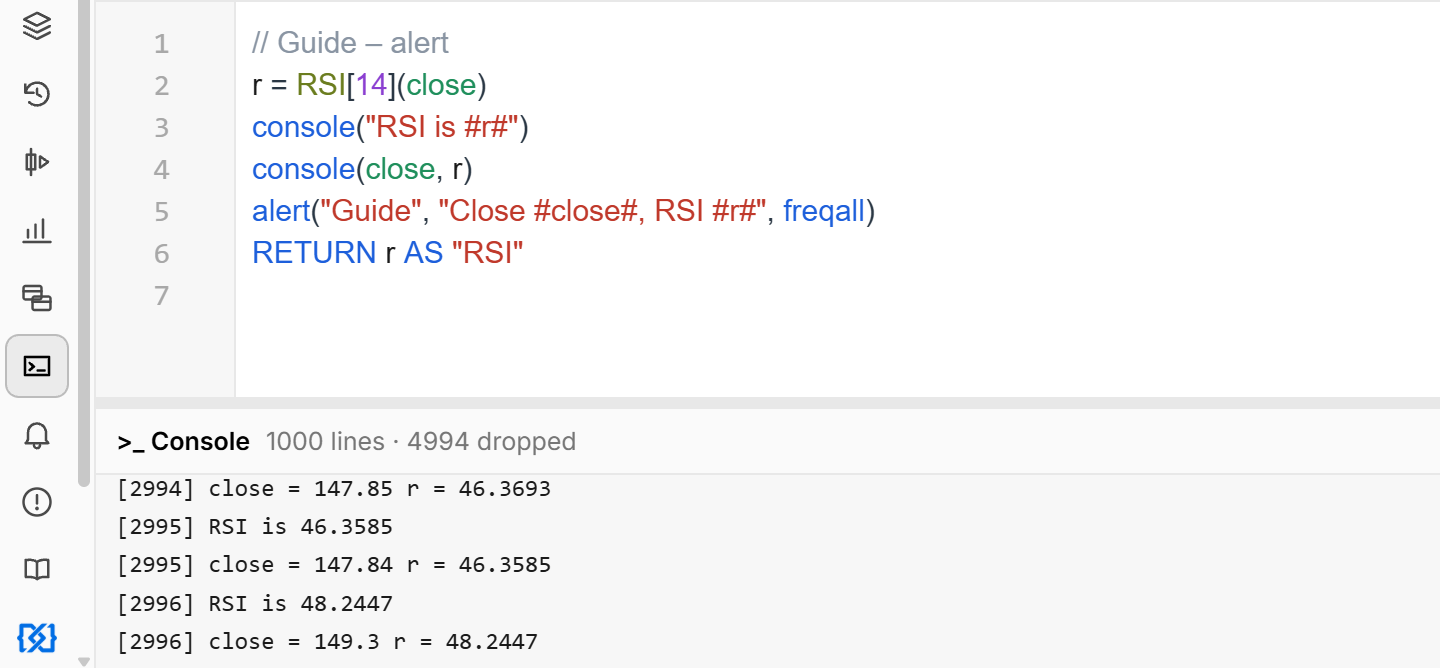
console().r = RSI[14](close)console(r)// [2999] r = 48.2console("RSI is #r#")// [2999] RSI is 48.2console(close, r)// [2999] close = 1.123 r = 48.2PRINT(close) AS "Cl"// [2999] Cl = 1.123
- Add a
console(…)line where you want to look, then click “Run”.The “>_ Console” panel opens under the editor. Each line starts with the bar number, in brackets. - Drag the divider above the panel to give it room. “Clear” empties it; its × closes it.Closed, it reopens at the next “Run” that prints something.
A text "RSI is #r#" | Printed as written, each #name# replaced by its value. |
A name r | Printed as r = 48.2. A value that does not exist prints NaN. |
| How many lines | One per bar, the history included. The newest 1,000 are kept. With several codes, each line starts with its code's name. |
PRINT | Works like console(). In ProRealTime it builds a table instead; here it writes lines. |
console() exists only in Studio: the ProRealTime editor does not accept it, and a code that uses it carries the “Studio Only” chip (chapter 06). PRINT is accepted there, but it builds a table, not these lines.Three places to look: the line, the panel, the console.
| Where | What it shows | How to open it |
|---|---|---|
| The line | The mistake where it is, its message, its repair button. | Point at the red underline. |
| Problems | Every error and warning, for every code on the chart and in the editor. | The round “!” button, or “⚠ 1 problem” in the status bar. |
| >_ Console | The values your code prints with console(). | By itself after “Run”, or the console button. |
I clicked a repair button and nothing changed.
The line changed after the check. Studio does not write over a line it has not checked. Wait half a second for the next check, then click again.
A curve is missing, and there is no error.
Open Problems. A row “undefined on every bar (not drawn)” names the curve that has no value.
Why is a name that is never given a value only a warning?
The code still runs: that name reads as 0. It is often a typing mistake, so the row offers a repair.
The console stays empty.
It reads “console is empty — add console(…) to your code, then ▶ Run”. A console() inside an IF prints only on the bars where the condition is true.
Can I switch the checking off?
No, but “On ▶ Run only” keeps the editor quiet while you type (sheet 2).
Chapter 10 · Understanding a code: the flow map