






Not on the Chrome Web Store yet
ProRealCode Studio is on its way. As soon as it is published, this button will take you straight to its Chrome Web Store page.
Studio in your colours. Candles redrawn, if you want.
Everything in this chapter is a preference: a theme for Studio's windows, the way your curves are coloured, a style for the candles of your chart, and a little motion. None of it changes a single value on the chart.
- 01Choose a theme
- 02Redraw the candles
- 03Candle colours and heat
- 04Motion
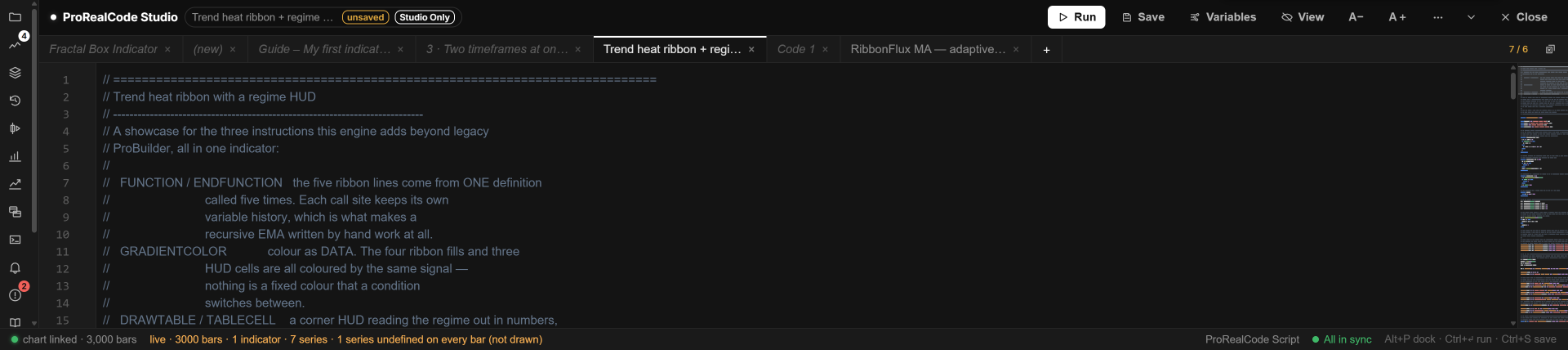
Preview first. Nothing changes until “Apply theme”.
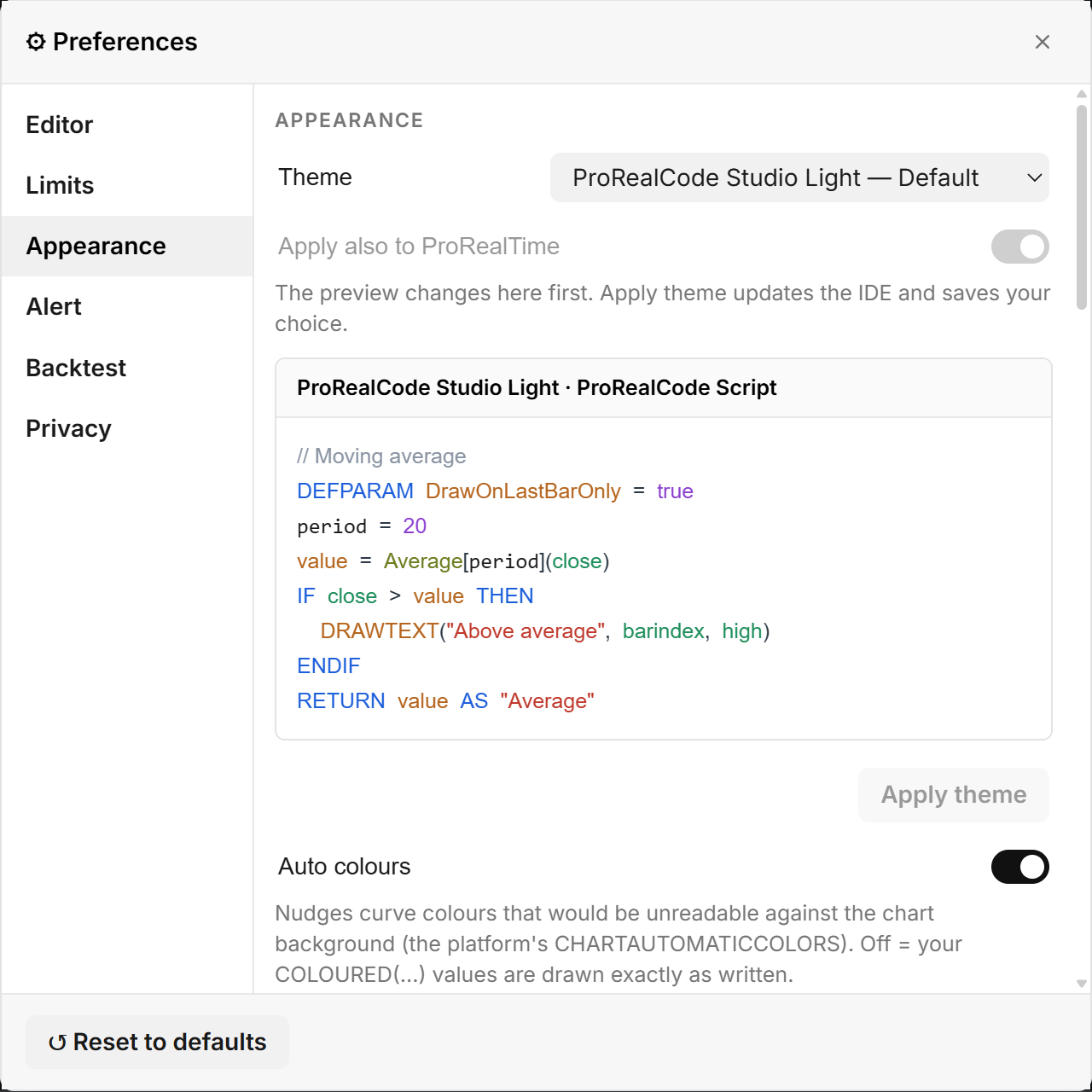 1
2
3
4
5
- “Theme”. “Auto (follow platform)” first, then the dark themes, then the light ones.
- “Apply also to ProRealTime”. Gives the platform's own menus and panels the theme's colours. “The chart itself is not affected.” Greyed under Auto and under Studio's two themes.
- The preview. The selected theme on a few lines of code, before you commit.
- “Apply theme”. Saves the choice and repaints Studio. Greyed until something changed.
- “Auto colours”. On: a curve too close to the chart's background is nudged until it reads. Off: your
COLOURED(…)values are drawn exactly as written.
- Open the “Theme” list and pick a name.The preview box takes its colours. Studio itself does not change yet.
- Try others, and decide on “Apply also to ProRealTime”.The switch is off until you turn it on.
- Click “Apply theme”.The editor and Studio's windows repaint. The choice stays after a reload.
| In the list | What it is |
|---|---|
| Auto (follow platform) | The default. Dark platform, dark theme; light platform, light theme. Two extra rows, “Auto: dark theme” and “Auto: light theme”, say which pair: Studio Dark and Studio Light unless you change them. |
| 66 themes | 53 dark, 13 light. Studio's own two end in “— Default”; 11 with stronger text and borders end in “— High contrast”. |
Five ways to draw a candle. The first draws nothing.
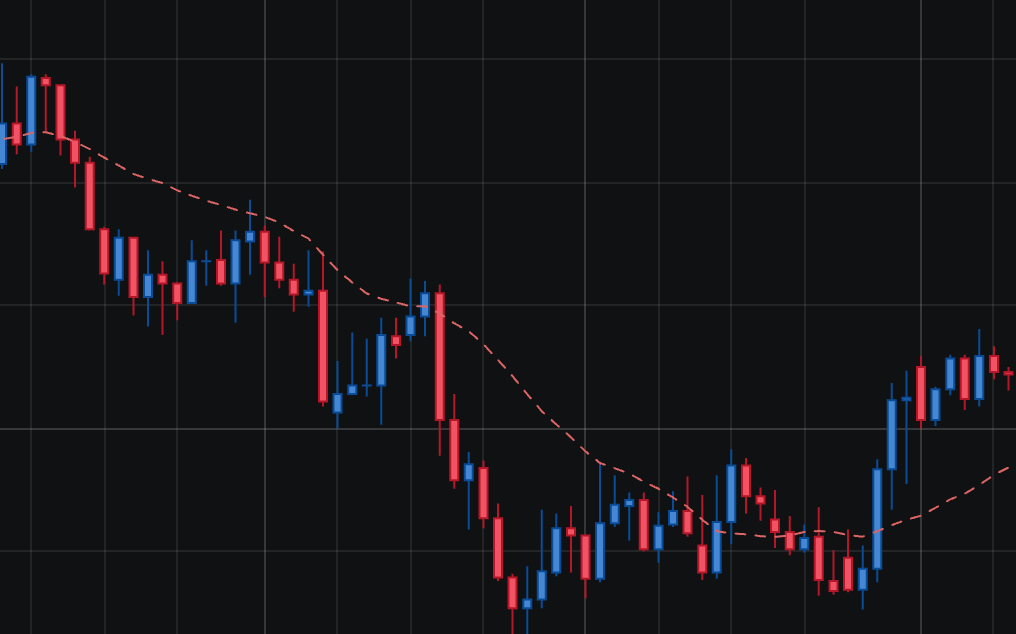
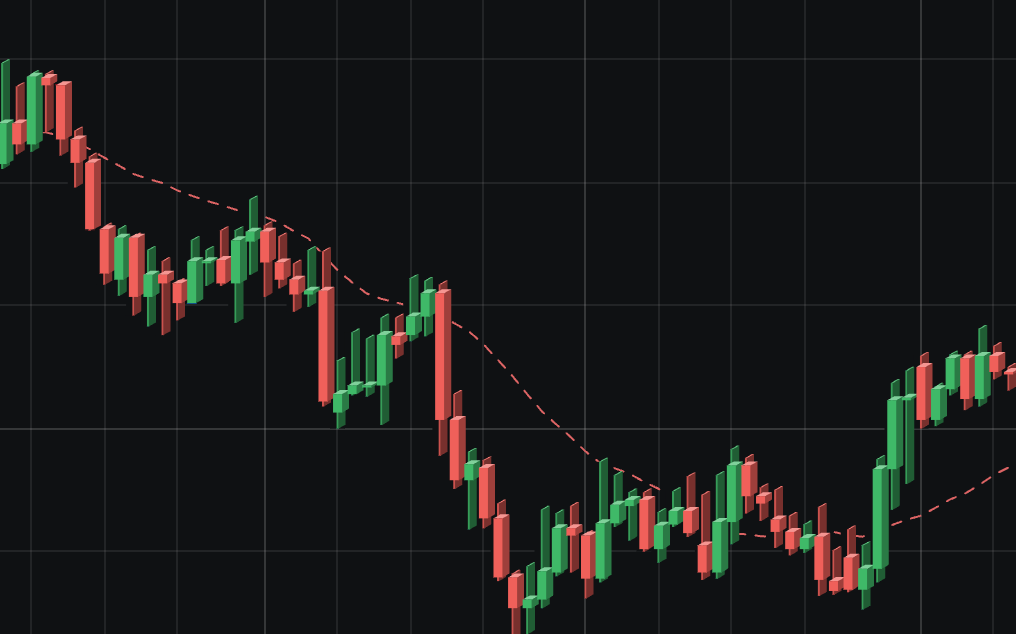
“Price render style” decides how Studio draws the candles of your chart. The default, “Classic flat”, leaves the platform's own candles alone. The four others draw over them, only for the bars on screen.
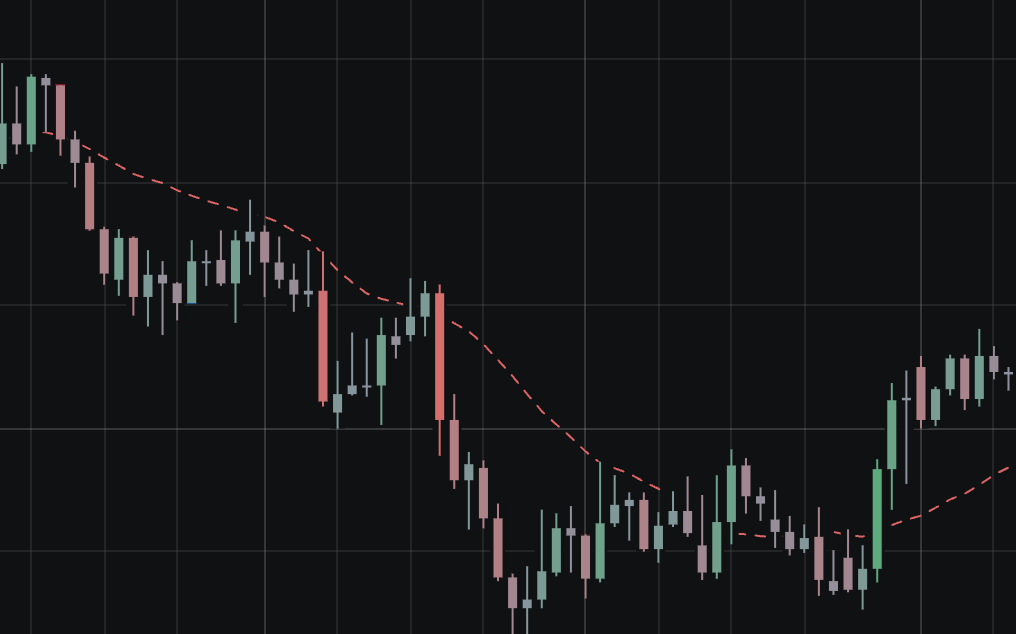
| In the list | What you see |
|---|---|
| Classic flat (platform candles) | The platform's candles, untouched. Studio draws nothing and it costs nothing. |
| Isometric OHLC (3D boxes) | Each candle as a small box in three dimensions. |
| Depth-by-volume isometric | The same boxes, deeper when the bar traded more volume. |
| Gradient body (2.5D) | A body shaded with a gradient. |
| Heat candle (magnitude colour) | A body coloured by how far the bar travelled from open to close: grey for a small move, full colour for the biggest one on screen. |
- In “Appearance”, open “Price render style” and pick a style.The candles change at once. No “Apply” here.
- Or, with the chart in front of you, press Ctrl + Shift + D.Each press moves to the next style, then back to “Classic flat”. Not while you are typing in a text field.
One pair of colours for every candle Studio draws.
- Pick a style other than “Classic flat” (task 2).Under “Classic flat” the platform draws the candles, and its own colours apply.
- Turn on “Custom candle colours”.“Bullish candle” and “Bearish candle” stop being greyed.
- Click each colour and choose yours.Every candle Studio draws takes the pair at once.
| Row | What it does |
|---|---|
| Custom candle colours | Off: the built-in green and red. On: your pair. Turning it off keeps your pair for later. |
| Bullish candle | A candle that closed at or above its open. |
| Bearish candle | A candle that closed below its open. |
| Heat sensitivity | Five steps: Subtle, Low, Normal, High, Extreme. Only “Heat candle” reads it, so it is greyed under the other styles. |
How the heat scale works
The two ends never move. A bar that closed where it opened is grey; the biggest body on screen is in full colour. The setting changes everything in between: “Subtle” keeps colour for the big moves, “Extreme” gives it to almost every bar.
One pair, three uses
The pair colours the redrawn candles, the two ends of the heat scale, and the bar still forming in Bar replay (chapter 15). Under “Classic flat”, only that replay bar uses it, and the tab says so.
Motion is off until you turn it on.
“Advanced visual effects” moves exactly four things
- A change of price render style dissolves in, instead of switching at once.
- In “Backtest results”, the equity curve draws itself from left to right and the gauges and bars count up (chapter 18).
- The trade markers of a backtest pop in on the chart when a run first appears.
- The live result of a strategy armed in real time pulses while it stays armed (chapter 19).
“Live candle animation”
One candle moves: the one at the right edge, still forming. On each price update its open, high, low and close slide to their new values in a fraction of a second, and a new candle grows out of the previous close. It needs three things at once: this switch, “Advanced visual effects”, and a price render style other than “Classic flat”, since it animates the candles Studio draws. Closed bars, Bar replay and the platform's own candles never move.
These settings change the look, never a value.
| “Appearance” row | When Studio is installed | Covered in |
|---|---|---|
| Theme | Auto (follow platform) | Task 1 |
| Apply also to ProRealTime | Off | Task 1 |
| Auto colours | On | Task 1 |
| Price render style | Classic flat | Task 2 |
| Custom candle colours | Off | Task 3 |
| Heat sensitivity | Normal | Task 3 |
| Advanced visual effects · Live candle animation | Off · Off | Task 4 |
I chose a theme and nothing changed.
The list only changes the preview. Click “Apply theme”.
“Apply also to ProRealTime” is greyed.
It works with a named theme only. Under Auto, or on Studio Dark and Studio Light, there is nothing to pass to the platform.
My curve is not the colour I wrote in the code.
“Auto colours” nudged it because it was hard to read on your chart's background. Turn it off to see your exact colours.
I picked custom colours and my candles did not change.
Under “Classic flat” the platform draws the candles. Pick another price render style.
Ctrl + Shift + D did nothing.
The cursor was in a text field, the editor for instance. Click on the chart, then press it again.
The forming candle does not move smoothly.
“Live candle animation” needs “Advanced visual effects” on, a style other than “Classic flat”, and no reduced-motion setting on your computer.
Chapter 15 · Bar replay