






Not on the Chrome Web Store yet
ProRealCode Studio is on its way. As soon as it is published, this button will take you straight to its Chrome Web Store page.
Connect an account, and your codes follow you.
Without an account, Studio keeps your codes in this browser and nowhere else. Connect your prorealcode.com account and they are copied to it, then kept in sync with every browser you connect.
- 01Connect
- 02The Account panel
- 03What syncs
- 04Switch, disconnect, limits
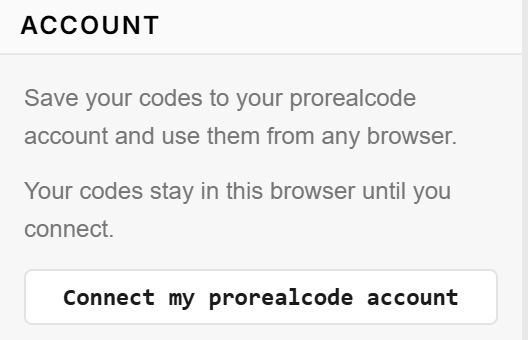
The panel then reads:
Save your codes to your prorealcode account and use them from any browser.
Your codes stay in this browser until you connect.
Connect my prorealcode account
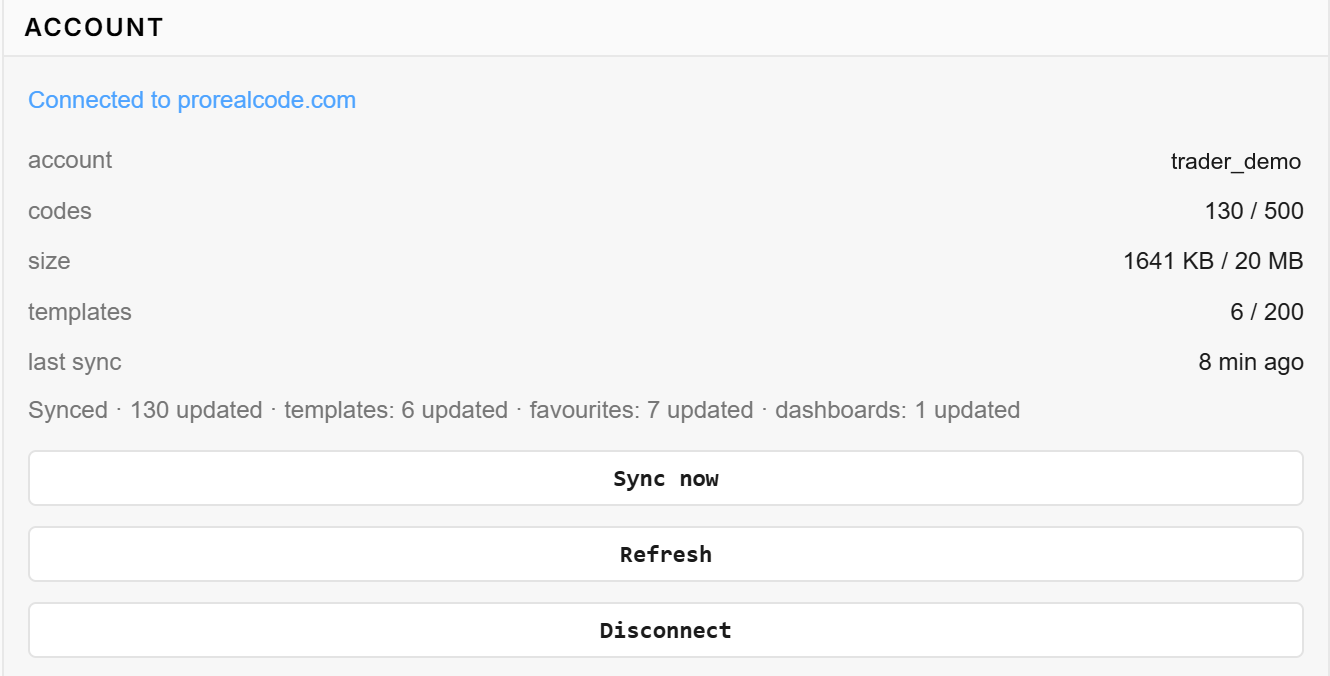
What your account holds, and when it last synced.
 1
2
3
4
5
6
7
8
- “Connected to prorealcode.com”. This browser is linked to your account. The rail's Account icon carries a green dot.
- account. Your prorealcode.com login.
- codes, size, templates. What your account holds, out of its limit (sheet 04).
- last sync. When this browser last caught up with your account. Hover it for the exact time.
- The sync line. The result of the last sync: how many codes, templates, favourites and dashboards were updated.
- “Sync now”. Syncs at once, without waiting for your next save.
- “Refresh”. Checks your account and its counts again.
- “Disconnect”. This browser stops syncing (sheet 04).
Codes and their folders, templates, favourites, dashboards.
Follows your account
- Your saved codes (chapter 07)
- Your folders in “My codes”, with the codes in them
- Your chart templates (chapter 13)
- Your favourites ☆
- Your dashboards (chapter 21)
Stays in this browser
What is open: the editor's tabs and the codes on the chart. Each account keeps its own in this browser.
When. A moment after each save, and right after you connect. Several saves in a row cost one sync. “Sync now” does not wait.
The chip on each code
| saved | Saved in this browser; no account to sync it to. |
| to sync | Saved here, waiting to reach your account. |
| syncing | On its way to your account. |
| synced | In sync with your account. |
| offline | Saved here; it will sync when the connection is back. |
| failed | Saved here; the last sync failed. The status bar says why. |
The chip in the status bar
| Saved locally | No account connected. Your codes are in this browser only. |
| All in sync | Nothing waits. “Saved” shows for a moment after each save. |
| 1 unsaved · 2 to sync | Changes not saved yet in the editor, and codes waiting to sync. |
| Offline · … | No connection. Your changes are saved locally and will sync later. |
Disconnecting stops the sync. It deletes nothing.
Disconnect this browser
- In the Account panel, click “Disconnect”.Studio asks: “Disconnect this browser from prorealcode?”
- Confirm.“Disconnected.” Your codes stay in this browser, and in your account.
Use another account
- Disconnect, then click “Connect my prorealcode account” again.
- In the window, sign in to prorealcode.com as the other account, then “Authorize”.Studio shows that account's codes. Connect the first one again later and its codes and tabs come back.
The limits of an account
| Codes | 500 |
| Size of one code | 100 KB |
| All your codes together | 20 MB |
| Chart templates | 200 |
| Dashboards | 40 |
One click to connect, then the sync takes care of itself.
Connect once from the Account panel. From then on, every save reaches your account a moment later, and every browser you connect finds the same codes, templates, favourites and dashboards. The chip next to a code, and the one in the status bar, tell you where things stand.
Do I need an account to use Studio?
No. Without one your codes stay in this browser, and only there. An account keeps a copy and syncs it; private sharing needs one.
The status bar reads “Offline”.
prorealcode.com cannot be reached. Keep working: your changes are saved in this browser and sync when the connection is back.
A code reads “failed”.
The last sync did not go through. The status bar says why. Click “Sync now” in the Account panel to try again.
My folders are not on my other computer.
Folders follow your account, like your codes. Check that the other computer is connected to the same account, then click “Sync now” in the Account panel.
I disconnected. Did I lose my codes?
No. They are still in this browser and in your account. Connect again and the sync picks up where it stopped.
The panel says the clock is off.
Set your computer's date and time to automatic. A wrong clock can let an older change overwrite a newer one.
Chapter 06 · The editor