






Not on the Chrome Web Store yet
ProRealCode Studio is on its way. As soon as it is published, this button will take you straight to its Chrome Web Store page.
Let others run your code. They never see it.
You choose one of your codes and the members who may use it, and for how long. They put it on their chart and change its settings. Its source never reaches them, and you can update it or take it back at any time.
- 01Share a code
- 02Give access
- 03Manage access
- 04Update or stop
- 05Use a code shared with you
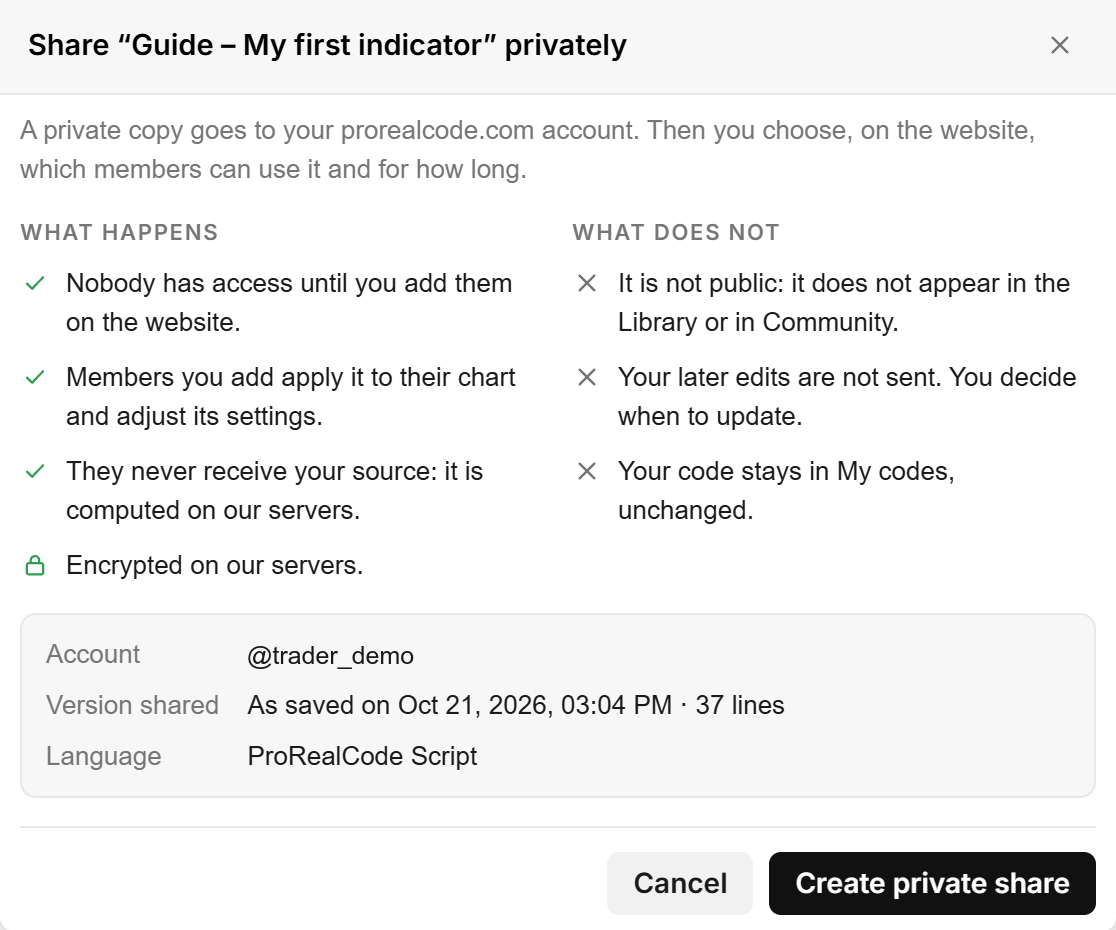
Studio explains first. Nothing leaves before you confirm.
 1
2
3
4
5
- The code's name. Members see it under this name.
- “What happens”. Nobody has access yet. Members you add apply the code and adjust its settings. “They never receive your source.”
- “What does not”. It is not public. Your later edits are not sent. Your code stays in My codes.
- What leaves. Your account, the saved version with its date and line count, the language.
- “Create private share”. The only button that sends anything.
- Save the code first, with Ctrl + S.Only the saved version is shared. If the editor holds changes, the dialog says they are not included.
- Open the Codes window on “My codes” and click the share icon at the end of the code's row.Its tip reads “Share privately… — opens an explanation first”. The dialog above opens.
- Read it, then click “Create private share”.“Private share created”. Nobody can use the code yet: it is waiting for its first member.
- Click “Add members on prorealcode.com”.Your profile's “Shared codes” tab opens in a new browser tab (task 2). The share is also listed under “Shared by me” (task 4).
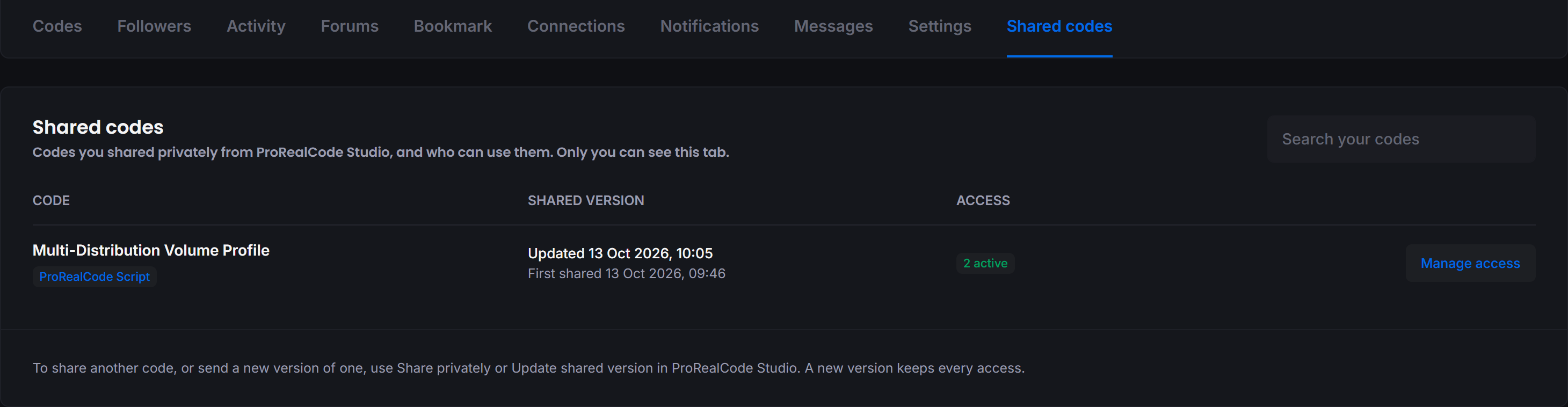
Add a member, then choose for how long.
 1
2
3
4
- “Shared codes”. A tab of your prorealcode.com profile. “Only you can see this tab.”
- The shared version. The date of the last version you sent from Studio.
- Access. How many members are active, scheduled or ended. “Nobody yet” before the first one.
- “Manage access”, or “Add a member” for a code nobody uses yet. Opens the code's page.
- Click “Add a member” or “Manage access” on the code.The code's page opens on “Give access”.
- Type the member's prorealcode.com username and click “Find”.A card shows the member, marked “Found”. Check it is the right person: the code will appear in their Studio.
- Pick a “Duration”: 1 week, 1 month, 3 months, 1 year, “No end date”, or “Custom dates”.The line under it says when access starts and ends, in your time zone.
- Click “Give access to @…”.The member is listed under “Who has access” (task 3).
@member_aFound
Extend, revoke, renew. One member at a time.
| Status | What it means | Its buttons |
|---|---|---|
| Active | The member can use the code now, until the end date or with no end. An end less than 7 days away shows in amber. | “+1 month” when an end is set, “Edit”, “Revoke” |
| Scheduled | Access starts at the date you chose. Until then the code is not in their list. | “Edit”, “Cancel” |
| Ended | The end date has passed. The member stays in your list. | “Renew 1 month”, “Edit”, “Remove” |
- To change the dates of one member, click “Edit” on their line.The same duration choices as in task 2 come back.
- To take access away, click “Revoke”, or “Cancel” for an access that has not started. Confirm.The site asks before it acts.
Your edits wait until you send them.
 1
2
3
4
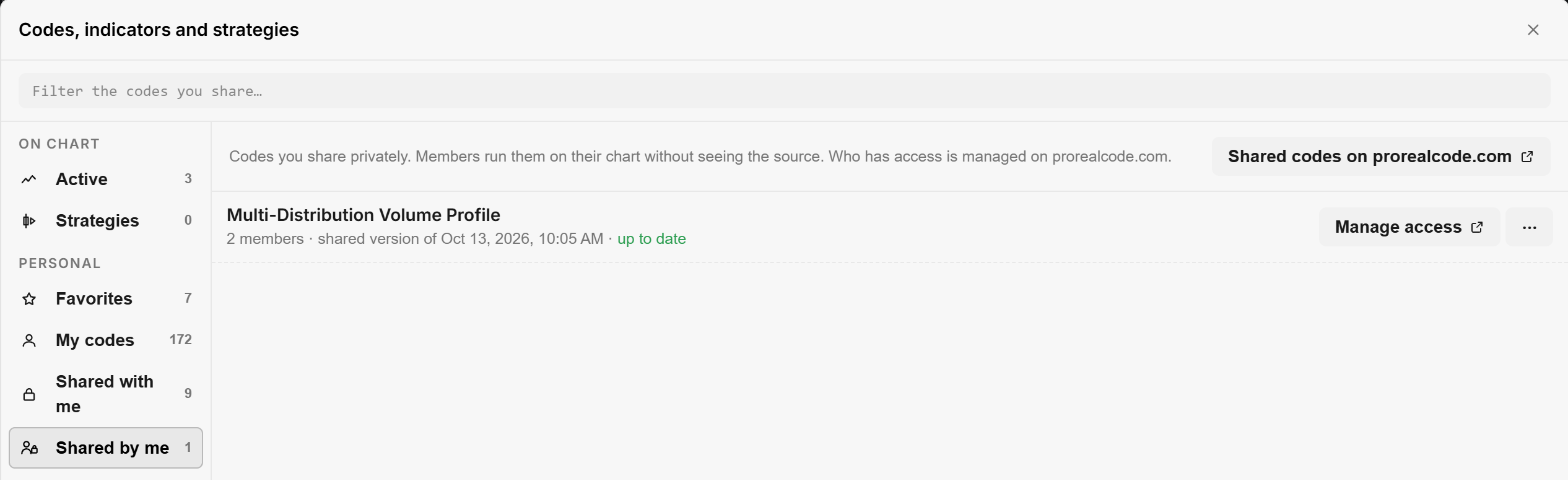
- “Shared by me”, under PERSONAL. Every code you share.
- “Shared codes on prorealcode.com”. Opens your profile's tab (task 2).
- The state of the share, after the member count and the date of the shared version.
- “Manage access”, then ⋯ for “Open my code in the editor” and “Stop sharing…”.
| The row reads | What it means |
|---|---|
| up to date | Your saved code is the version your members run. |
| your code changed since | Saved changes not sent yet. Members still run the old version. |
| not compared | This browser cannot tell. “Update shared version” is offered. |
| not in My codes | No code in My codes has this name any more. |
Send a new version
- Save your code. In My codes, its chip turns amber: “Shared · edited since”.
- In “Shared by me”, click “Update shared version”.“Shared now” and “After update” side by side. Confirm: members run the new version from their next calculation.
Stop sharing
- Click ⋯ on the row, then “Stop sharing…”, and confirm.Your members lose access. Your code stays in My codes.
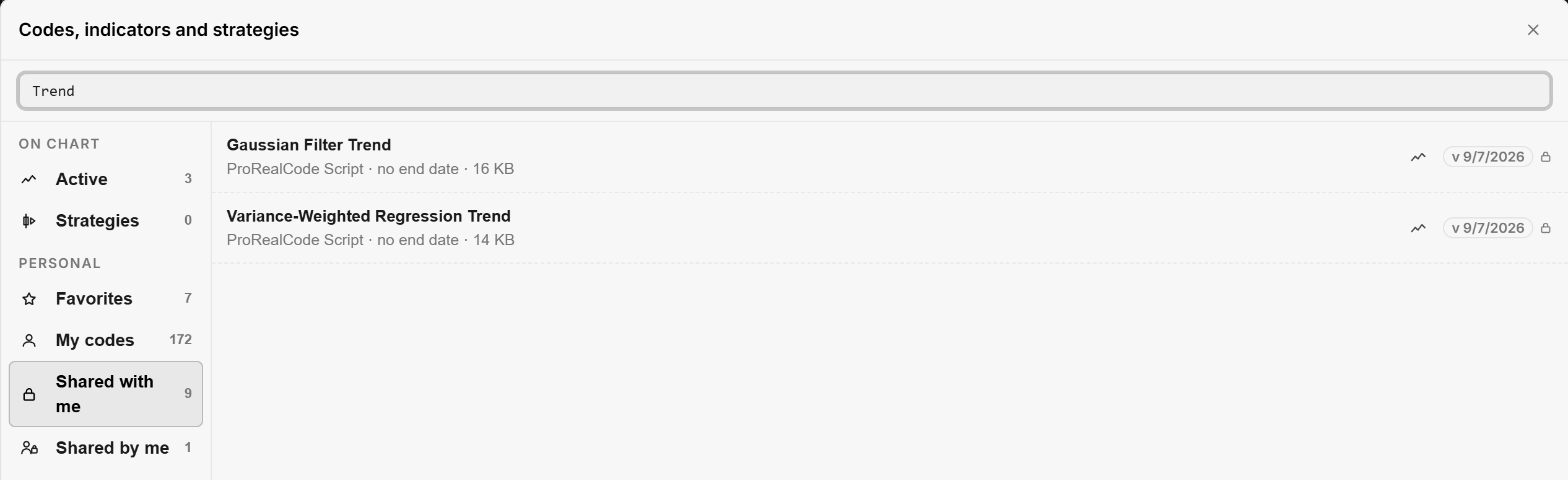
Put it on your chart. Its source stays closed.
 1
2
3
4
- “Shared with me”, under PERSONAL, with its padlock. The codes opened to your account.
- The filter. “Filter the codes shared with you…”.
- Language, end of access and size. “until” and a date, or “no end date”.
- The chart icon, then the version date and the padlock.
- Open the Codes window and click “Shared with me”.With no account connected, it reads “Connect your prorealcode account to see the codes shared with you.”
- Click the chart icon on the code's row.The code goes onto your chart, under the name its author gave it. Click again for a second copy.
- Change its settings with ⚙ Settings, like any code on the chart (chapter 08).
What you can do
- Put it on the chart, as many times as you like.
- Change the settings its author exposes.
What you cannot
- Open, copy or export its source.
- Rename or delete it: the row is its author's.
You lend the result. The code stays yours.
“Share privately…” sends the saved version of a code to your prorealcode.com account, and nobody can use it yet. On your profile's “Shared codes” tab, you give access member by member, with dates. Your members find the code under “Shared with me” and put it on their chart without its source. Your later edits wait for “Update shared version”.
When Studio refuses to share
| Studio says | What to do |
|---|---|
| “You already share a code with this name.” | Rename the code in My codes, or update that share from “Shared by me”. |
| “You already share 100 codes, the most allowed.” | Stop sharing one first. |
| “This code is larger than a private share can hold (512 KB).” | Share a shorter code. 512 KB is several thousand lines. |
| “Your prorealcode account is not connected.” | Connect it from Account (chapter 05), then try again. |
| “Could not reach prorealcode.com. Nothing was sent.” | Check your connection and try again. |
Can my member see my code if they try hard?
Studio never gives them the source: no open, no copy, no export. They see what the code draws, as anyone looking at a chart does.
Does saving my code update my members?
No. Saving never sends anything. Only “Update shared version” does, after a confirmation.
My member sees an error instead of the curves.
Check their access dates on the site. A shared code that reads a second instrument does not run for members yet.
Chapter 23 · ProRealCode Script: what the language adds