






Not on the Chrome Web Store yet
ProRealCode Studio is on its way. As soon as it is published, this button will take you straight to its Chrome Web Store page.
Your alerts, sent as data to the program of your choice.
An alert can carry a block of values. Studio then sends it as JSON to an address you choose: a bot, an automation service, a spreadsheet, your own server. You add the block, paste the address, and this chapter shows exactly what arrives at the other end.
- 01Add a payload block
- 02Set the webhook URL
- 03What your receiver gets
- 04Strategy fills, checks, and how to stop
Put values in braces, and the alert also leaves as data.
1IF Average[50](close) CROSSES OVER Average[200](close) THEN2 alert("Golden cross", "MA50 crossed MA200 at #close#", onceperbarclose, 1, {side: "long",3 price: close, score: RSI[14]})4ENDIF
| You write in the braces | The receiver gets, in “payload” |
|---|---|
| no braces at all | Nothing: the alert stays a popup and sends no data. |
{} | "payload": {}, with the other fields around it. |
{signal: "breakout_up"} | "signal": "breakout_up". Text can carry #…# like a message. |
{rsi: RSI[14], price: close} | "rsi": 32.7, "price": 1.0852: numbers, computed on the bar that fired. |
{up: close > open} | "up": false. A comparison, true or false becomes a yes / no value. |
{pivot: PivotHigh[5,5]} | "pivot": null when there is no value on that bar. The key stays. |
Names are labels
The word before each colon is only a name for your receiver. {close: close} sends the price under the name “close”. Any word works, even one the language reserves elsewhere.
One flat level
No braces inside the braces, no lists. At most 64 names, each used once. Studio refuses the code otherwise, it never drops a value quietly.
Where to put it
Anywhere after the message, before or after the frequency and the sound. A line may break inside the braces, nowhere else in alert().
Paste the address once. Every signal goes there.
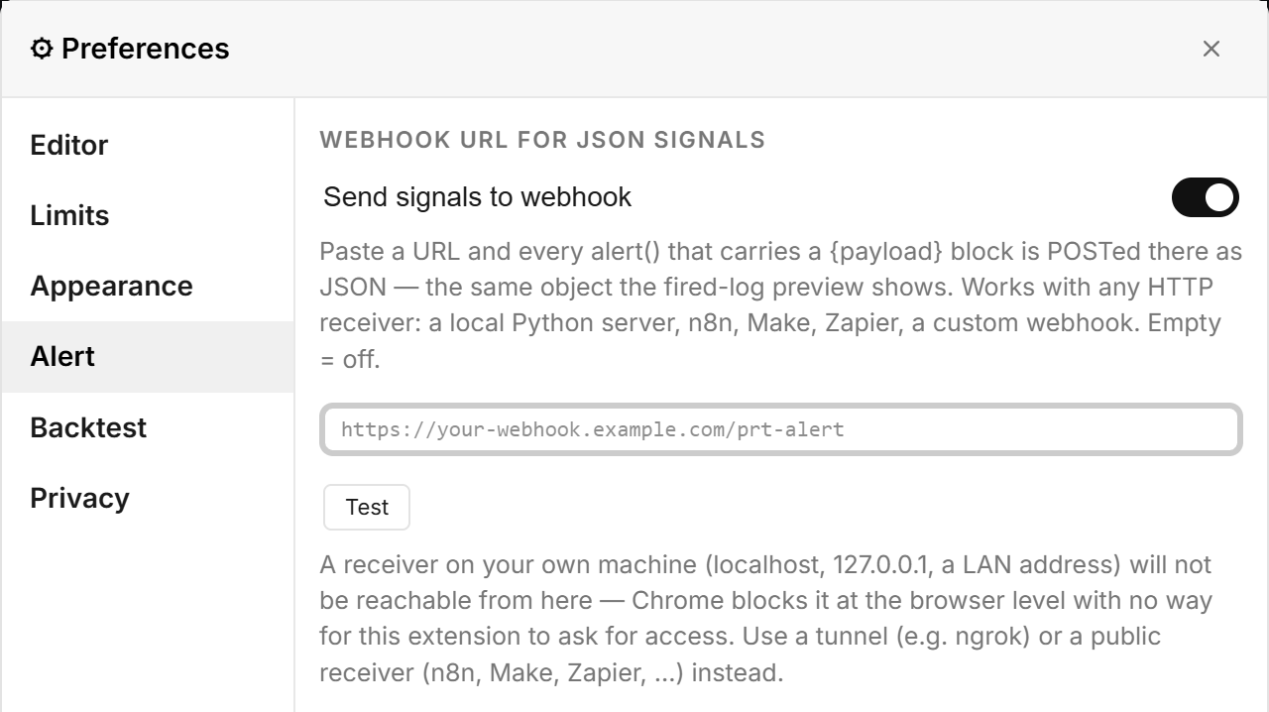 1
2
3
4
- “Alert”, the tab that holds the webhook.
- “Send signals to webhook”. On at first. Off, nothing is sent; your address stays.
- The address of your receiver. Empty means no signal leaves.
- “Test” sends one test signal to the address in the field, even with the switch off.
- Click the gear at the bottom of the rail to open Preferences, then the tab “Alert”.
- Paste your receiver's address into the field, then click outside it.It is saved. An address must start with http:// or https://, or it is refused.
- Click “Test”.“last webhook delivered (200) at …” when your receiver answered. “⚠ webhook failed (…) — is the receiver running?” when it did not.
Every signal is the same object. Only the payload is yours.
{
  "instrument": "EURUSD",
  "timeframe": "5 minutes",
  "bar": 4213,
  "barTime": 1751020200,
  "title": "Golden cross",
  "message": "MA50 crossed MA200 at 1.0852",
  "freq": "onceperbarclose",
  "payload": {
    "side": "long",
    "price": 1.0852,
    "score": 62.4
  },
  "at": 1751020500412
}
What your receiver must accept
- A POST request whose body is JSON (
Content-Type: application/json). - A request coming from a browser. The browser first asks permission with an OPTIONS request; the receiver answers with
Access-Control-Allow-Origin: *,Access-Control-Allow-Headers: Content-TypeandAccess-Control-Allow-Methods: POST, OPTIONS. - Preferences names n8n, Make and Zapier as receivers. Whether yours answers that OPTIONS request, “Test” tells you in one click.
| Field | Content |
|---|---|
instrument | The chart's instrument, as Studio names it. Empty when unknown. |
timeframe | The chart's timeframe in words: “5 minutes”, “1 day”. Empty when unknown. |
bar | The number of the bar that fired, counted from the first bar of the chart. |
barTime | When that bar opened, in seconds since 1 January 1970, UTC. |
title, message | The alert's texts, #…# already replaced. Cut at 260 characters. |
freq | freqall, onceperbar or onceperbarclose. |
payload | Your block, as written in task 1. A text value is cut at 260 characters. |
at | When Studio sent it, in milliseconds since 1 January 1970, UTC. |
Strategies use the same channel. One receiver reads both.
A strategy armed in real time (chapter 19) sends each of its fills to the same address, in the same object. Only the texts and the payload change.
| Field of a fill | Content |
|---|---|
title | “BUY” or “SELL”: what the order did. Closing a long is a SELL. |
message | “entry long”, “exit long”, “entry short” or “exit short”. |
freq | Always onceperbarclose. |
timeframe | The same words as an alert: “5 minutes”, “1 hour”, “1 day”. One format for both kinds of signal. |
payload | action (“buy” or “sell”), qty, price (the fill price) and strategy (its name). An exit adds pnl and reason: “stop”, “target”, “order” for the code's own exit order, or another word for a time-based close. |
How do I see what was sent?
In the Alerts window, under “Fired this session”, an alert with a block shows “{ } JSON signal”, then “· sent” once it left. Click it to read the exact object.
I muted the indicator. Why does my receiver still get signals?
Mute and snooze stop the noise, not the data, so an automation does not break without warning. To stop the data, see the next answer.
How do I stop sending?
For everything: switch off “Send signals to webhook”; your address stays. For one alert: remove its braces and click “Run”.
The receiver was down. Are signals resent later?
No. A signal that could not be delivered is lost; the alert itself still fired and is still in the list.
Chapter 18 · Backtesting a strategy