






Not on the Chrome Web Store yet
ProRealCode Studio is on its way. As soon as it is published, this button will take you straight to its Chrome Web Store page.
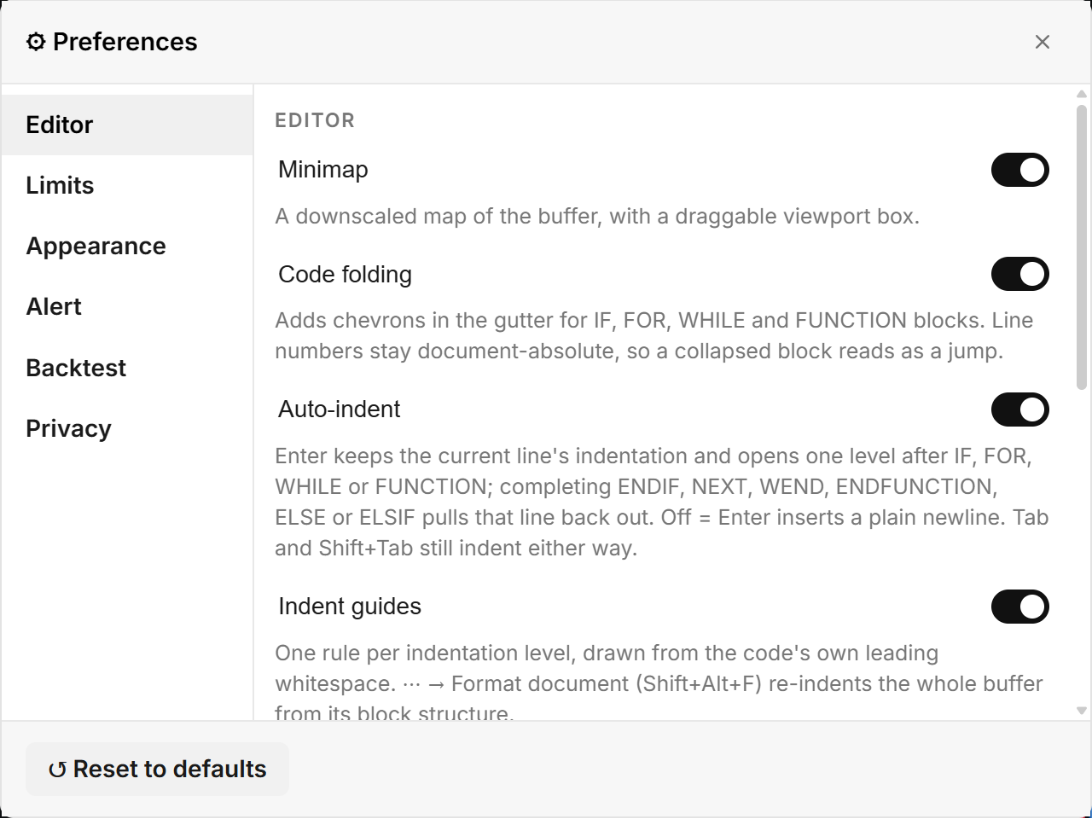
Every setting of ⚙ Preferences, with its default.
Six tabs, about forty settings. Most take effect the moment you change them, and all stay in this browser until you change them again.
 1
2
3
4
- The tabs. Editor, Limits, Appearance, Alert, Backtest, Privacy.
- A setting and its control: a switch, a number, a list.
- Its explanation, in grey, under each setting.
- “↺ Reset to defaults”: every tab back to its default (last sheet).
- Click ⚙ at the bottom of the rail, on the left edge of the editor.“⚙ Preferences” opens over the chart. The “Preferences” row of the ƒ launcher opens it too, even with the editor closed.
- Click a tab, change a setting.The change applies at once. Only the theme waits for “Apply theme”.
- Close the window with × or Esc.Nothing to save: the setting is already kept.
How the editor shows and shapes your code.
| Setting | Default | What it does |
|---|---|---|
| Minimap | Off | A small map of the whole code in the editor's right margin, with a box you drag to scroll. It takes some width from the code, hence off. |
| Code folding | Off | Small arrows in the margin fold IF, FOR, WHILE and FUNCTION blocks. Line numbers do not change, so a folded block reads as a jump. |
| Auto-indent | On | Enter keeps the indentation and adds a level after IF, FOR, WHILE or FUNCTION. Typing ENDIF, NEXT, WEND, ENDFUNCTION, ELSE or ELSIF moves the line back. Off: a plain new line. Tab and Shift + Tab indent either way. |
| Indent guides | On | A faint vertical line per indentation level. |
| Timeframe bands | On | A tint behind the lines under each TIMEFRAME(), one colour per timeframe, so you see which timeframe a line runs on. TIMEFRAME(default) ends the band. |
| Format on save | On | “Save” re-indents the whole code first, like “Format document” (Shift + Alt + F). A code whose blocks do not close properly is saved as it is. |
| Inline error checking | While typing | When the editor checks for problems. “While typing”: 400 ms after you stop typing. “On ▶ Run only”: when you run the code, and the markers go away at your next edit. Quick fixes work the same either way (chapter 09). |
How many codes at once, and where your signals go.
| Limits | Default | What it does |
|---|---|---|
| Maximum open codes | 6 (1 to 40) | How many codes stay open as tabs. At the limit, opening another one offers to close the oldest tab. Your saved codes are not affected. |
| Maximum codes on the chart | 8 (1 to 40) | How many codes run on the chart together. Each one is recalculated on every new bar. At the limit, applying another offers to take one off. |
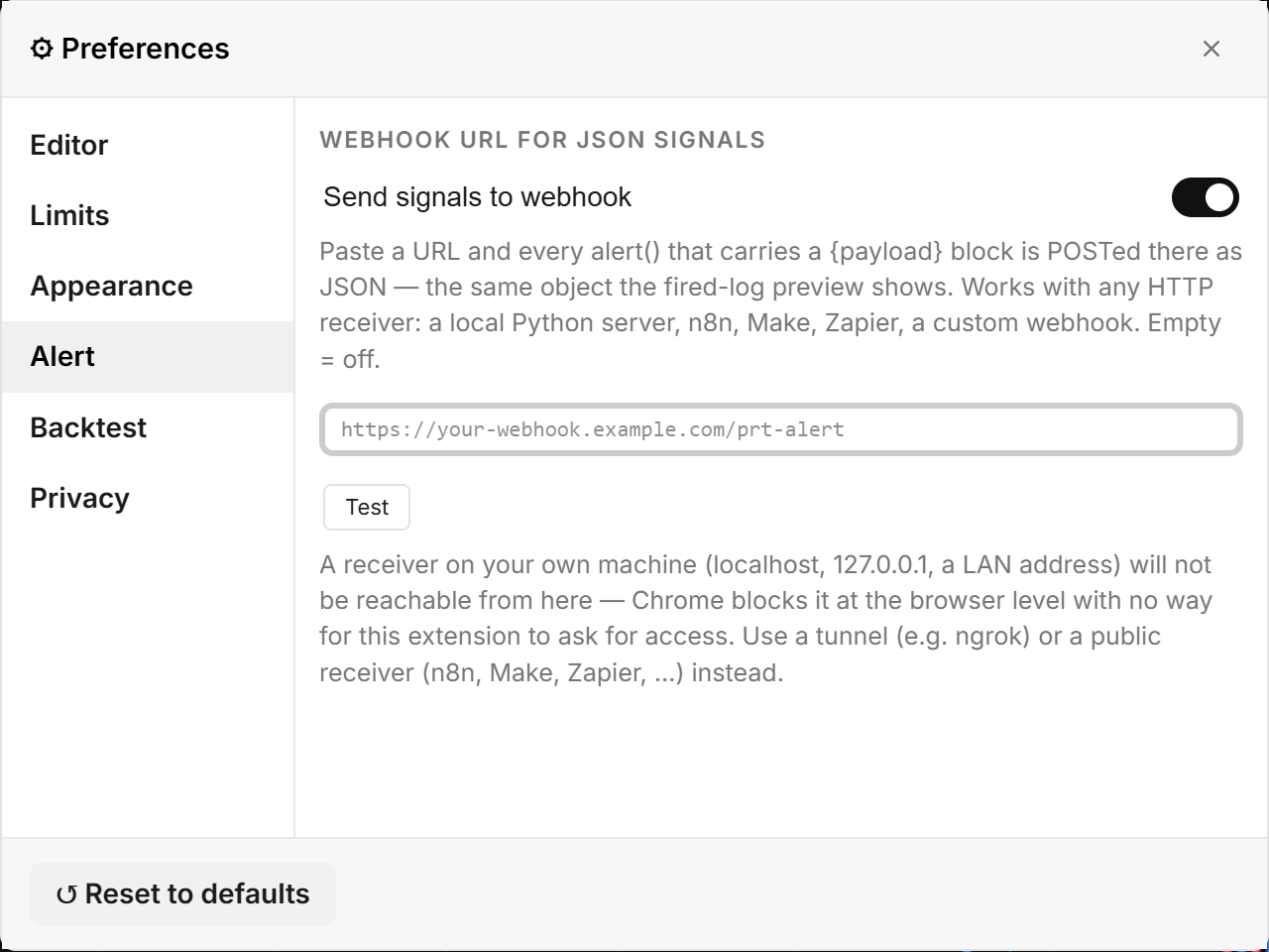
An alert() that carries a {key: value} block builds a JSON signal each time it fires (chapter 23). This tab sends it to a web address of yours: n8n, Make, Zapier, your own server. Chapter 17 shows the whole set-up.
A receiver on your own machine (localhost, 127.0.0.1, a LAN address) cannot be reached: Chrome blocks it. Use a tunnel or a public receiver.
| Alert | Default | What it does |
|---|---|---|
| Send signals to webhook | On | Off, the signal is still built and shown in the Alerts window, but nothing is sent. Lets you pause without deleting the address. |
| URL field | Empty | The address that receives the signals. Empty means off. It must start with http:// or https://. |
| Test | — | Sends a test signal now, even with the switch off. The tab then reads “last webhook delivered (…) at …” or “⚠ webhook failed (…) — is the receiver running?”. |
Preview a theme, then apply it.
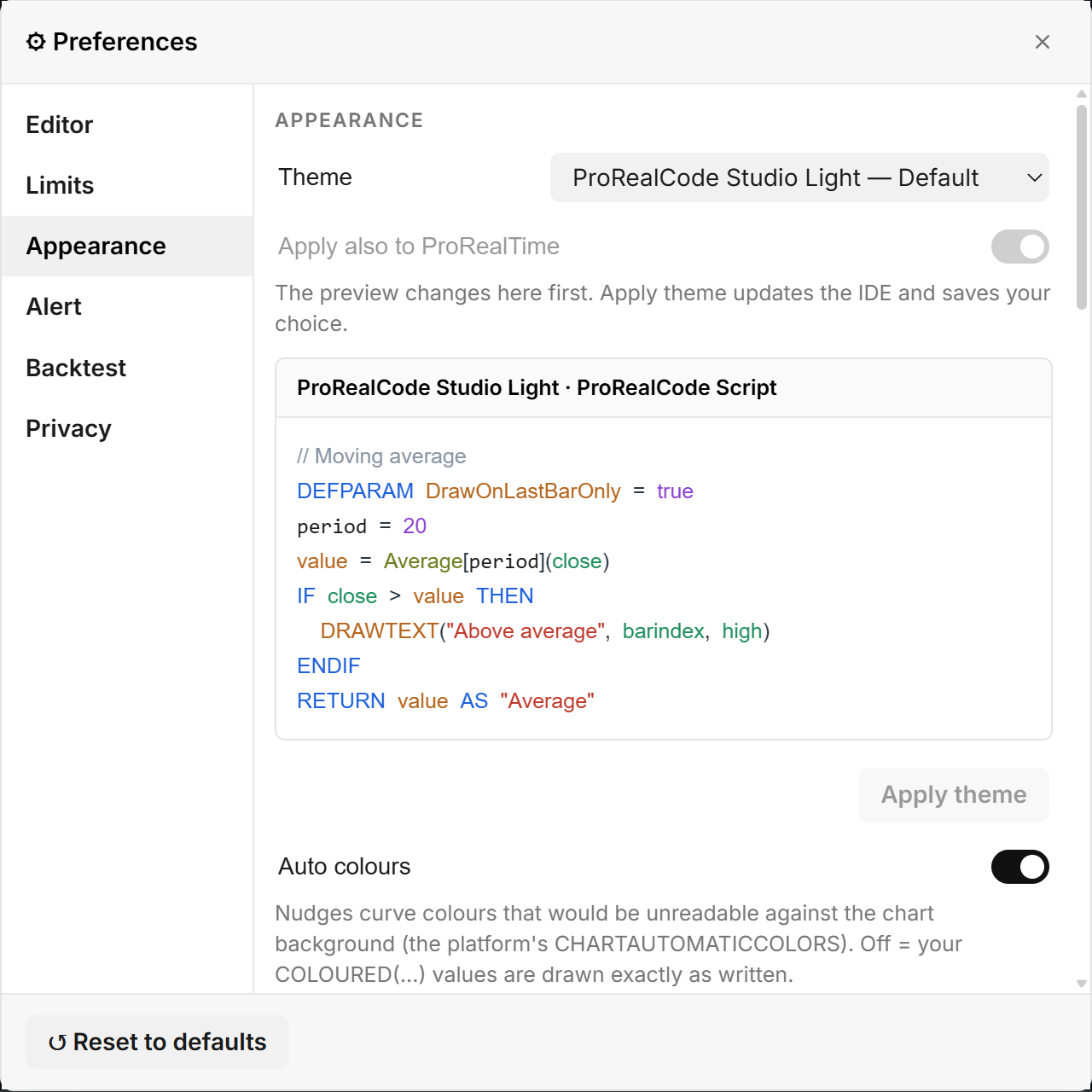
- Open the “Theme” list and pick a theme.The preview under it takes the new colours. Studio itself does not change yet.
- Click “Apply theme”.The editor and its windows take the theme, and the choice is kept.
| Setting | Default | What it does |
|---|---|---|
| Theme | Auto (follow platform) | 66 themes, grouped Dark and Light; 11 are marked “High contrast”. Auto follows the platform: dark when it is dark, light when it is light. |
| Auto: dark theme · Auto: light theme | ProRealCode Studio Dark · Light | Shown only under Auto: the two themes Auto switches between. |
| Apply also to ProRealTime | Off | Gives the platform's own interface the theme's colours. The chart itself is not affected. Not available under Auto or a ProRealCode Studio theme. |
| Auto colours | On | Adjusts a curve colour that would be unreadable on the chart background. Off: your COLOURED(…) values exactly as written. |
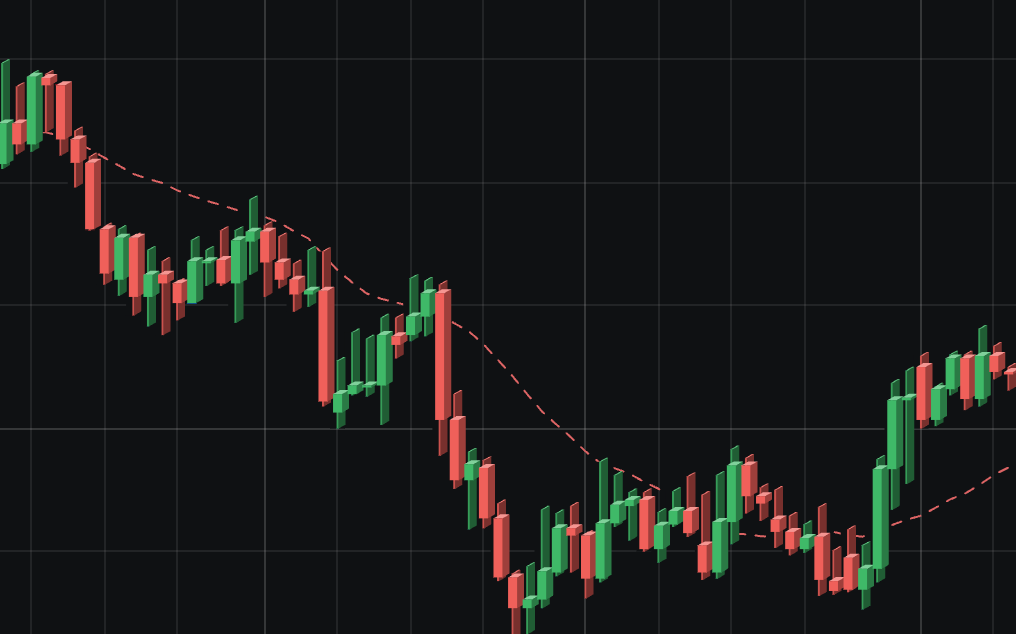
Redraw the candles, or leave the platform's alone.
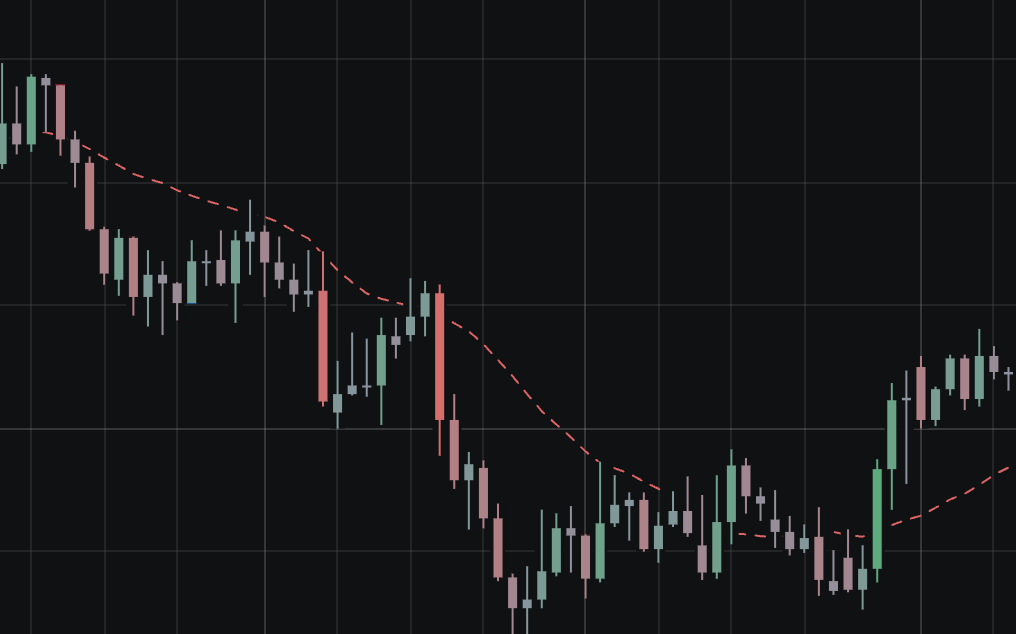
| Setting | Default | What it does |
|---|---|---|
| Price render style | Classic flat (platform candles) | Classic flat draws nothing over the platform's candles. The other four redraw them: Isometric OHLC (3D boxes), Depth-by-volume isometric, Gradient body (2.5D), Heat candle (magnitude colour). Ctrl + Shift + D cycles the five. |
| Custom candle colours | Off | On: the two colours below replace the built-in green and red. |
| Bullish candle · Bearish candle | #3fb968 · #f0605a | Close at or above the open, close below it. Under Classic flat, only the Bar replay candle uses them. |
| Heat sensitivity | Normal | Subtle, Low, Normal, High, Extreme. Heat candle only: Subtle keeps the colour for big moves, Extreme gives it to almost every bar. |
| Advanced visual effects | Off | Animates a change of style, the Backtest results curve and figures, the trade markers, an armed strategy's live result. How values are drawn, never the data. Your system's reduced-motion setting wins. |
| Live candle animation | Off | The forming candle slides to its new shape on each price update. Needs Advanced visual effects and a style other than Classic flat. |
What stays on screen with the editor closed.
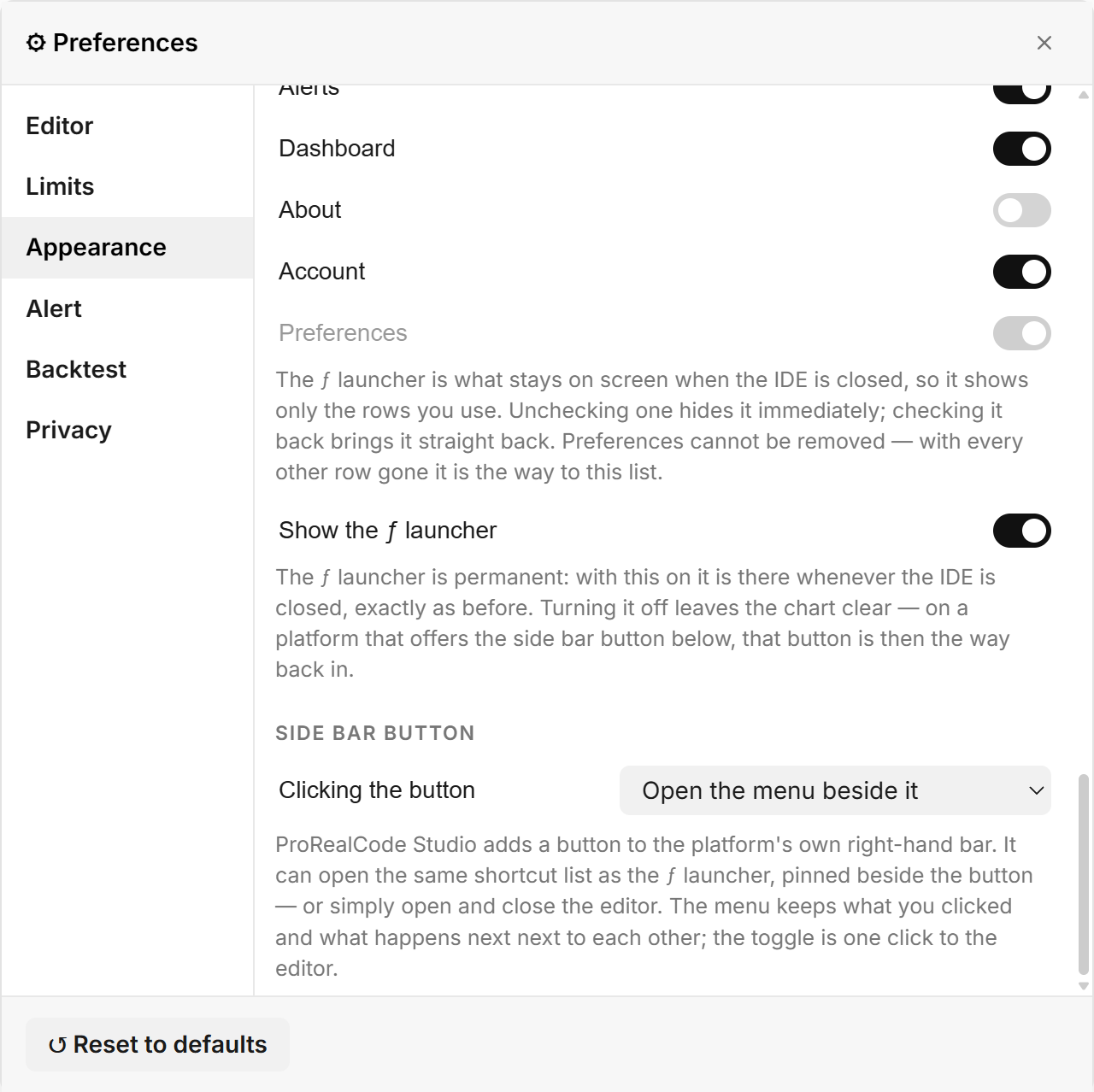
Launcher rows
One switch per row of the ƒ launcher, all on by default: Editor, Codes, Active, Templates, Bar replay, Strategies, Alerts, Dashboard, About, Account. A row you switch off leaves the launcher at once; switch it back on and it returns.
“Preferences” stays, greyed: with every other row gone, it is the way back to this list.
| Setting | Default | What it does |
|---|---|---|
| Show the ƒ launcher | On | Keeps the floating ƒ strip on screen while the editor is closed. Off: the chart is clear, and the platform's side bar button is the way back in. |
| Clicking the button | Open the menu beside it | What the “ProRealCode Studio” button on the platform's right bar does: open the launcher's list next to it, or “Show / hide ProRealCode Studio”. Shown only on a platform that has this button. |
The account a strategy is tested on, and whether it may run live.
| Setting | Default | What it does |
|---|---|---|
| Account | ||
| Initial capital | 10000 | The balance a strategy starts with. The equity curve starts there, and net % and drawdown % are measured against it. |
| Lot size | 1 | What one LOT means: BUY 2 LOTS opens 2 × this many units. Leave 1 unless you trade forex, where a lot is usually 100,000. |
| Use the current spread | On | Each fill pays half the instrument's current spread: a buy at the ask, a sell at the bid. Off: fills at the bar price. A spread typed in the results window wins. |
| Chart annotations | ||
| Order labels on the chart | On | BUY, SELL, SELLSHORT or EXITSHORT and the fill price at each order, for the 60 most recent orders. |
| Trade lines on the chart | On | A dotted line from each entry to its exit: green for a gain, red for a loss, grey at zero. |
| Realtime | ||
| Run strategies in realtime | Off | Lets you arm a strategy in the Strategies window, to act on each new bar. Switching it off disarms every strategy. The ProRealTime tab must stay open, minimised is fine. |
| Send each fill to the webhook | On | An armed strategy sends each fill as JSON to the address of the Alert tab. No real order is placed anywhere. |
| Sound on each fill | On | A rising two-note chime, unlike the alert tone, for a fill on the newest bar only. |
One switch for anonymous usage data.
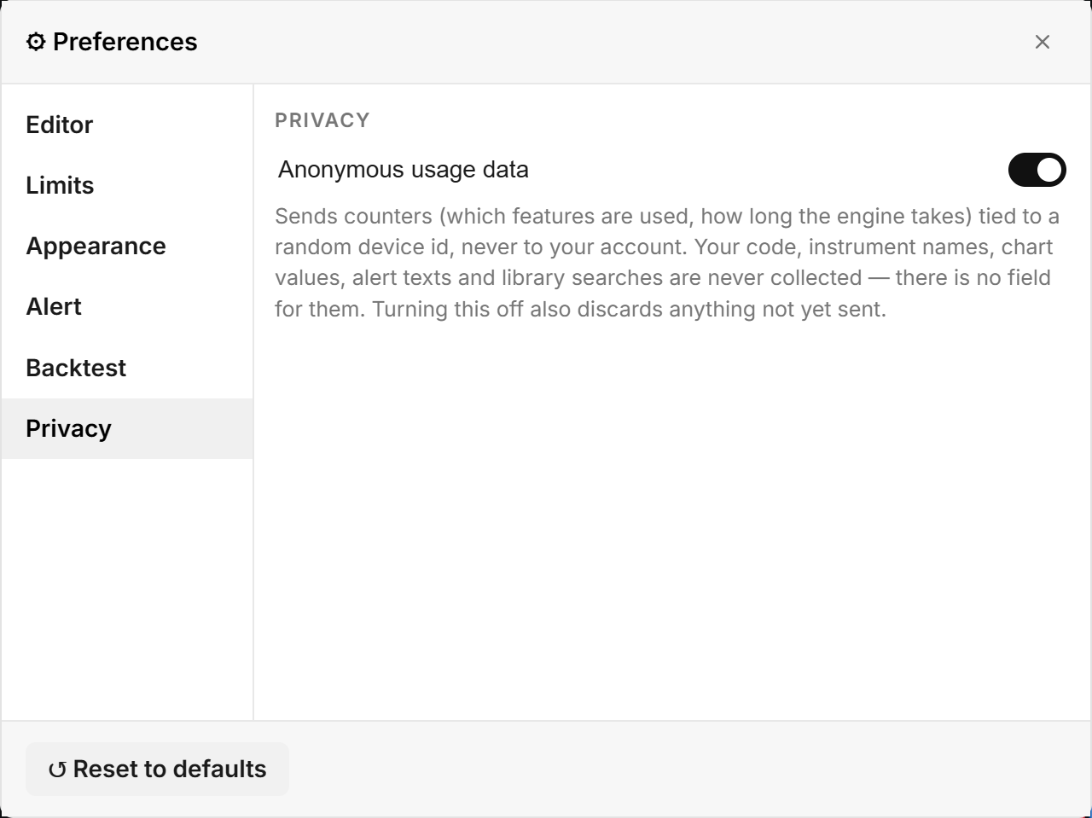
Anonymous usage data, on by default, sends counters: which features are used, how long calculations take. They are tied to a random device number, never to your account.
Your code, instrument names, chart values, alert texts and library searches are never collected. Switching it off discards what is not sent yet (chapter 27).
| Editor | minimap, folding, indentation, timeframe bands, error checking |
| Limits | open tabs (6), codes on the chart (8) |
| Appearance | theme, candle style and colours, animations, launcher |
| Alert | the webhook address for JSON signals |
| Backtest | capital, lot, spread, chart marks, live strategies |
Chapter 25 · Keyboard shortcuts