Dear all,
After updating ProRealtime to the latest version (v11.1 – 1.8.0_202), I’m unable to create or edit code for Pro-Order Autotrading. Anyone encounter the same issue? Please help or advice. Many Thanks!
I have no issue at all. Try to restart the platform? Do you have any error message? If the problem persist, you should send a report through the platform.
Two ways to understand the question:
- if you mean the minor intra-v11 update from 2 days ago, and your code editor window not working, like Nicolas it works for me too
- but maybe you meant the previous update from v10.3 to v11.1, and being new to v11, you can’t find the button for indicators and trading systems that used to be top center of a graph window in v10.3 ? If that’s the case then in v11 it’s moved to bottom left of the window.
Gold Star to Noobywan for excellent logical interpretation of original post.
Dear Nicolas & Noobywan,
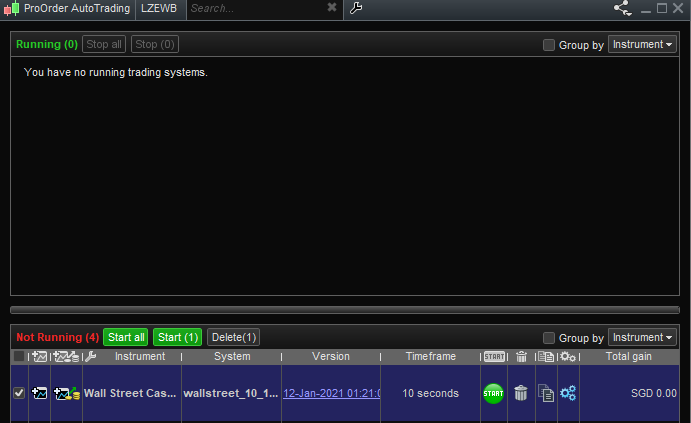
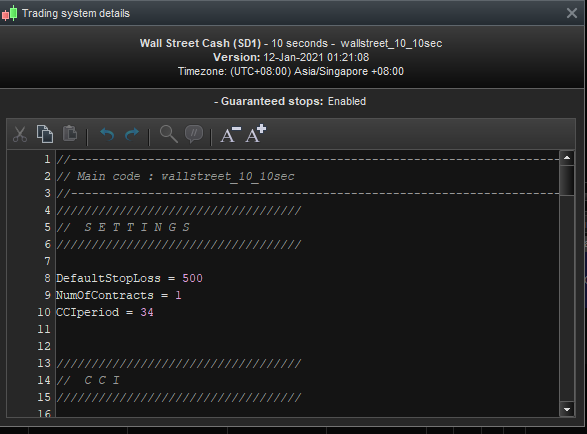
Thx for the feedbacks. Please find the attached screenshots fyi. In the previous version (I suppose 10.3 or 10.4), I have no issue at all. But after upgrading to version v11.1 the interface totally change and I can’t find ways to edit the code as before. I can open the existing code but I can’t edit it. Really appreciate if you can pinpoint me the way. Thx again!
Dear Nicolas & Noobywan,
I just figure out the way. As what Noobywan described in the earlier post, I launch the Pro-Order from the bottom left instead and now I can modify the code. It works but I feel the previous interface is better without launching more graphic interface (bars etc)
You could not edit code via that route in v10.3 either. That code has been added to the run-live area and so is not changeable.
Find the original code via the bottom left of the chart window and then via the spanner to modify it.
Dear Nicolas & Noobywan,
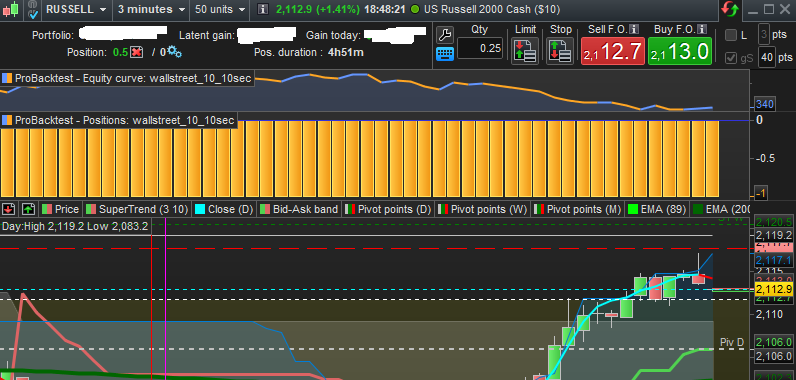
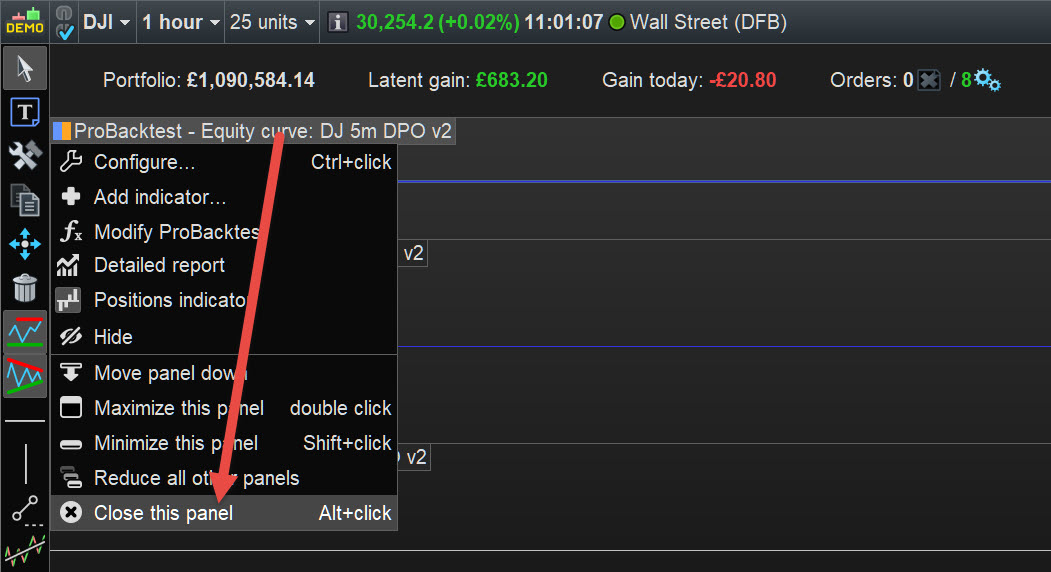
I have one more question. In the past I’m able to close the equity curve and Positions graphs by clicking the cross buttons on the graphs but now the cross button disappeared. I try to close the whole graph and open it again but the equity curve and Positions graphs still persist. Is there anyway out to close it? Please find the screenshot below FYI. Thx!
Dear Vonasi,
Am sure I can edit the code via that route in 10.3. I’m doing that all the time.
Sorry I’ve posted my question too fast. I figure out that there is a menu to close the panel (equity curve and Positions). Once again thx for the helps!
Is there anyway out to close it?
Yes click on the title bar and select Close … see attached at red arrowhead.
Open a Demo Platform and go round every symbol / icon you can see and find out what it does … that is how I taught myself about v11.
There is no User Manual (yet) for v11 so self-teach is the only way.
yes I figure out after I posted my questions. Anyway thx for the advice.
Am sure I can edit the code via that route in 10.3. I’m doing that all the time.
No – once a code has been prepared for automatic trading the ‘prepared’ code cannot be modified. The original code however can be modified.
No – once a code has been prepared for automatic trading the ‘prepared’ code cannot be modified. The original code however can be modified.
I think what @myle means is that he could modify the code (any code) via the menu, instead of selecting (it via) a Chart first. This is the the modifiable code – not the Prepared Code which can be asked for in the AutoTrading form indeed, but never modified.
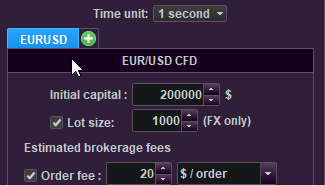
Personally I find it not the best solution (how it works in V11) because it is confusing and very easy to run a backtest on the wrong instrument. This, while undoubtedly it has been changed so we now can select the instrument(‘s chart) first and always be in the right “code”. Yeah, but the code is still the same. Only the tab (see attachment at the mouse pointer) changes. Net we can probably feel that all is related to being able to run a backtest for more instruments at the same time, but how this combines with my own text above … Maybe others see it.
I find it confusing and it causes quite some wrong backtests per day (only wasted time, that’s all). But, have several instruments for the exact same code (not more tabs !!). In that case you might get dizzy. With this, keep in mind that the tabs are NOT there to change the instrument tested. It’s only there for comparing two, or run two (together) in an assumed more efficient way (I did not test this). Anyway, at changing the code for one of your instruments (same code for all), you always need to relaunch the Editor (yes, strange eh ?) in order to use the BackTest button for that other instrument. Technically this works, but …
2c
no User Manual (yet) for v11 so self-teach is the only way.
Not the only way as below is a link to a very useful doc … think I’ll peruse it all myself! 🙂
https://www.prorealtime.com/en/new-features-ProRealTime-v11-1