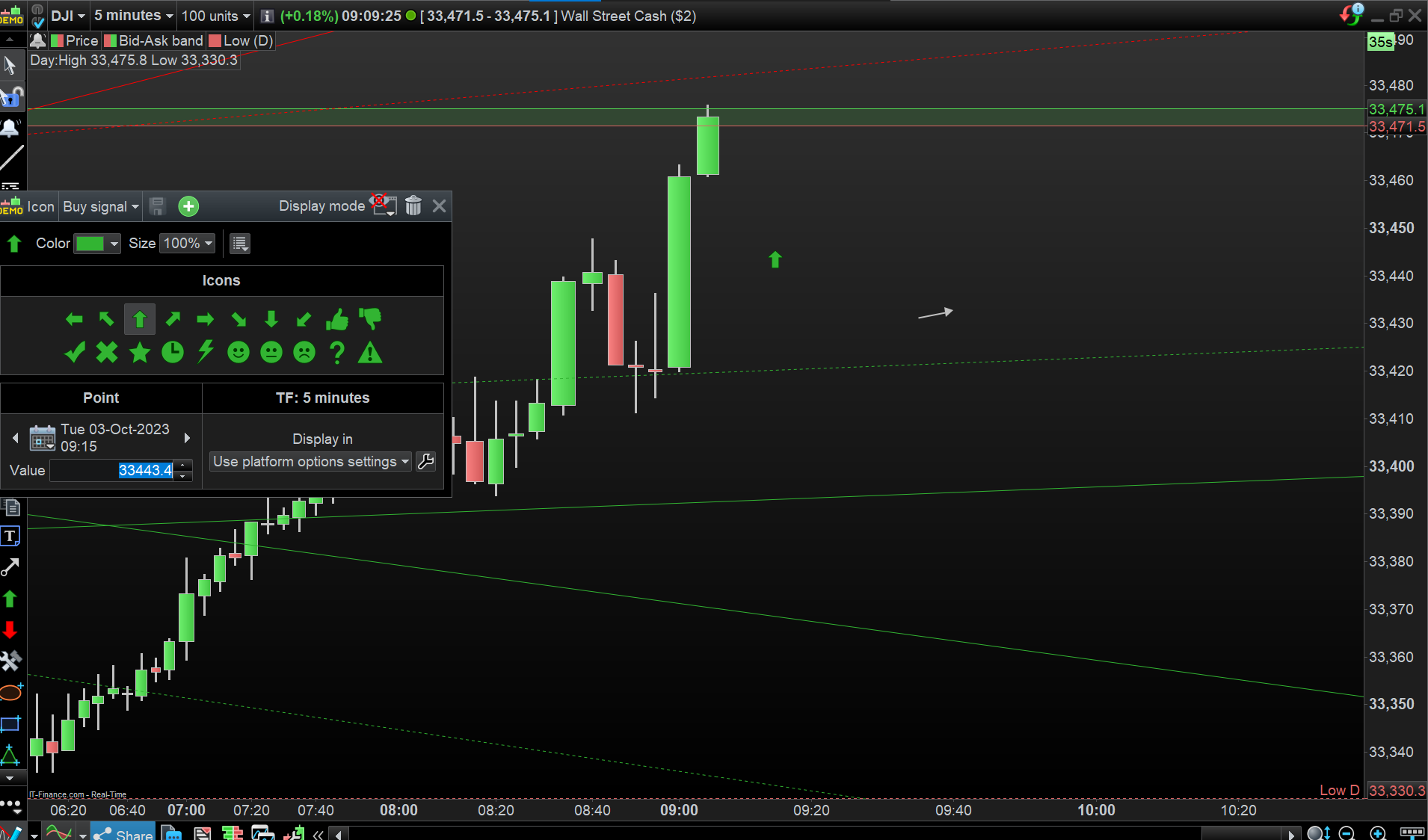
Hi,
up to a recent update, objects modification window used to open with a double-click on the objects.
Allowing for a fairly seamless modification of properties (color change in my case is frequent).
This no longer seems to be active, requiring right-click + drop-down + “configure Icon” selection – which is much less convenient (to me…).
Is there any Preference parameter somewhere allowing this to be set back to earlier way ? (double-click opens object properties windows)
Or could this be considered for a future update ?
Thanks a lot.
My config:
Windows 10 – Chrome – PRT up-to-date
Suggestion: Get back into ‘Cursor Mode’ and it should be as it was before for you.
If you not know how to Get back into ‘Cursor Mode’ 😉 … just say and I (or somebody) will provide more details.
Thanks for the answer & suggestion, GraHal !
I’m not sure I understand the “Cursor Mode” point, maybe this gives more clarity :
- I’m usually in “interactive cursor mode” (I didn’t know, but checked, and it turns out it is an option, in-between interactive- and standard- cursore mode);
- meaning an object will automaticaly get selected when rolling over it (if I read properly);
- however, in neither mode (standard or interactive) will the double-click on an object open the Properties window for that object (as it used to).
So, unless I missed something, my issue remains unsolved.
Maybe you have an other suggestion ? Or anybody does ?
Many thanks !
Weird as I just drew an oblique line and then enabled Interactive Cursor Mode and then clicked once on the oblique line and the properties box opened.
Then I disabled Interactive Cursor Mode and double clicked on the oblique line and the properties box opened.
Draw a (new) oblique line then try above, then let us know.
Hi GraHal,
thanks (a lot) for the substantiated answer :
- you are right, with an oblique line, it works (just tried);
- however, with an arrow (sell or buy signal, event), it doesn’t :
- once drawn, a click will select the arrow/object (allowing to drag/move it);
- second click will de-select it;
- double-click has no specific effect. (it used to open that Properties window – the functionnality I’d be very keen to re-establish).
- note: InterActive cursor on- or off- doesn’t seem to have an effect on that specific point (opening the Properties window).
Unless I missed something !…
Any clue ? Thanks a lot !
Weirder and weirder … I just drew a Buy Arrow and a white arrow (see attached) and properties are displayed same as above …
I enabled Interactive Cursor Mode and then clicked once on the arrows and the properties box opened.
I disabled Interactive Cursor Mode and double clicked on the arrows and the properties box opened.
Are you in Live Account or Demo?? My tests are in Demo v11.
Thanks, GraHal.
I’m running PRT 12 (live account), on a Windows Desktop, with Chrome.
I fully trust your point – but with my settings can only obtain that window with a “right-click > configure icon”.
Interactive cursor doesn’t change much the behavior: on-, a left-click will select(highlight the arrow) & allow drag/move. off-, just highlight the arrow.
Very weird, as you say !
Maybe a re-install may solve the issue ?
What’s very suprising is that with other objects (lines, channels…), I obtain the “normal behavior” (Properties opening upon double-click). But not for arrows (buy, sell, event).
Thanks !
can only obtain that window with a “right-click > configure icon”.
It looks like on v12 that above is now the way to see properties etc?
Just as easy thought isn’t it as the old way in v11?
well, it’s slower (little can be as quick as “double-click”), and it’s heterogenous, with Arrows being treated differently from others.
But if that’s the way, and nothing can be done…
Just a final question: any proper place to place a feature request ? (just in case this could be reversed, to the earlier, quicker and homogenous way…)
And we’ll leave it at that.
Thanks !
Yes contact PRT direct on the link below or if you want to make it a Suggestion for Improvement then click the Suggestion Box in the left margin under the guys photo
https://trading.prorealtime.com/en/contact
Describe in brief, but also provide a link to this Topic as that will save you typing so much.
Thanks, Grahal. Will do that.