So when you open the template which you earlier saved, all the windows are restored. This is a ‘overkill’.
Huh ?
I don’t know what it is, but you ask for things which work throughout. 🙂
(but probably can’t find your ways yet)
After I some research, I found template chart is closest to what I want. https://www.prorealtime.com/en/help-manual/manage-multi-charts
Umm, that is what I told you in the other topic, right ? But I also told that this is a so powerful tool that it really requires getting used to.
But still I thk it would be nice for Prorealtime to ‘memorize’ the settins of a chart when closed and by default when open new chart.
I think your “workflow” can change a little. What I mean to say is : you should not close charts at all, but have one “main” template environment that always loads all you want – with of course the same indicators.
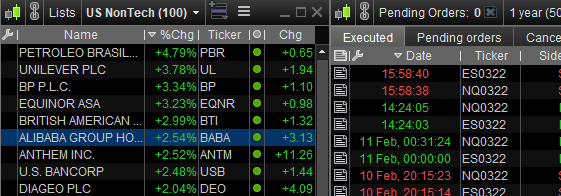
In my case when I click from whatever List, always the same three charts load for the instrument involved. Each has its own time frame and each has its own indicators. I can show an example of the list, not the resulting charts (too much fuss).
Notice (below) that Link icon again. These ones are grey for both Lists. Also notice that about each window in PRT has such an icon. You can assign a link color to a. any List and b. that group of charts (or one only) with the instruments and everything (?!) you like. Try it ?
Really, I never close windows which serve the purpose of analysis (the last one I asked for just stays). I may overwrite them with other windows, though.
If I like to open 20 windows with views from different angles, I give them all the same link color and they open all 20 when I click a list with the same link color. I can, of course, also briefly change the link color of a list, so I can open another group of charts, or different indicators.
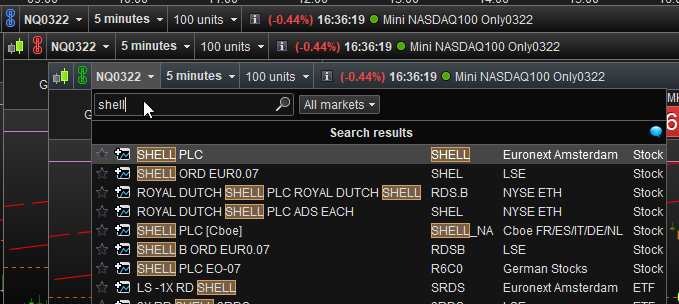
Because each Chart actually has a search box (didn’t you complain about that yesterday or so ?) I can give a random Chart again a Link color and from there open new Chart with dedicated instruments after searching for them. Thus, have 4 Charts on screen each with a different Link color, and each will show the instruments differently (per your own set up of a first Chart). See 2nd attachment where I quickly created that. But do notice that when I click a “Shell” in there, it will appear in the prepared Chart(s) with a green Link icon. Thus, a prepared one (containing an instrument from the previous search) replaces the instrument with the “Shell” I choose.
Have fun !