Basic questions – how to find answers

Viewing 8 posts - 1 through 8 (of 8 total)

  • Author
    Posts
  • #156280 quote
    teapot2002
    Participant
    Average

    Apologies for this, but I have searched quite hard and can’t find answers.

    I have switched to v11 but can’t find out the basics, such as how to add indicators to the charts and how to add automatic trading systems. Could you please let me know the answers to these, and tell me where to go in future for answers to basic questions like these – a manual or videos etc.

    Thanks.

    #156283 quote
    Nicolas
    Keymaster
    Master

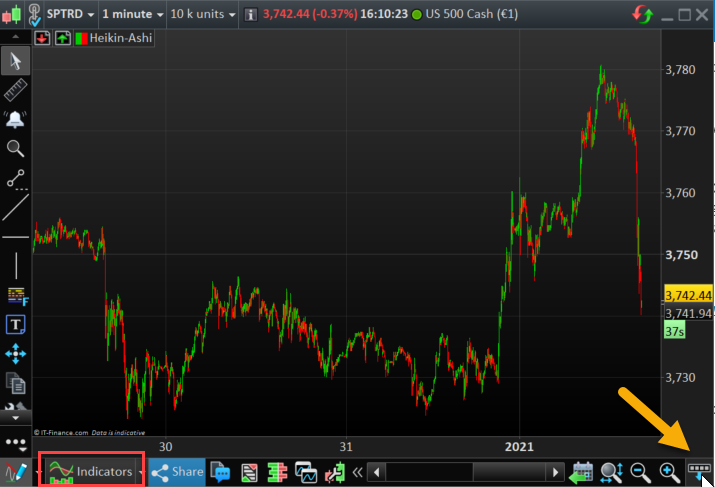
    The way to add indicators on charts has not changed with v11. But the button is now located elsewhere 🙂 at the bottom left of each price chart. Make sure the bar is viewable (with the “dots” button).

    add-indicators-prorealtime-v11.png add-indicators-prorealtime-v11.png
    #156295 quote
    teapot2002
    Participant
    Average

    Thank you. I have found the button and brought up the Settings dialogue box, but the Add Indicator option is greyed out, as are Add Colour Zone, Duplicate and Delete. I am using a template that includes an automated trading system, and I suspect the problem is because the Settings dialogue box says Equity Curve at the top rather than the chart, and can’t add these to the Equity Curve. How do I switch its focus to the chart itself?

    How do I add my automatic trading systems to a chart, and how do I remove them?

    #156307 quote
    GraHal
    Participant
    Master

    How do I add my automatic trading systems to a chart, and how do I remove them?

    In the window Nicolas directed you to …

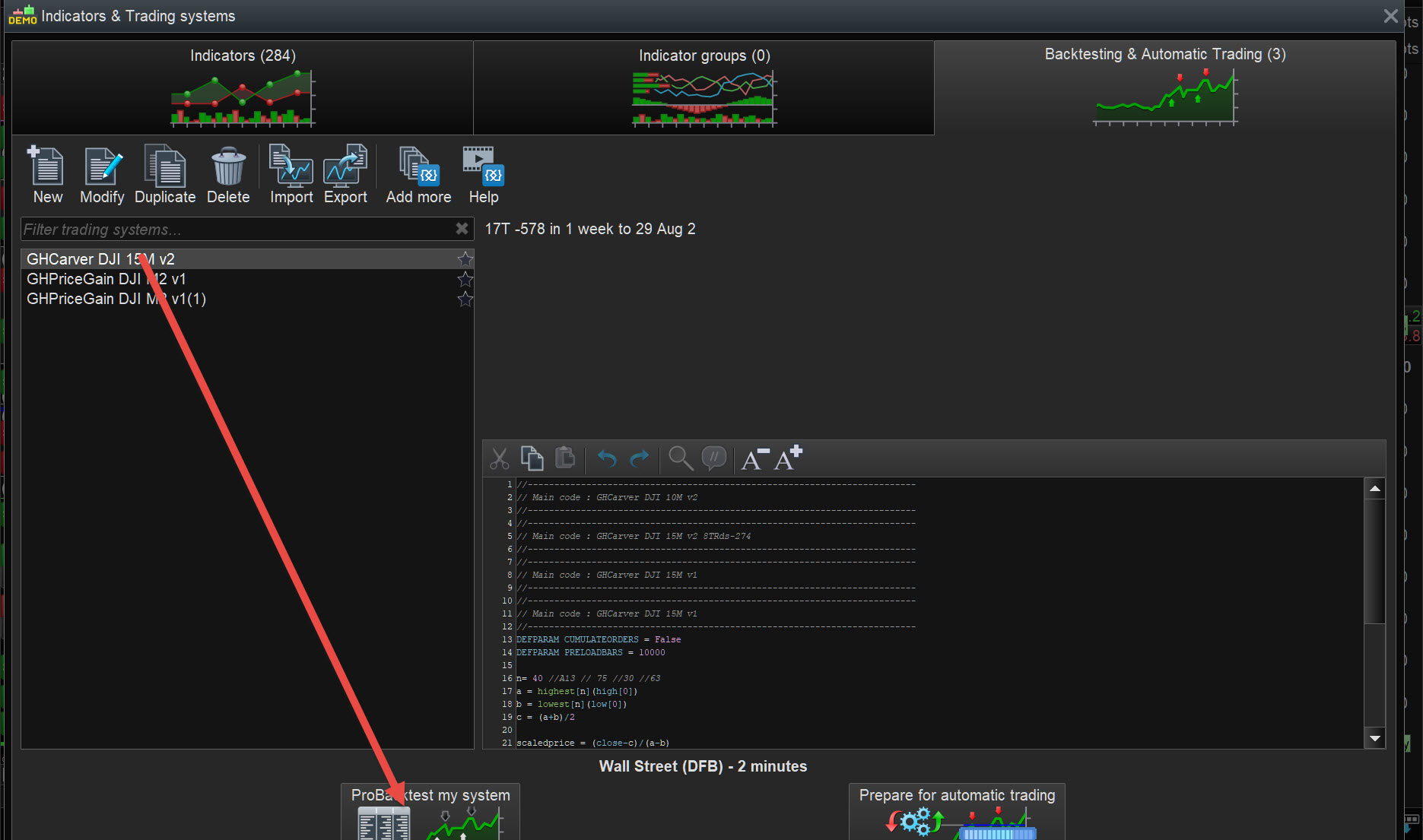
    To Add: Click ProBacktest my System.

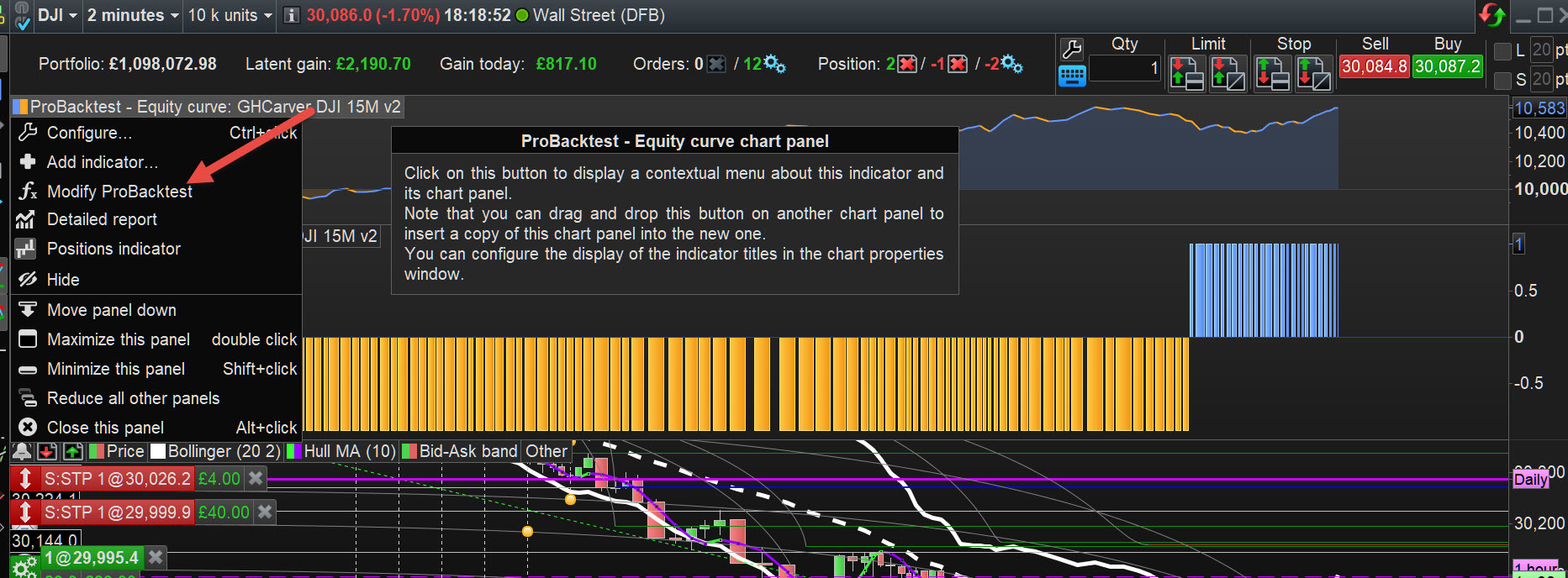
    To Remove: Click on the System title and select Close at the bottom of the List

    #156325 quote
    teapot2002
    Participant
    Average

    Thanks for the reply, GraHal. Is ProBacktest my System  the little icon of a table, a pile of money (rofl!) and a green arrow pointing up? When I mouse over this button, no words appear to tell me what it is. If I click on it I get a Detailed Report of the last automated system that I tried, but I don’t see how to change to a different one. I have managed to turn it off as you suggest by clicking the System title and clicking Close, but this seems to be a change to the layout rather than control over the automated systems. How do I choose a new one? And how do I edit it?

    #156337 quote
    GraHal
    Participant
    Master

    See attached (at red arrowhead) for ProBacktest my System  … this is the way I start a System on backtest.

    GH.jpg GH.jpg
    #156339 quote
    GraHal
    Participant
    Master

    And how do I edit it?

    Click on System title and select  Modify Probacktest … see attached at red arrowhead.

    GH-1.jpg GH-1.jpg
    #156349 quote
    Monochrome
    Participant
    Senior

    Have you tried the manual on the prorealtime website?

Viewing 8 posts - 1 through 8 (of 8 total)
  • You must be logged in to reply to this topic.

Basic questions – how to find answers


Platform Support: Charts, Data & Broker Setup

New Reply
Author
author-avatar
teapot2002 @teapot2002 Participant
Summary

This topic contains 7 replies,
has 4 voices, and was last updated by Monochrome

5 years, 1 month ago.

Topic Details
Forum: Platform Support: Charts, Data & Broker Setup
Language: English
Started: 01/04/2021
Status: Active
Attachments: 3 files
Logo Logo
Loading...