




AI Trend Navigator
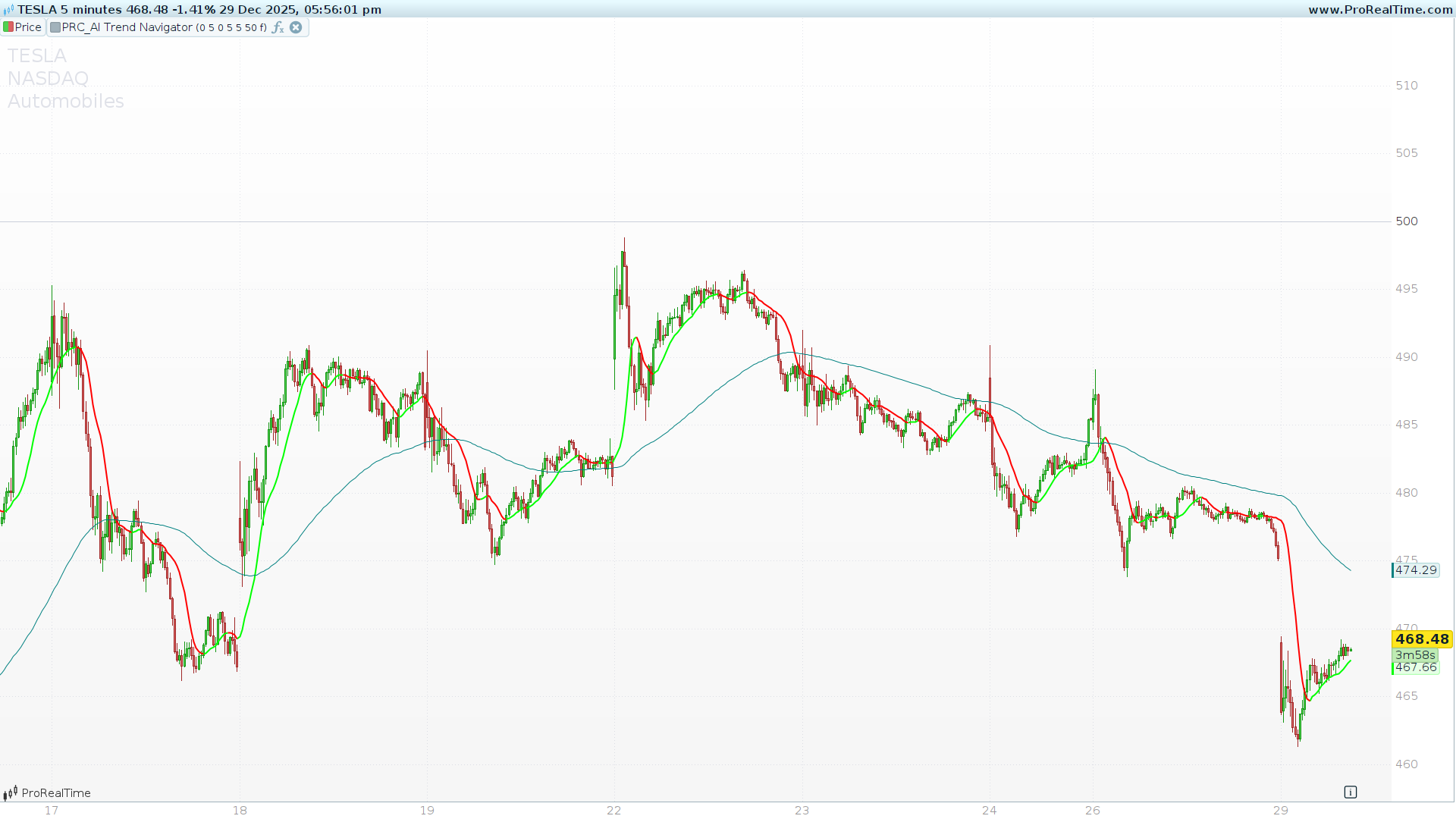
This article provides a comprehensive guide to the AI Trend Navigator, an advanced technical indicator that leverages a K-Nearest Neighbors (KNN) machine learning logic to identify market trends and predict potential reversals directly within ProRealTime.
What is the AI Trend Navigator?
The AI Trend Navigator is designed to filter market noise by comparing current price action against a historical “window” of data. Unlike standard moving averages that simply lag behind the price, this tool uses a KNN Classifier to find the most similar historical data points (the “neighbors”) and uses their average to project a cleaner, more responsive trend line.
The indicator is highly versatile, allowing users to choose between various calculation methods such as VWAP, Exponential Moving Averages (EMA), and Hull Moving Averages (HMA) for both the data database and the current target.
How It Works: Technical Insights
The core of this indicator is a learning loop that performs the following steps:
-
Database Creation (
valueIn): The script calculates a series of historical values based on your chosen source (e.g., Mid-Price, VWAP, or SMA). -
Target Comparison (
targetIn): It identifies the current market state using a separate target calculation. -
Distance Calculation: For every bar in the historical window (default is 30 bars), the script calculates the absolute “distance” between the current target and past values.
-
KNN Averaging: It identifies the K (number of closest values) smallest distances and averages their corresponding prices to produce the Knn Classifier Line.
-
AI Prediction: It looks back at the 10 most recent patterns to see if similar price movements historically resulted in a bullish or bearish shift, which is then visualized via the background color.
Key Visual Elements
1. The Knn Classifier Line (Thick Line)
This is your primary trend signal. It is dynamically colored based on its slope:
-
Green: The KNN line is rising, indicating a bullish trend.
-
Red: The KNN line is falling, indicating a bearish trend.
-
Orange: The line is neutral or flat.
2. Average Knn Classifier Line (Thin Teal Line)
This line acts as a long-term baseline (smoothed by a Wilder Average). It helps traders distinguish between minor fluctuations and major trend shifts.
3. Predictive Background (Optional)
If enabled, the background provides a visual “forecast” from the AI logic:
-
Green Background: The AI logic predicts a higher probability of an upward move.
-
Red Background: The AI logic predicts a higher probability of a downward move.
Configuration & Settings
You can customize the indicator through the Variables menu in ProBuilder without touching the code.
| Input Variable | Default | Description |
priceValue |
0 |
Source for the “Database” (0=HL2, 1=VWAP, 2=SMA, 4=EMA, etc.) |
maLen |
5 |
The period used to calculate the database values. |
targetValue |
0 | The current target for comparison (0=Wilder, 1=VWAP, etc.). |
numberOfClosestValues |
3 | The “K” in KNN. Higher values result in more smoothing. |
smoothingPeriod |
50 |
Long-term smoothing for the baseline and AI logic. |
bgColour |
0 |
Toggle (0 or 1) to enable/disable the predictive background. |
ProBuilder Code
The following code should be pasted into the ProBuilder editor. Ensure you define the variables listed above in the “Variables” section of the indicator settings to enable full customization.
//----------------------------------------------
//PRC_AI Trend Navigator
//version = 0
//24.04.24
//Iván González @ www.prorealcode.com
//Sharing ProRealTime knowledge
//----------------------------------------------
// --- Inputs ---
//----------------------------------------------
priceValue=0 // 0=hl2, 1=VWAP, 2=sma, 3=wma, 4=ema, 5=hma
maLen= 5
targetValue=0 //0=Price Action, 1=VWAP, 2=Volatility, 3=sma, 4=wma, 5=ema, 6=hma
maLen1= 5
numberOfClosestValues= 3
smoothingPeriod= 50
bgColour=0// Boolean (0 or 1)
once windowSize = max(numberOfClosestValues, 30)
//----------------------------------------------
// --- PriceValue calculation (valueIn)
//----------------------------------------------
if priceValue = 0 then
   valueIn = average[maLen]((high + low) / 2)
elsif priceValue = 1 then
   valueIn = VolumeAdjustedAverage[maLen](close)
elsif priceValue = 2 then
   valueIn = average[maLen](close)
elsif priceValue = 3 then
   valueIn = weightedaverage[maLen](close)
elsif priceValue = 4 then
   valueIn = exponentialaverage[maLen](close)
elsif priceValue = 5 then
   valueIn = hullaverage[maLen](close)
else
   valueIn = close
endif
//----------------------------------------------
// --- Target input calculation (targetIn)
//----------------------------------------------
if targetValue = 0 then
   targetIn = WilderAverage[maLen1](close)
elsif targetValue = 1 then
   targetIn = VolumeAdjustedAverage[maLen1](close)
elsif targetValue = 2 then
   targetIn = AverageTrueRange[14](close)
elsif targetValue = 3 then
   targetIn = average[maLen1](close)
elsif targetValue = 4 then
   targetIn = weightedaverage[maLen1](close)
elsif targetValue = 5 then
   targetIn = exponentialaverage[maLen1](close)
elsif targetValue = 6 then
   targetIn = hullaverage[maLen1](close)
else
   targetIn = close
endif
//----------------------------------------------
// --- KNN Classifier
//----------------------------------------------
// Initialize arrays with a very high distance
for k = 0 to numberOfClosestValues - 1 do
   $closestDistances[k] = 10000000000
   $closestValues[k] = 0
next

for i = 1 to windowSize do
   currentVal = valueIn[i]
   distance = abs(targetIn - currentVal)

   // Find the maximum distance currently in our "Top K" list
   maxDistValue = $closestDistances[0]
   maxDistIndex = 0
   for j = 1 to numberOfClosestValues - 1 do
      if $closestDistances[j] > maxDistValue then
         maxDistValue = $closestDistances[j]
         maxDistIndex = j
      endif
   next

   // If the new distance is smaller than the largest in the list, replace it
   if distance < maxDistValue then
      $closestDistances[maxDistIndex] = distance
      $closestValues[maxDistIndex] = currentVal
   endif
next

// Manual sum of the closest values array
knnSum = 0
for k = 0 to numberOfClosestValues - 1 do
   knnSum = knnSum + $closestValues[k]
next

knnMA = knnSum / numberOfClosestValues
//----------------------------------------------
// --- KNN Prediction Logic
//----------------------------------------------
priceMid = (knnMA + close) / 2
cRMA = WilderAverage[smoothingPeriod](knnMA[1])
oRMA = WilderAverage[smoothingPeriod](knnMA)

posCount = 0
negCount = 0
minDist = 10000000000

for j = 1 to 10 do
   distPred = abs(priceMid[j] - priceMid)
   if distPred < minDist then
      minDist = distPred
      if cRMA[j] < oRMA[j] then
         posCount = posCount + 1
      elsif cRMA[j] > oRMA[j] then
         negCount = negCount + 1
      endif
   endif
next

if posCount > negCount then
   predictionRaw = 1
else
   predictionRaw = -1
endif

knnPrediction = weightedaverage[3](predictionRaw)
//----------------------------------------------
// --- Visualization and Lines
//----------------------------------------------
knnLine = weightedaverage[5](knnMA)
maKnnLine = WilderAverage[smoothingPeriod](knnMA)

// Colors for the main line
if knnLine > knnLine[1] then
   r = 0
   g = 255
   b = 0
elsif knnLine < knnLine[1] then
   r = 255
   g = 0
   b = 0
else
   r = 255
   g = 165
   b = 0
endif

// Background Logic
if bgColour = 1 then
   if knnPrediction < 0.5 then
      // Trend Down (Red)
      backgroundcolor(255, 82, 82, 35)
   elsif knnPrediction > -0.5 then
      // Trend Up (Green)
      backgroundcolor(0, 230, 118, 35)
   endif
endif
//----------------------------------------------
return knnLine as "Knn Classifier Line" coloured(r, g, b) style(line, 2), maKnnLine as "Average Knn Classifier Line" coloured(0, 128, 128) style(line, 1)

