



First approach to multi timeframe trading with ProRealTime
Hello everyone, in this article I will present a new feature long awaited by many traders, “multi timeframe” support for automatic trading with ProBacktest and ProOrder!
What is the multi-timeframe mode?
Since some of you will have no idea what it is and why it is so important and interesting, I will briefly explain to you how and why to use different timeframes in programming and what impact it can have on your trading strategies.
Use different timeframes to build strategies:
When building a trading strategy, it is common to use valuable information over multiple time units. For example: imagine that for your new scalping strategy on DAX in 1 minute, you need to know the daily trend of the market, in a 5 minute chart using moving averages or any other equivalent indicators. So far (and without our new tool!) to get data from superior timeframes, you had to use your calculator and rules of 3 to define the hypothetical periods that would have given us approximate data of the daily MA in a 5 minute timeframe. This is no longer the case today, now we can call data directly from any other TF on the fly to make our trading decisions.
See also the updated documentation keyword: TIMEFRAME (ProBacktest / ProOrder)
Let’s create our first multi-timeframe strategy!
Our trading strategy on the DAX could thus be programmed like this:
 defparam cumulateorders=false

//5 minute TF (get the trend of the 5 minute chart)
timeframe(5 minutes,updateonclose)
MA20 = average[20]
bulltrend = summation[3](MA20>MA20[1])=3

//"default" timeframe (the timeframe you will launch the strategy on)
timeframe(default)
sto = Stochastic[14,3](close)
avgsto = average[3](sto)
buyc = sto crosses over avgsto and sto<20
if buyc and bulltrend then
 buy at market
endif

set target pprofit 3
set stop ploss 15
So we have in our strategy 2 different timeframes, one in the 5 minute timeframe (declared at the beginning of the code) and the “default” timeframe. This one defines the timeframe which is used to launch the strategy under ProBacktest or ProOrder, in our example it would be the 1 minute timeframe.
Separating time units implies that each variable will be calculated in the timeframe in the block where it is located. Our variable “MA20” is thus calculated in the 5 minute TF, but this one can be tested in any other TF as it is on line 13, in the “default” TF in the variable “bulltrend “.
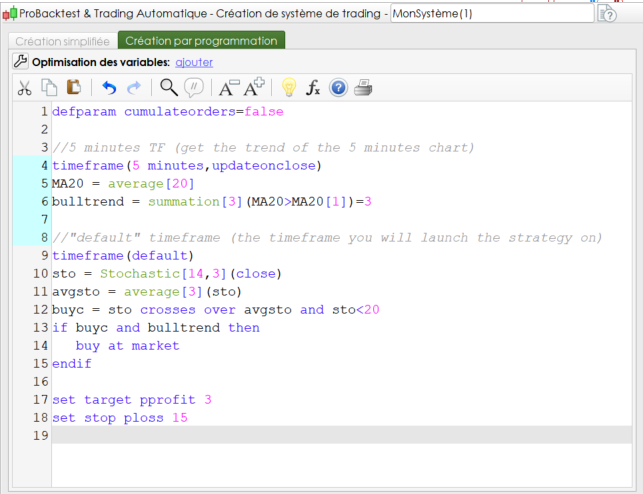
You will notice that the syntax editor uses a different color with every block of code which uses a different timeframe, declared with the help of the TIMEFRAME instruction (the same instruction which is used for ProScreener, but with a different syntax that we will discuss more later) and other than the main one (the default TF):
The calculation rate and the variables updates (syntax)
The syntax of the TIMEFRAME statement is TIMEFRAME (TF, mode) which allows you to put the code in a timeframe different from the main TF, or TIMEFRAME (default) to return to the default TF. “mode” is optional (the default is current bar).
Examples:
- TIMEFRAME(weekly, UpdateOnClose)
- TIMEFRAME(30 minutes, default)
- TIMEFRAME(5 minutes)
List of TimeFrames available: x second (s), x minute (s), x hour (s), hourly, x day (s), daily, x week (s), weekly, x month (s), monthly, yearly
Available modes:
- UpdateOnClose: only closed bars are used
- Default: The variables defined in superior timeframes take into account each update of the main timeframe
Warning!
UpdateOnClose allows to read the code and thus to inform the variables only once per bar, at its closing. It should be understood that without the use of this mode, the variable data is updated with each new bar of the “default” time unit.
So without having declared this mode in our example code, the variable MA20 of the 5 minute TF would have been filled with the Close of the 1 minute bar. This will be of enormous importance if you want to get the right data from your indicators in the upper timeframes! Why ? Simply because, as a general rule, we are still waiting for closure to consider accurate information and this is all the more important when we consider making trading decisions based on indicator calculations.
Difference between UpdateOnClose and “default” mode
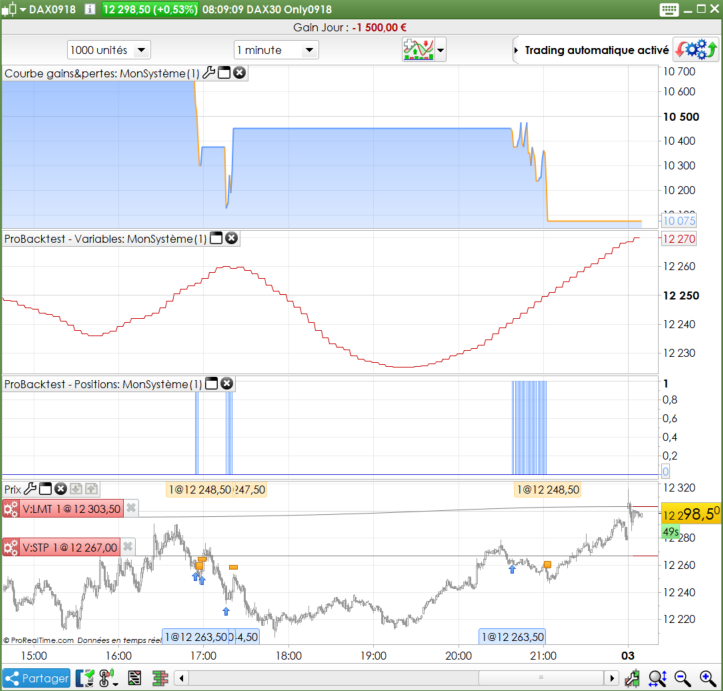
We can use the GRAPH instruction to visualize our different variables calculated in different TF:
In “UpdateOnClose” mode, our variable MA20 of the 5-minute chart (in red), recalculates only once every 5 minutes.
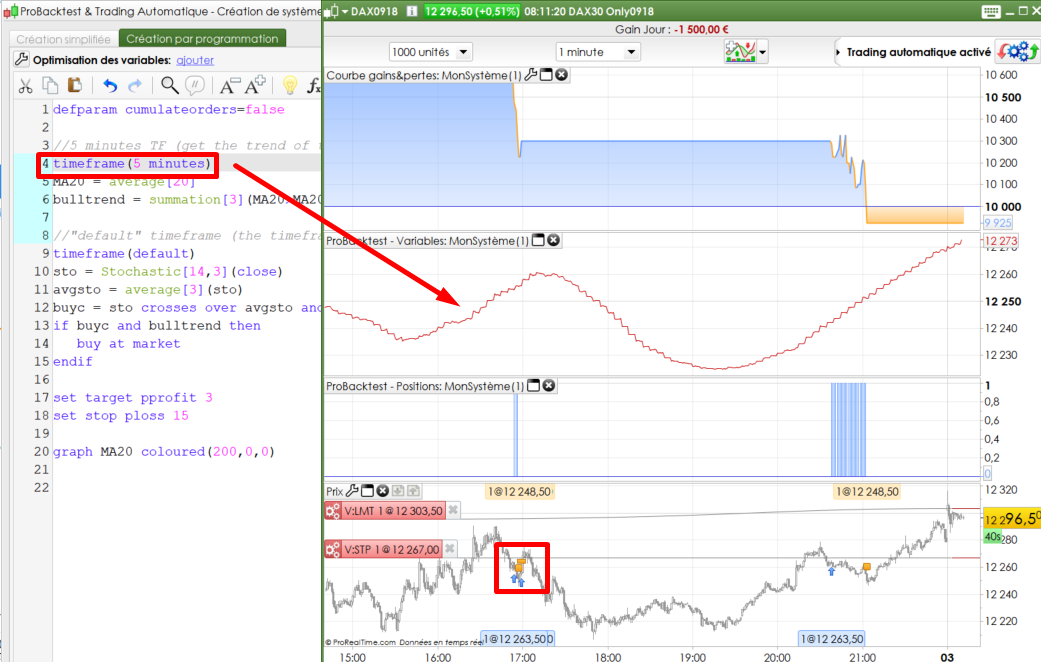
In “default” mode, the variables of the 5-minute timeframe are calculated at each update of the default timeframe, so we notice that the orders are different, since it is no longer the same strategy !!
What to know about this particularity:
- In “updateonclose” mode, the code of the TIMEFRAME are evaluated at each new bar of the TIMEFRAME, so the variable is naturally logged in the upper TF.
- In “default” mode, the entire code is evaluated at each index change of the main TF. However, the index of the variables in the upper TIMEFRAME is incremented only when the index of their TF is changed, while the current state [0] of the variables is reset to its value at the close of the last aggregated candlestick (either [1]) before evaluating the TIMEFRAME code.
Interaction with orders
What many of you expect from this new feature is the ability to interact with orders, without waiting for the bar of our strategy to be completed and therefore the code to be read.
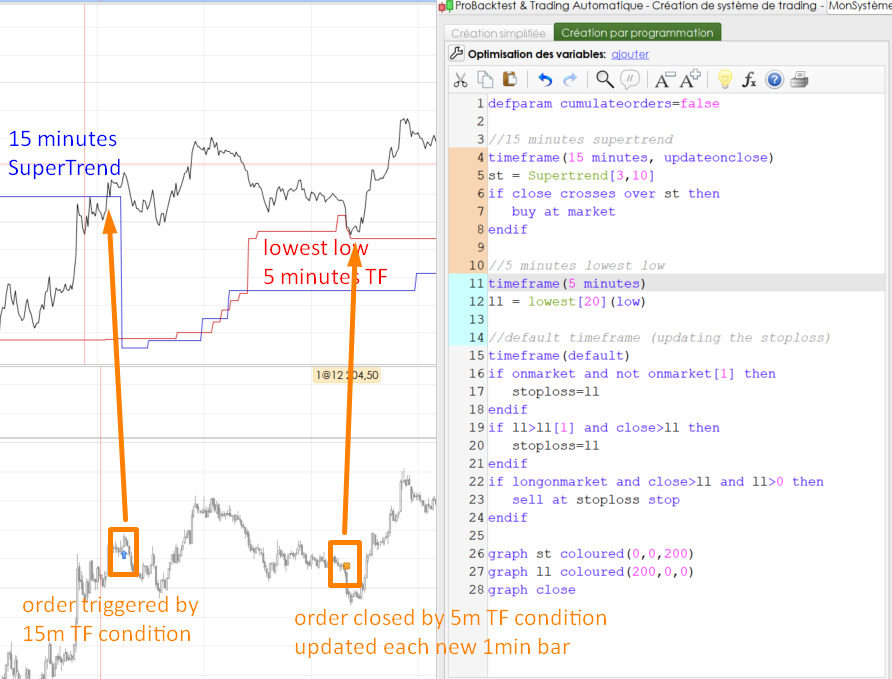
Indeed, the multitimeframe mode does not change the behavior of ProBacktest / ProOrder. The code is always read only once per bar and when it is closed. Except that now we can use a 15-minute strategy and interact with its orders every minute.
Sample strategy:
- Orders are triggered with a cross with the SuperTrend in the 15-minute TF with close data (blue line)
- The stoploss level is calculated with the last 20 lowest low in the 5-minute TF in real time because it does not use the UpdateOnClose mode (red line)
- The stoploss is changed every minute if necessary
The black line represents the Close of the 1 minute candlestick.
As you can see, this opens a wide field of new possibilities and exploration for automatic trading strategies, such as:
- Using information from other time units to comfort you in your trading decisions
- Changing your stoploss and takeprofit on the fly, within your strategies
- Entering or exiting before the market closes in a daily strategy
- Partially closing your positions inside candlesticks
- Opening new positions inside bars if the market gives you reason
- Etc ..
In short, you will need to unlearn everything you thought before, there is now almost no limit, now only your imagination that will limit your development!
Manual trading with ProOrder!
Another new feature is the ability to GRAPH indicators and thus benefit from the multi-timeframe instruction in manual trading. Indeed, displaying indicators of other time units is still not possible in the price chart, so why not use what ProBacktest offers us?
Imagine that in your daily trading, you use the moving averages 20 and 50 periods in the 5-minute TF. But you need 15-minute Bollinger Bands and the Daily Trend with a SMA20. So let’s declare these variables in a trading strategy and “GRAPH” all of them:
defparam cumulateorders=false


//daily SMA
timeframe(daily)
smad20 = average[20]

timeframe(15 minutes,updateonclose)
bollup = BollingerUp[20](close)
bolldn = BollingerDown[20](close)

//5 minutes SMA
timeframe(default)
sma20 = average[20]
sma50 = average[50]
//dummy order condition
if sma20=-100 then
 buy at market
endif

graph close as "price"
graph smad20 coloured(0,0,255)
graph bollup coloured(100,100,100)
graph bolldn coloured(100,100,100)
graph sma20 coloured(0,255,0)
graph sma50 coloured(255,0,0)
Here’s what this displays on our screen:
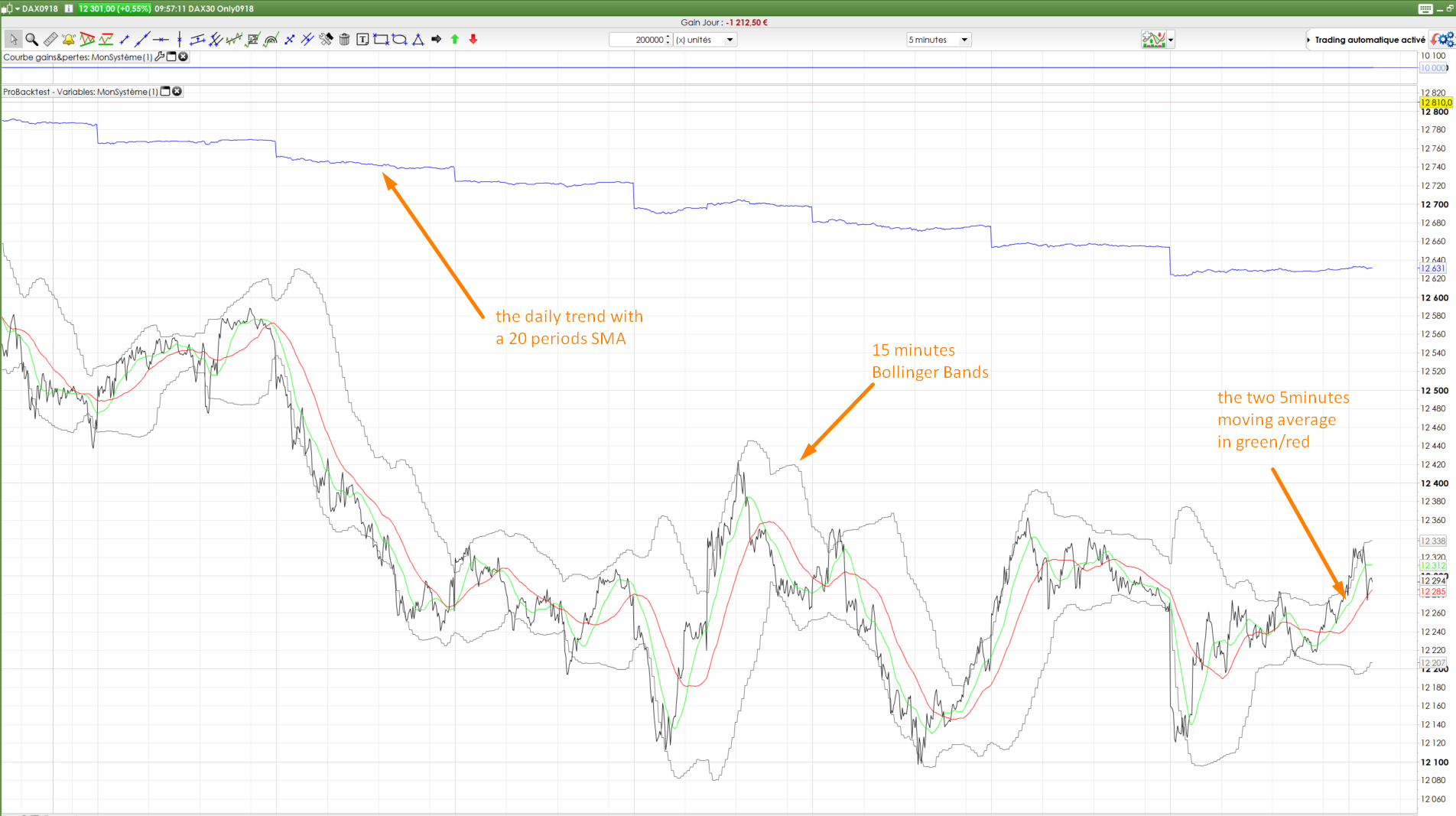
After launching the backtest, the chart will update automatically and you will have multi-timeframe (MTF) support for your manual trading too!
Of course, this is hijacking of the functionality to allow us to use it in our manual trading, you will not have candlesticks, nor all the graphical features that the ProBuilder language offers, but I think that this will interest many traders!
Multi-timeframe, a new approach for automatic trading with ProRealTime
I am very excited about the coming weeks, and all the new ideas that will emerge from our members. This new feature for automated trading will allow us to explore new strategies like never before with ProRealTime.
The discussions and test strategies have already started on the forum in this topic: [beta-testing] multi timeframe support for automatic trading, ideas are welcome! (I’ll meet you there for all your questions!).
ProRealTime has released a short video about benefit of the new engine that embed the Multi timeframe functionnality:
https://www.youtube.com/watch?v=3ed-WFGG1mA

