

PRT Launcher and Chromebook plus, linux 64

Viewing 5 posts - 1 through 5 (of 5 total)
  • Author
    Posts
  • #265570 quote
    Richard paul MartinRichard paul Martin
    Participant
    New

    i have been trying to run PRT launcher in Chromebook,plus, linus 64 without success.


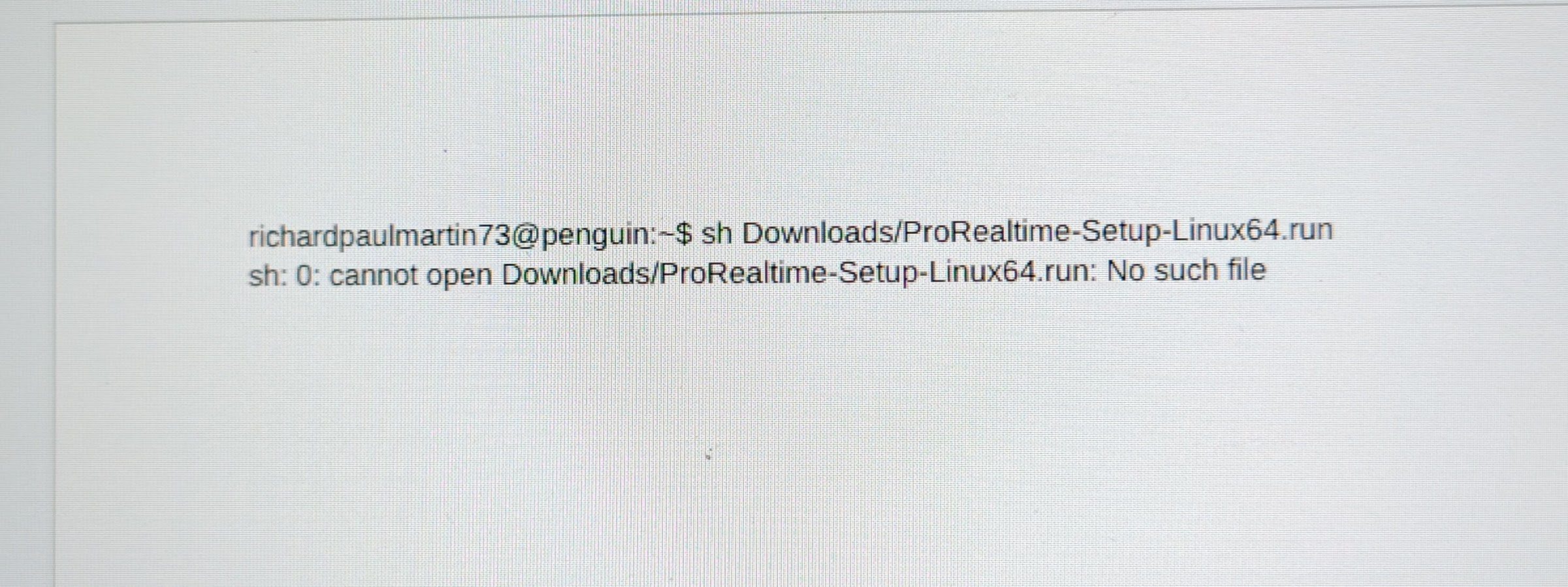
    Varius internet sources have told me to down load a file ‘ProRealTime-Setup-Linux64.run and enter this into the chrome book terminal


    As can be seen in the picture all i get is an errror prompt.

    I f anybody can help me with this I would be very gratefull.

    IMG_20261009_120954-1.jpg IMG_20261009_120954-1.jpg
    #265571 quote
    NicolasNicolas
    Keymaster
    Legend

    Hi Richard,

    Your screenshot explains the problem. The error “No such file” means the Linux terminal can’t see the installer. That’s normal on a Chromebook. The Linux environment runs in its own container. The “Downloads” folder you see in the ChromeOS Files app is not the same as the “Downloads” path inside the Linux terminal.

    Here is how to fix it:

    1. Open the Files app on your Chromebook.
    2. Find ProRealTime-Setup-Linux64.run in “Downloads” and drag it into “Linux files” in the left panel.
    3. Open the Terminal and type ls to check the file is there. Look at the exact name, because Linux is case sensitive. In your command you typed “ProRealtime” with a small t, and the file may be named “ProRealTime”. The easiest way to avoid typos is to type the first letters and press the Tab key to autocomplete.
    4. Make the file executable and launch it:


    chmod +x ProRealTime-Setup-Linux64.run
    ./ProRealTime-Setup-Linux64.run
    

    If you prefer to keep the file where it is, you can right click the Downloads folder in the Files app and choose “Share with Linux”. The folder will then be available in the terminal at /mnt/chromeos/MyFiles/Downloads/.

    One more thing to check before you go further. Type this in the terminal:


    uname -m
    

    If it returns x86_64, your Chromebook has an Intel or AMD processor and the Linux64 installer should work. If it returns aarch64, your Chromebook uses an ARM processor (some Chromebook Plus models use MediaTek chips), and the Linux64 installer will not run on it.

    Also, download the installer from the official ProRealTime website only, not from other internet sources.

    If the Linux route gives you too much trouble, there are two simpler options on a Chromebook, as mentioned in this older thread: https://www.prorealcode.com/topic/prorealtime-on-chrome-os/

    The web version of the platform runs in the Chrome browser: https://www.prorealtime.com/en/web

    The Android app is available on the Play Store: https://play.google.com/store/apps/details?id=com.prorealtime.prtmobile

    Let us know what uname -m returns if it still doesn’t work.

    #265578 quote
    Richard paul MartinRichard paul Martin
    Participant
    New

    Hi Nicolas


    Thankyou for replying with that useful and encouraging message. I would rather instal the PRT launcher as complete is what i prefer to use.

    that said I have done what you suggested ; moved the script to linux file; inout the two lines of code..as one line.should I have put as 2 lines because i have error message ‘cannot access the scdipt and no file or direrctory

    I appreciate your help


    Richard


    #265579 quote
    NicolasNicolas
    Keymaster
    Legend

    I’m not very familiar with Linux, so I’m using a little AI to help me answer your question. Here’s what I have:

    they need to be two separate commands. Type the first one, press Enter, then type the second one and press Enter again.

    But the error “cannot access … No such file or directory” tells me the terminal still can’t find the file under that exact name. So let’s check first what is really there.

    1. Open the Terminal and type this, then press Enter:


    ls
    

    This lists the files in your Linux folder. You should see the ProRealTime installer in the list. Look carefully at the exact name, it may be slightly different from what you typed (a capital letter, or something like “(1)” added at the end if you downloaded it twice).

    1. To avoid any typing mistake, you can use these two commands instead. The * replaces the rest of the name automatically:


    chmod +x ProReal*.run
    

    then


    ./ProReal*.run
    

    If the installer starts, just follow the steps on screen.

    If ls shows nothing or doesn’t show the installer, the file is not in the right place yet. In the Files app, make sure you dropped it directly into “Linux files” and not into a subfolder.

    If it still doesn’t work, please post a screenshot of the terminal after typing ls and uname -m, so we can see the exact file name and the type of processor of your Chromebook.

    #265581 quote
    Richard paul MartinRichard paul Martin
    Participant
    New

    Hi again

    Sorryy just got home


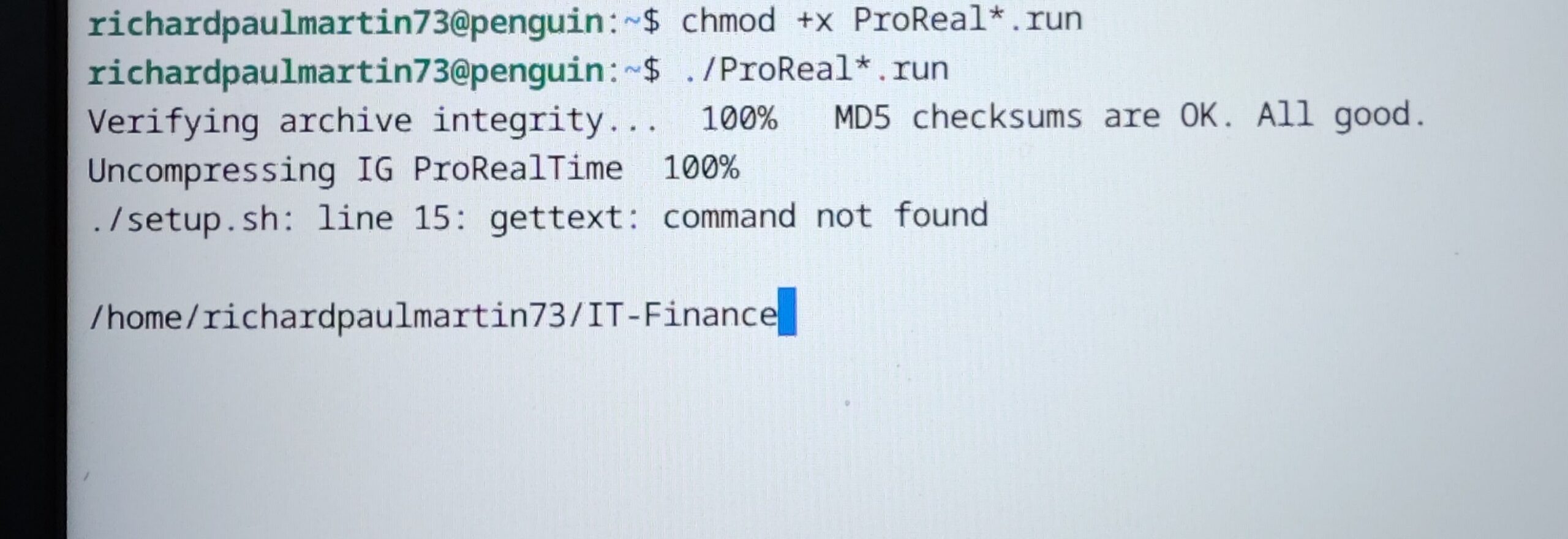
    I have done as you suggested and all except one error; Command not found;

    I’m hoping you can do your magic again!


    Richard

    IMG_20261009_200504-scaled.jpg IMG_20261009_200504-scaled.jpg
Viewing 5 posts - 1 through 5 (of 5 total)

  • You must be logged in to reply to this topic.

ProRealAI ProRealAI New

From idea to ProBuilder code in seconds.

Your coding copilot for ProRealTime™. Ask in plain English — get clean, ready-to-paste indicators, screeners and systems.

Available in 7 languages
Try ProRealAI

PRT Launcher and Chromebook plus, linux 64


Platform Support: Charts, Data & Broker Setup

New Reply
Summary

This topic contains 4 replies,
has 2 voices, and was last updated by Richard paul MartinRichard paul Martin
2 hours, 35 minutes ago.

Topic Details
Forum: Platform Support: Charts, Data & Broker Setup
Language: English
Started: 10/09/2026
Status: Active
Attachments: 2 files
ProRealCode ProRealCode
Loading...