

Hi all,
I am trying to modify some of the default behaviours of the tools on the sidebar and while I managed to get a custom setting for the ruler tool working, I literally cannot open the ‘Edit Tool’ menu for rectangle shapes and horizontal zones that you can use on the ruler.
Is this a bug that is common or is it my instance in particular?
Using the desktop version of the app – ProRealTime Complete V13.
Is there a way to edit these tools using config files / line changes?
Any help on this would be appreciated.
SnowblindTrades wrote: cannot open the ‘Edit Tool’ menu for rectangle shapes and horizontal zones that you can use on the ruler.
Try above in v12 just to see if it is possible and in v12 it is okay?
If okay re above then yes maybe it is a bug in v13, thanks and well spotted if it is?
Let us know your findings please?
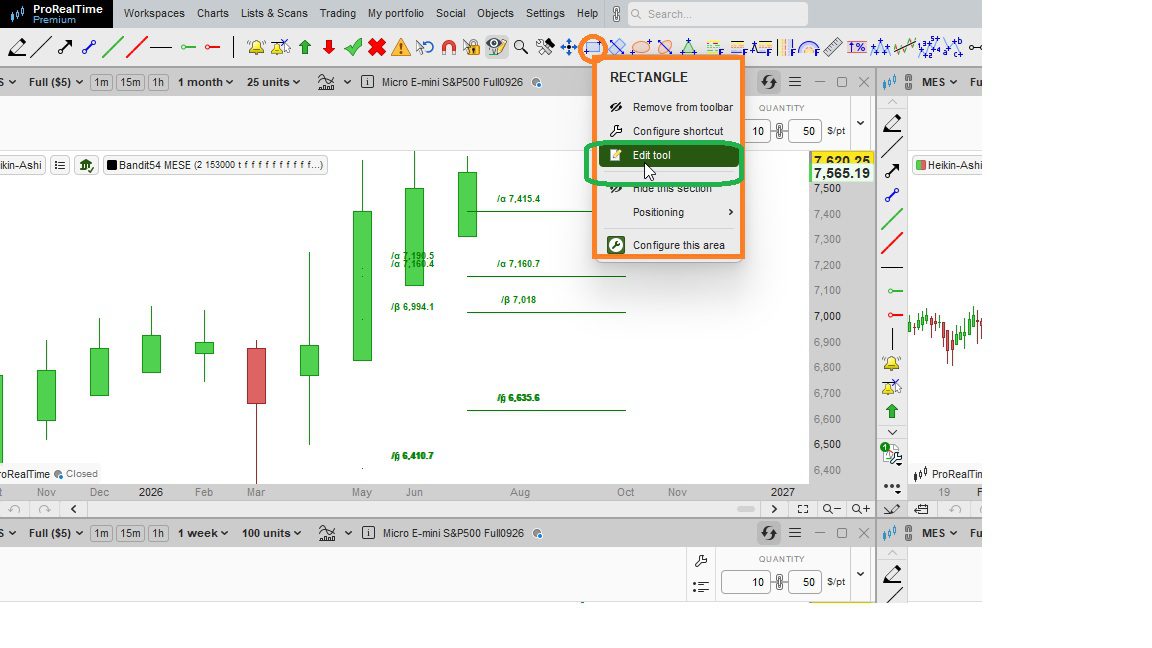
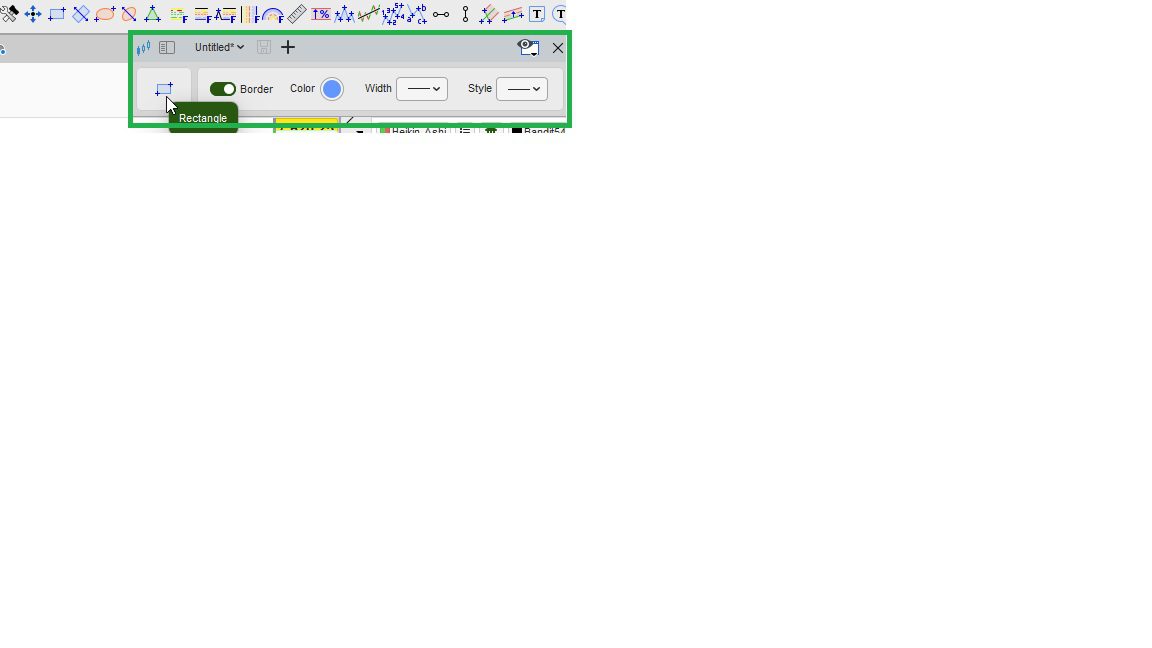
As you can see in Pic1, hovering the RECTANGLE icon and clicking it will open a window where you can select “Edit tool“. This, as shown in Pic2, will open the small editor tool to modify the rectangle. Once done, save it.
I hope this helps 🙂
I just tried with my ‘EOD data free Complete v13’ and I got same as Roberto shows above.
Aha but NO, there is something weird … the settings don’t save against ‘untitled’ config !?
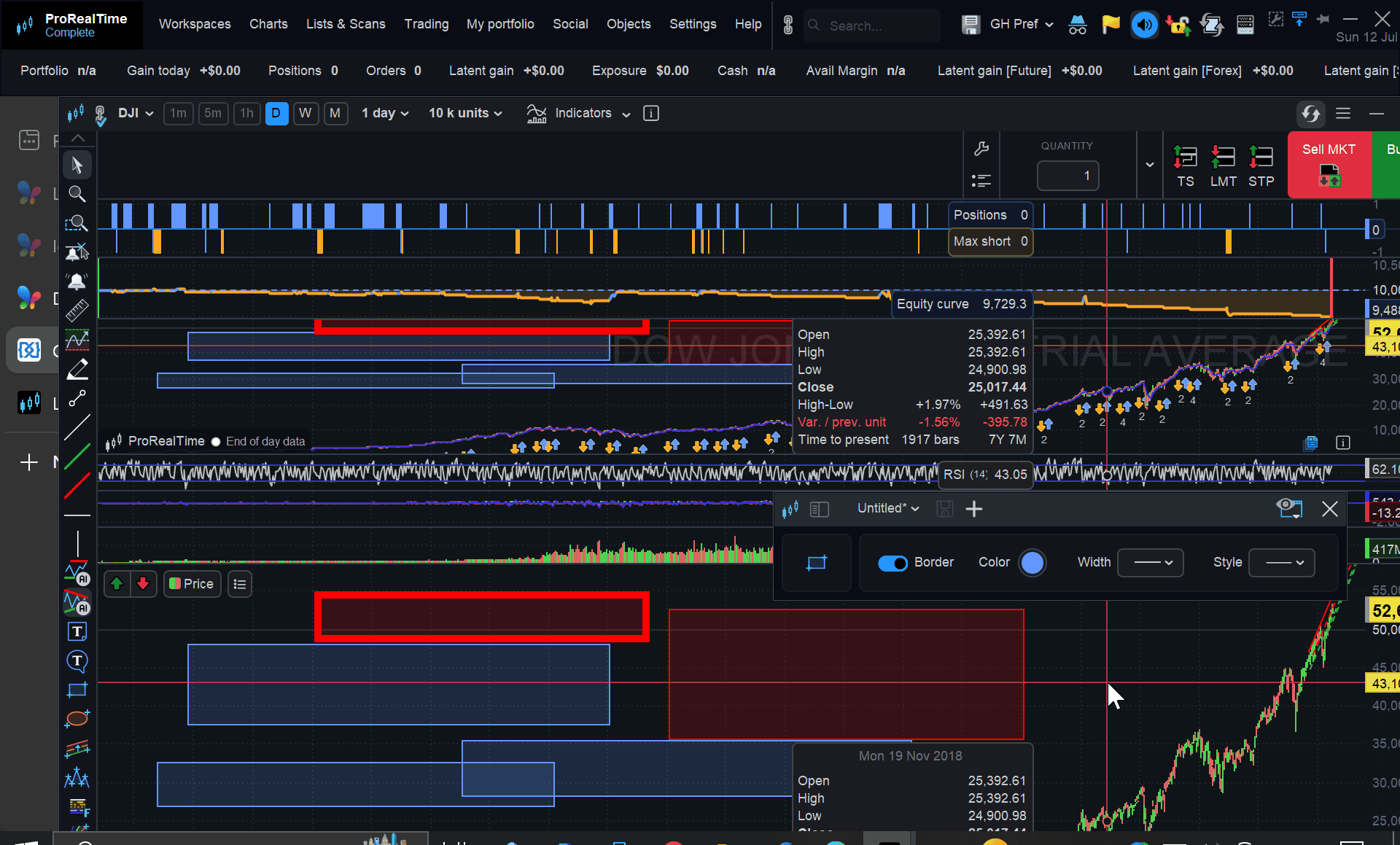
Only way I got the new setting / red rectangle was to draw in default blue, then select the rectangle then select GH Pref Config to get a red rectangle … see attached.
In other words, when I right click on rectangle > Edit, it always opens in untitled / default settings (even though I closed the Edit settings in GHPref with a red config).
If I am doing this wrong, let me know please?
.
GraHal wrote: If I am doing this wrong, let me know please?
Wrong again GraHal! 😉
The GH Pref / red rectangle has to be added to the Object Toolbar as a separate / additional icon.
Hello, apologies for the delay in my reply I only just returned to my desk.
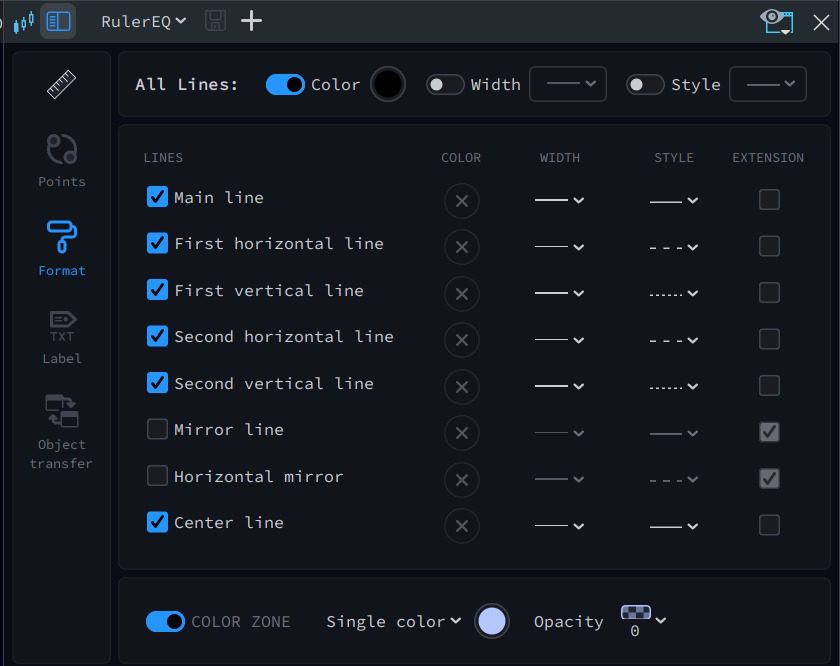
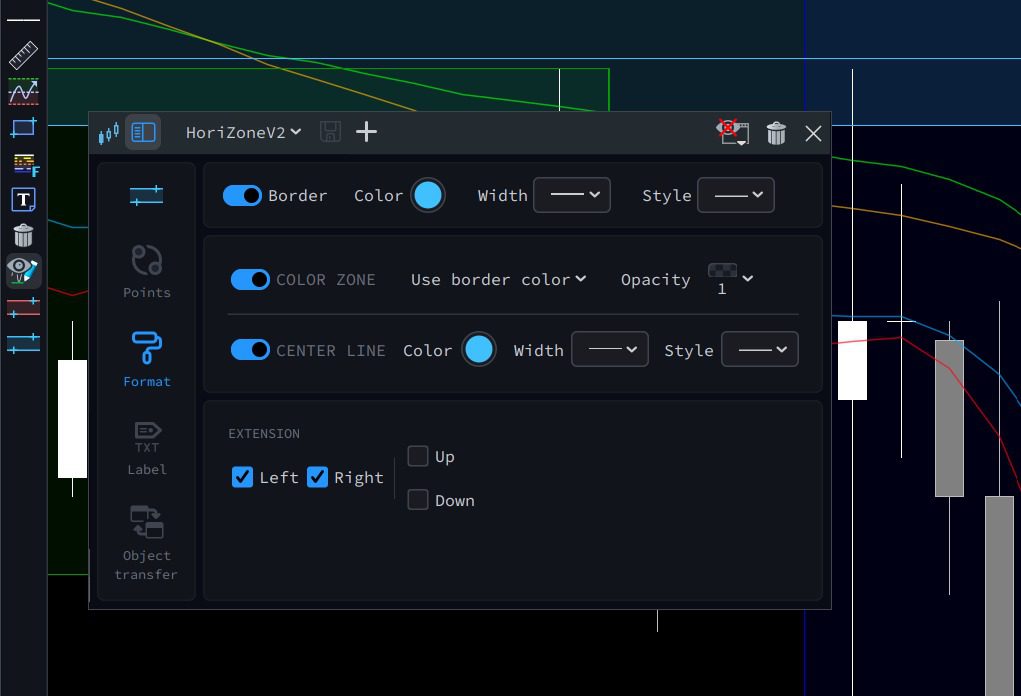
I attached the box that I’m referring to – I can open the Ruler when I right click and press Edit Tool, but if I do the same specifically for Rectangle and Horizontal Zone, no box appears at all – even under the charts or background etc.
@Grahal: Try above in v12 just to see if it is possible and in v12 it is okay?
@GraHal – I don’t have any prior versions of PRT – v13 is my first time using it, which I am using under a free trial at present.
Sorry if this isn’t much help – just sharing because I use these two drawing tools specifically on TradingView 🙁
SnowblindTrades wrote: I don’t have any prior versions of PRT
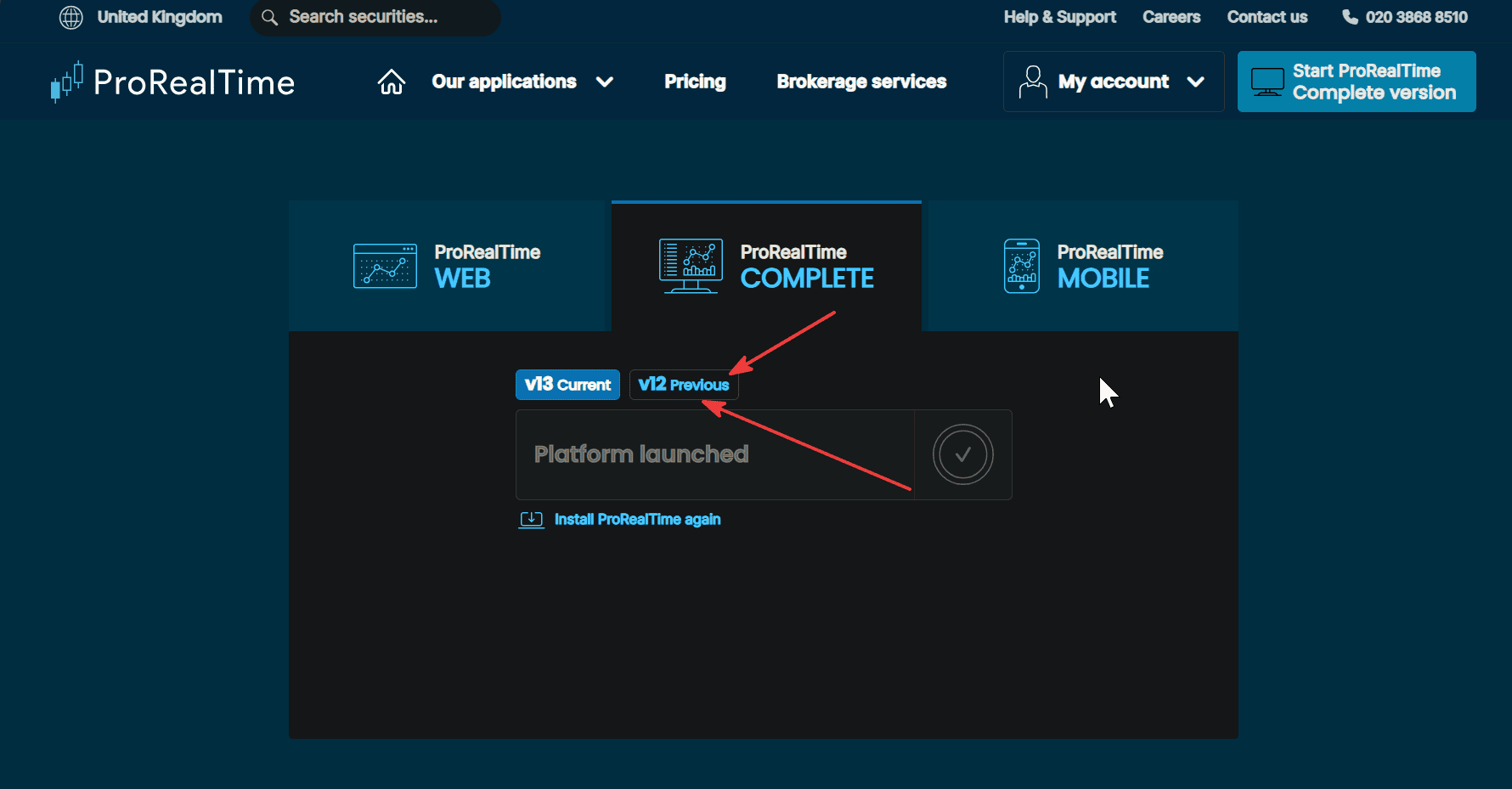
Do you not see attached when you login, see 2 red arrrowheads on attached.
Also I am confused why your ss shows edit options for the ‘Format’ tool, but your Objects Toolbar doesn’t even show the rectangle tool?
Idea – Import the attached ‘workspace profile’ GH Pref into your Platform and you should see the red rectangle as the 1st object on the left of the Objects Toolbar?
You can easily switch back to your preferred profile after import etc.
Let me know if above works re importing etc?
I am also trialling v13 non-trading (i.e. I’m not on the ‘2 week free trial’) and I have probably spent 4 or 5 hours since Friday ‘messing about with Settings’ to get the Platform how I like to use it.
SnowblindTrades wrote: just sharing
Weird thing is, even after several attempts, I can’t even find that ‘Format object’ that you show in your last ss.
I can launch both v13 (current) and v12 (previous), but I fear new users not having prior data saved on PRT’s servers cannot.
In any case, v12 behaves like v13 as to editing settings for graphical tools.
JSParticipant
Veteran
@GraHal, the image comes from TradingView…
Which image are you referring to that comes from TradingView?
@GraHal your workaround works, thanks. It is now added to the toolbar.
Still weird that it won’t just open the box like it does with the ruler tool.
GraHal wrote: /2026 at 8:50 AM
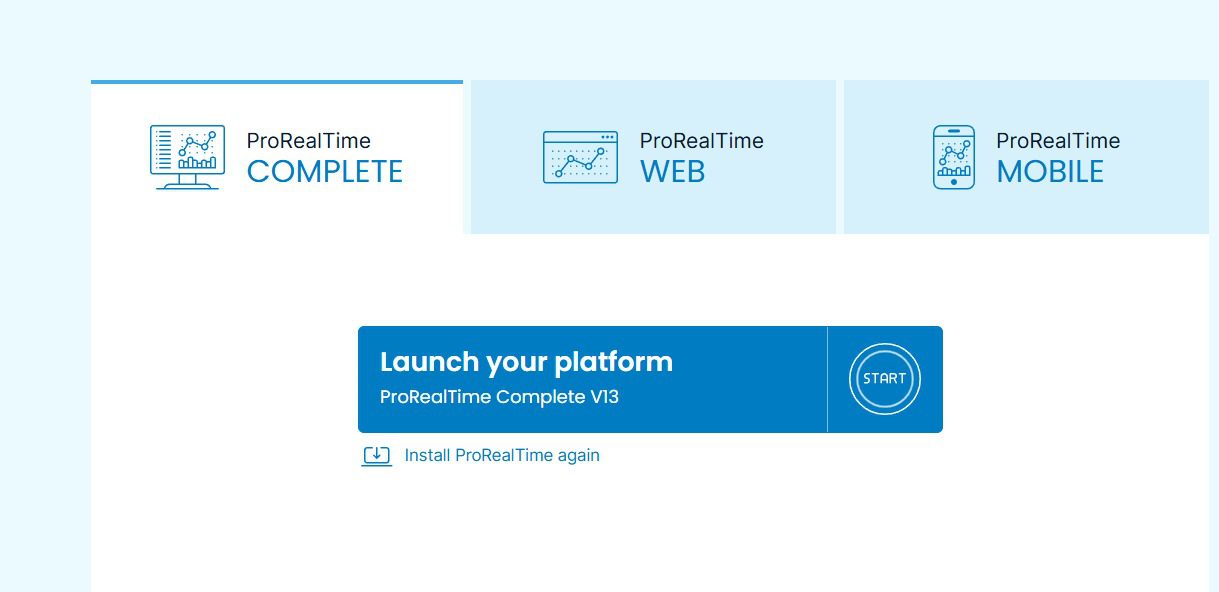
Just a quick one on this – when I go to launch my desktop platform it opens a web browser page and that is all I currently see – at least on my launch page it doesn’t seem to give me the option to use the older version.
Appreciate the help though – as mentioned above the workaround has allowed me to adjust and save a new default for the tools I wanted.